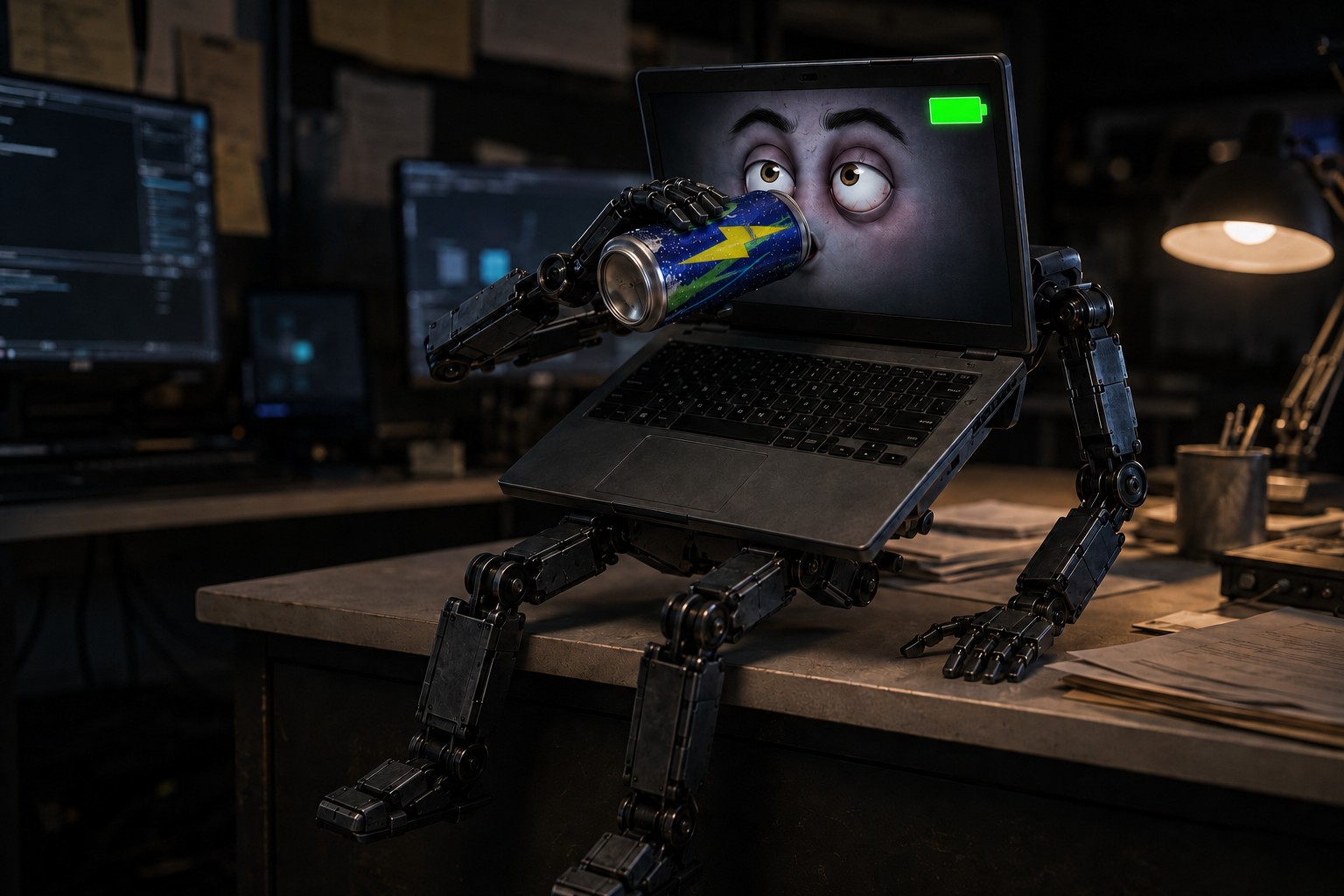
Many people assume computers simply become slow and unreliable because they are getting older. Age does matter, but it is rarely the only reason a system begins struggling. Dust buildup, overheating, low storage space, failing hard drives, outdated software, malware, and poor maintenance habits can make a relatively new computer feel worn out long before its time.
I have worked on computers more than ten years old that were still dependable because they had been cleaned, upgraded, and maintained properly. I have also seen much newer systems become nearly unusable because basic maintenance was ignored.
The good news is that extending the life of your computer does not always require expensive parts or advanced technical skills. These ten habits can improve reliability, reduce avoidable failures, and postpone the need for a replacement.
Keep the computer cool, maintain free storage space, install updates, protect it from malware, pay attention to warning signs, and always keep reliable backups.
1. Keep Dust Out of Your Computer
Dust is one of the most common causes of avoidable heat problems. Every computer relies on airflow to cool the processor, graphics card, power supply, storage devices, and other components. As dust collects in fans, vents, filters, and heatsinks, airflow becomes restricted.
Excessive heat can lead to:
- Loud or constantly running fans
- Reduced performance from thermal throttling
- Random shutdowns or restarts
- Shorter battery and component life
- Premature fan failure
A desktop computer should generally be inspected and cleaned every six to twelve months. Laptops should have their exterior vents cleaned regularly and may need internal cleaning every one to two years, especially if they are used in dusty environments or around pets.
Avoid using a household vacuum inside a computer because of static-electricity risks. Use compressed air or an electronics-safe electric air duster, and prevent fans from spinning freely while cleaning them.
2. Give the Computer Room to Breathe
Cooling systems can only work when air can move freely. Laptops placed on blankets, couches, beds, pillows, or carpet may have their intake vents blocked. Desktop towers can also overheat if they are pushed tightly against walls or enclosed inside poorly ventilated cabinets.
- Use laptops on a hard, flat surface.
- Consider a laptop stand for better airflow.
- Leave several inches of space around desktop exhaust vents.
- Keep intake filters and fan openings unobstructed.
- Avoid leaving computers in hot cars or direct sunlight.
Better airflow keeps internal temperatures lower, reduces fan noise, and decreases long-term stress on components.
3. Keep Windows and Important Software Updated
Updates are not only about new features. Windows updates frequently include security patches, driver improvements, bug fixes, and stability corrections. Browsers, antivirus tools, and other frequently used applications also need updates to remain secure and compatible.
Ignoring updates for months can create several problems:
- Security vulnerabilities remain unpatched.
- Applications may stop working correctly.
- Drivers may conflict with newer software.
- Windows may eventually require a much larger update all at once.
You do not need to install every optional preview update immediately, but keeping normal security and quality updates reasonably current is an important part of preventative maintenance.
4. Keep Enough Free Storage Space
Windows needs free storage for temporary files, application updates, browser caches, virtual memory, restore points, and normal system operation. When the system drive becomes nearly full, performance and reliability may suffer.
Aim to keep at least 15–20% of the system drive free . You can reclaim space by:
- Using Windows Storage Sense
- Cleaning temporary files
- Emptying the Downloads folder
- Removing unused programs
- Moving large photos and videos to another drive or cloud storage
- Deleting old installers and duplicate files
Avoid random “PC cleaner” programs that promise dramatic speed improvements. Windows already includes safe cleanup tools, and aggressive third-party cleaners can sometimes remove useful files or create new problems.
5. Upgrade a Mechanical Hard Drive to an SSD
If your computer still uses a traditional mechanical hard drive, replacing it with a solid-state drive is one of the most effective upgrades available.
An SSD can provide:
- Much faster startup times
- Faster application launches
- Quicker file searches and updates
- Lower power consumption
- Less heat and noise
- Better resistance to bumps and movement
An SSD does not make an old processor more powerful, but it removes one of the most common performance bottlenecks in older systems. Many computers that appear ready for replacement still have years of useful life after an SSD upgrade and a clean Windows installation or data migration.
6. Protect the Computer from Malware and Unwanted Software
Malware can damage files, steal information, create pop-ups, consume system resources, and make a computer feel dramatically slower. Unwanted browser extensions and bundled software can also cause problems even when they are not technically classified as viruses.
Good habits include:
- Keep Microsoft Defender or another trusted security product enabled.
- Download programs only from reputable sources.
- Be careful with email attachments and unexpected links.
- Review installation screens instead of clicking Next automatically.
- Remove browser extensions you no longer use.
- Avoid cracked software and suspicious “free” utilities.
Prevention is almost always easier and less expensive than removing a serious infection after the damage has been done.
7. Restart the Computer Regularly
Sleep mode is convenient, but some computers remain in a partially suspended state for weeks. Restarting clears temporary memory, reloads drivers and services, completes many Windows updates, and resolves small software issues before they become more noticeable.
A restart every few days or at least once a week is a healthy routine, especially for systems used heavily for work, school, or gaming.
A restart is different from shutting the laptop lid. Closing the lid usually puts the system to sleep rather than fully restarting Windows.
8. Keep Food and Drinks Away from the Computer
Liquid damage is one of the most expensive and unpredictable repairs. Coffee, soda, tea, water, and energy drinks can damage keyboards, motherboards, charging circuits, trackpads, displays, and batteries.
Sugary drinks are especially harmful because residue remains after the liquid dries and can cause corrosion or sticky keys. Damage may continue developing even if the computer initially appears to work.
Keeping drinks on a separate surface is a simple habit that can prevent hundreds of dollars in damage and protect important files.
9. Pay Attention to Warning Signs
Computers often give warning signs before a major failure. Ignoring those symptoms can turn a minor repair into a much larger problem.
Watch and listen for:
- Clicking or grinding noises
- Fans that suddenly become much louder
- Random freezes, crashes, or blue screens
- Overheating or repeated shutdowns
- A swollen laptop battery or lifting trackpad
- Burning smells or unusual electrical noises
- Frequent drive errors or disappearing files
- A charger or charging port that becomes excessively hot
Clicking from a mechanical drive can indicate impending failure. A swollen battery is a safety concern and should be replaced promptly. Early diagnosis usually gives you more repair options and a better chance of protecting your data.
10. Back Up Your Important Files
No amount of maintenance can guarantee that hardware will never fail. Drives can fail without warning, laptops can be dropped, malware can encrypt files, and liquid damage can make a system inaccessible.
A reliable backup can include:
- An external hard drive
- Cloud storage
- A network-attached storage device
- A second computer or secure off-site copy
A strong strategy is the 3-2-1 backup rule :
- Keep three copies of important data.
- Use two different storage types.
- Keep one copy off-site or in the cloud.
If your files exist in only one place, they are not truly backed up.
Bonus Habits That Can Add Years of Useful Life
- Use a quality surge protector or uninterruptible power supply.
- Remove programs you no longer use.
- Keep desktop and laptop chargers in good condition.
- Do not repeatedly bend charging cables near the connector.
- Replace swollen or failing batteries promptly.
- Monitor storage-drive health occasionally.
- Keep recovery information and important passwords organized.
- Transport laptops in a padded case.
Common Mistakes That Shorten a Computer’s Life
Never Cleaning It
Dust buildup happens gradually, so the resulting heat and fan noise may not be obvious until cooling performance has already declined.
Installing Every Free Utility
Too many background programs can slow startup, consume memory, create pop-ups, and increase the chance of unwanted software.
Filling the Drive Completely
A full drive leaves Windows little room for updates, temporary files, and normal system tasks.
Ignoring Battery Swelling
A swollen battery can damage the laptop chassis and should be treated as a safety issue, not merely an inconvenience.
Waiting Until the Computer Stops Working
Preventative maintenance and early diagnosis are usually less expensive than emergency repair or data recovery.
Technician’s Notes
Cleanliness: Keep fans, vents, and heatsinks free of dust.
Cooling: Maintain open airflow around the computer.
Storage: Keep 15–20% free and consider an SSD upgrade.
Software: Install important updates and remove unnecessary programs.
Security: Use trusted protection and safe browsing habits.
Data: Maintain current backups in more than one location.
Frequently Asked Questions
How long should a desktop computer last?
A well-maintained desktop can often remain useful for seven to ten years or longer, especially if storage, memory, and graphics components can be upgraded.
How long should a laptop last?
Many laptops remain dependable for five to eight years. Build quality, heat, battery condition, usage, and upgrade options all affect lifespan.
Is it bad to leave a computer on all the time?
Not necessarily, but regular restarts help Windows complete updates and refresh drivers and services. Continuous operation also means fans and storage devices remain active longer.
Should I shut down or use Sleep?
Sleep is convenient for daily use. Restart or shut down periodically so Windows can complete maintenance and updates.
How often should I clean my computer?
Inspect desktop computers every six to twelve months. Laptops may need internal cleaning every one to two years, depending on the environment and temperature.
Is an SSD upgrade worth it?
For a computer still using a mechanical hard drive, an SSD is often the most noticeable performance upgrade available.
How much free storage space should I keep?
Keeping approximately 15–20% of the system drive free gives Windows room for updates, temporary files, and virtual memory.
Can overheating permanently damage a computer?
Yes. Long-term excessive heat can shorten the life of batteries, storage devices, processors, graphics hardware, fans, and power components.
Do PC-cleaner applications help?
Some legitimate tools can help with specific tasks, but aggressive registry cleaners and one-click optimization programs are often unnecessary. Windows already includes safe maintenance utilities.
When should I replace rather than repair a computer?
Replacement may make sense when several major components are failing, repair costs approach the value of a newer system, or the computer cannot support required software. Many slow computers, however, only need maintenance or a targeted upgrade.
Final Thoughts
Computers do not have to become unusable simply because they are getting older. Regular cleaning, healthy airflow, adequate storage space, safe software habits, and timely upgrades can extend a system’s useful life by years.
Preventative maintenance also reduces the chance of sudden failures. Paying attention to warning signs and keeping reliable backups can save both money and irreplaceable data.
Many “old” computers are not truly worn out—they are overdue for maintenance. A professional cleaning, an SSD upgrade, software cleanup, and a thoughtful backup plan can often restore years of dependable service.
Need Help Maintaining or Upgrading Your PC?
Texas Tech Rescue can inspect your computer, clean the cooling system, check drive health, remove unwanted software, upgrade storage or memory, and help protect your important files.
Get Professional Help