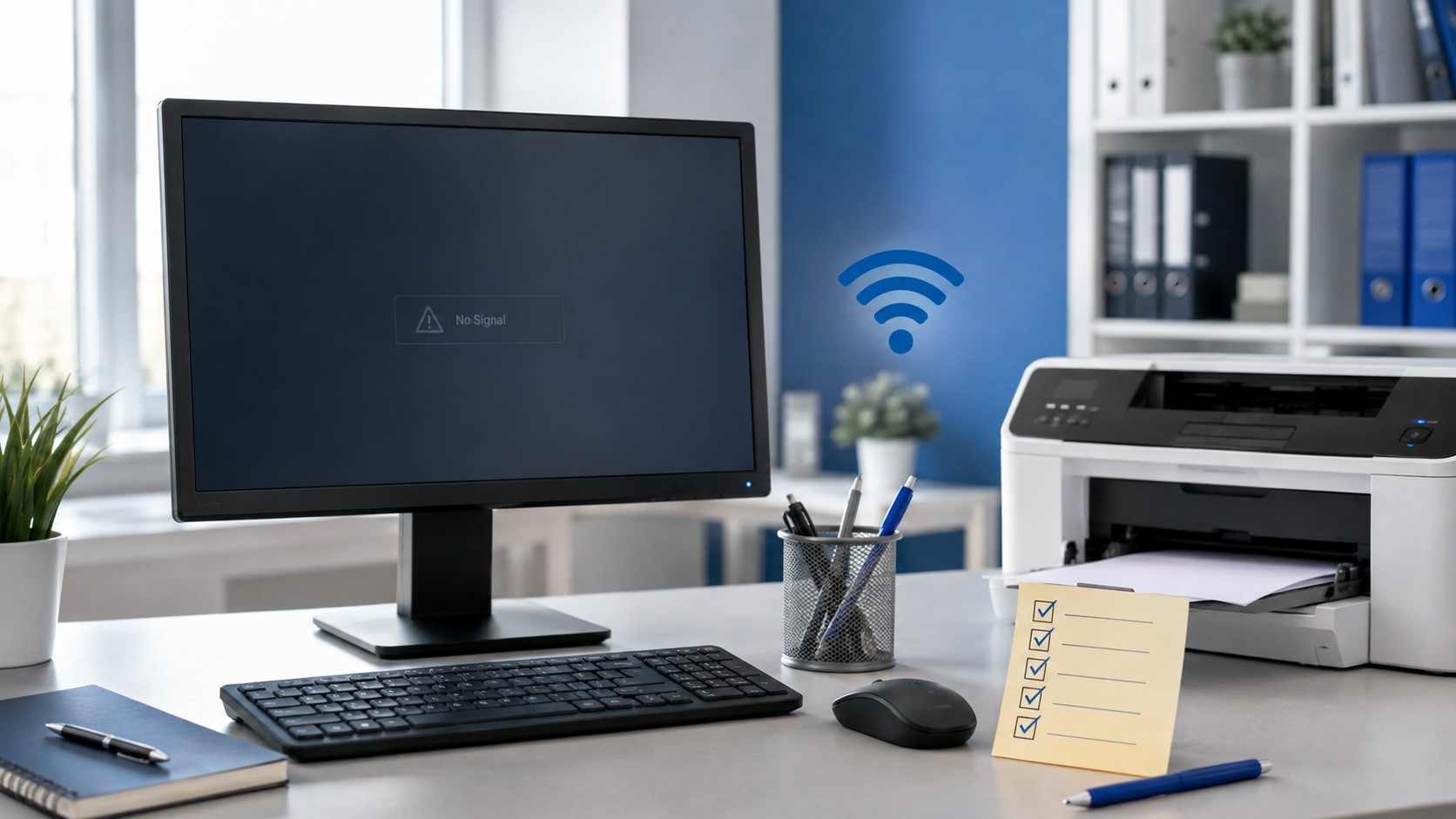
Sometimes a computer problem looks much worse than it actually is. After working in IT for a while, you start to realize that not every ticket requires a deep dive into Windows, a driver reinstall, or some mysterious command-line fix. Sometimes the solution is as simple as choosing the right Wi-Fi network, turning on a monitor, or clicking one button.
That does not mean the problem is silly. If you do not work with computers every day, it is completely reasonable to miss something that an IT technician notices almost immediately. Still, there are a few quick things worth checking before submitting a ticket or calling for help.
Here are five simple fixes based on real IT tickets I have personally encountered.
1. Make Sure You Are Connected to the Right Wi-Fi
This one happens more often than you might think. I have received multiple tickets from users who could not print to a company printer. The printer was online, the laptop was working, and nothing appeared to be wrong.
The problem? The laptop was connected to the guest Wi-Fi.
Many businesses separate their guest wireless network from their internal company network for security. A laptop on guest Wi-Fi may still have internet access, but it may not be able to communicate with internal devices such as company printers.
In those cases, the fix was simply connecting the laptop to the correct company Wi-Fi network and trying again. The printer immediately worked.
Problem: “I can't print to the company printer.”
Cause: Laptop connected to guest Wi-Fi.
Resolution: Connected to the company network. Printing restored. Ticket closed.
Before calling IT, check:
- Which Wi-Fi network you are connected to
- Whether you are connected to a guest network
- Whether other company resources are also unavailable
- Whether reconnecting to the correct network fixes the problem
Sometimes the printer is working perfectly. Your computer just cannot see it from the network you are currently using.
2. Check Your Printer Settings
Printers deserve their own section because they seem to create an endless variety of support tickets.
One ticket I received was a request to add a printer to a user's computer. When I checked the computer, the printer was already installed. It simply was not set as the default printer.
I clicked Set as default, and the ticket was finished.
Another user contacted IT because their document was not printing on the correct color paper. Nothing was wrong with the printer. The printer had multiple paper trays, and the job was being sent to the wrong tray. After selecting the correct tray, the document printed exactly as expected.
Ticket 1: “Can you add the printer to my computer?” The printer was already installed; it only needed to be set as the default printer.
Ticket 2: “The printer won't print the correct color paper.” The print job was using the wrong tray. Selecting the correct tray solved the problem.
Before assuming the printer is broken, check:
- Is the correct printer selected?
- Is it set as the default printer?
- Is the correct paper tray selected?
- Is the printer showing Offline or Paused?
- Is there a stuck print job in the queue?
- Does the printer have paper and toner?
Printer problems can absolutely become complicated, but sometimes the solution is sitting right inside the print menu.
3. Make Sure the Monitor Is Actually Turned On
I once received a ticket because a user's “computer would not turn on.” That sounds like a potentially serious problem. Power supply failure? Bad docking station? Dead computer?
Not quite.
The computer was running. The monitors were turned off.
Once the monitors were powered back on, everything worked normally. This is a good example of why it helps to separate the computer itself from the display when troubleshooting a black screen.
Problem: “My computer won't turn on.”
Diagnosis: Computer was already powered on.
Resolution: Turned on the monitors. Ticket closed.
If your screen is black, check:
- Is the monitor's power light on?
- Is the monitor connected to power?
- Is the HDMI or DisplayPort cable connected securely?
- Is the monitor set to the correct input?
- Is the computer itself actually powered on?
A black screen does not always mean a dead computer. Sometimes it just means the screen is off.
4. Check Your Keyboard and Mouse Connections
This article was partly inspired by a ticket I handled one morning involving a keyboard and mouse replacement. Replacing a basic wired keyboard or mouse is usually straightforward, but peripherals can stop responding for several simple reasons.
Before assuming the device has failed, check the connection. For a wired keyboard or mouse, unplug it and reconnect it. If possible, try another USB port. For a wireless device, check the batteries and make sure the USB receiver is connected.
Try:
- Unplugging and reconnecting the device
- Using another USB port
- Replacing wireless batteries
- Checking the wireless USB receiver
- Restarting the computer after reconnecting the device
USB devices occasionally fail to initialize correctly, and reconnecting them may be all it takes.
5. Restart the Computer
Yes, IT really does ask this question all the time. And yes, there is a reason.
Restarting a computer can clear temporary errors, restart services, finish updates, reset hardware connections, and resolve strange software behavior. It is one of the simplest troubleshooting steps available, and it solves a surprising number of problems.
On modern Windows computers, I specifically recommend choosing Restart instead of simply shutting the computer down and turning it back on. Windows Fast Startup can cause a shutdown to behave differently from a full restart, so a proper restart is often the better troubleshooting step.
If something suddenly starts behaving strangely, save your work and choose Start > Power > Restart before assuming something major has failed.
Bonus Checks
There are a few other quick things worth checking before reaching out for help.
- Make sure your laptop charger or docking station is connected
- Check whether your speakers or headset are muted
- Make sure Caps Lock is not causing your password to fail
- Verify that Airplane Mode was not accidentally enabled
- Check whether a cable was recently moved or unplugged
- If the problem involves a wireless accessory, replace the batteries
These checks may sound simple, but simple problems create real support tickets every day.
When You Should Call IT
There is also nothing wrong with calling IT when you need help. If you have tried the basic checks and the problem continues, that is exactly what support is there for.
You should especially contact IT if you are seeing error messages you do not understand, repeated crashes, unusual pop-ups, security warnings, lost files, hardware damage, or anything involving company systems that you are not authorized to change.
The goal is not to avoid IT entirely. The goal is to rule out the quick fixes first.
Sometimes a problem requires serious troubleshooting. And sometimes the entire resolution is:
- Connected to the correct Wi-Fi.
- Selected the correct printer tray.
- Turned on the monitor.
- Set the printer as default.
- Ticket closed.
Frequently Asked Questions
Should I restart my computer before calling IT?
In many cases, yes. Save your work first, then use the Windows Restart option. A restart can clear temporary software problems and reset services or hardware connections without requiring any advanced troubleshooting.
Why can I use the internet on guest Wi-Fi but not print?
Guest networks are often separated from internal business devices for security. You may still have internet access while being unable to reach printers, shared drives, or other company resources on the internal network.
Does a black monitor mean my computer is broken?
Not necessarily. Check the monitor's power, input selection, and display cable first. If the computer has lights, fan noise, or other signs of activity, the issue may be limited to the display or its connection.
When should I stop troubleshooting and contact IT?
Contact IT if the basic checks do not solve the problem, if you see security warnings or repeated crashes, or if fixing the issue would require changing settings or systems you are not authorized or comfortable modifying.
Still Need Help?
If the quick checks in this article did not solve the problem, Texas Tech Rescue can help diagnose the issue and recommend the right repair or solution.
Get Professional Help