Your computer feels slow.
Naturally, everyone has a theory.
Maybe you need more RAM.
Maybe the processor is too old.
Maybe the SSD is full.
Maybe Windows is doing something mysterious in the background.
Maybe Chrome has opened enough processes to establish its own sovereign nation.
Before buying parts or reinstalling Windows, there is a much better place to start:
Task Manager.
Windows Task Manager gives you a live look at what your computer is doing and which resources are being used.
Used correctly, it can help answer a much more useful question than:
“Why is my computer slow?”
Instead, we can ask:
“What resource is actually being overwhelmed when the computer slows down?”
That distinction can save a lot of unnecessary troubleshooting—and money.
How to Open Task Manager
There are several ways to open Task Manager.
One of the fastest is:
Ctrl + Shift + Esc
You can also right-click the Start button and select Task Manager, or search for it from the Start menu.
Once Task Manager opens, you will see information about running applications, background processes, hardware utilization, startup programs, and more.
For troubleshooting performance, the two areas we care about most are:
- Processes
- Performance
The Processes view tells us who is using the resources.
The Performance view tells us which resource is under pressure.
Those two pieces of information work together.
Reproduce the slowdown while Task Manager is open. The most useful clue is often the resource that becomes heavily utilized at the same moment the computer starts feeling sluggish.
Start With the Processes Tab
The Processes section shows applications and background processes currently running on the computer.
You will generally see columns for things such as:
- CPU
- Memory
- Disk
- Network
- GPU
These numbers change constantly.
That is normal.
Your computer is doing work in the background even when you are not actively clicking anything.
What we are looking for is a resource that remains unusually high—especially at the same time the computer feels slow.
Sort the Columns
This is one of the simplest and most useful tricks in Task Manager.
Click the heading for CPU and Task Manager will sort processes by processor usage.
Click Memory, and it sorts by RAM usage.
Click Disk, and it shows which processes are using storage most heavily.
You can do the same for Network or GPU.
This immediately answers:
“Who is using all of that?”
Instead of staring at 80 processes and wondering what half of them are, let Windows move the biggest offenders to the top.
High CPU Usage: The Processor Is Busy
CPU stands for Central Processing Unit.
It performs much of the general computing work required by Windows and your applications.
If CPU usage reaches or remains near 100%, the processor may be the current bottleneck.
High CPU Usage Can Be Caused By:
- Windows updates
- Antivirus scans
- Web browsers
- Games
- Video encoding
- Software installation
- Background applications
- Driver problems
- Malware
- A program that has stopped behaving properly
High CPU usage is not automatically bad.
If you are rendering video and the CPU sits at 95%, that may simply mean you are using the hardware you paid for.
The more important question is:
What is using the CPU, and should it be doing that?
Example
Suppose the computer becomes sluggish.
You open Task Manager and see:
CPU: 98%
Then you sort by CPU usage and discover one application consuming 75%.
Now we have something useful.
The computer isn't just “slow.”
One specific application is heavily loading the processor.
That gives us somewhere to investigate.
A Short Spike to 100% Is Not Necessarily a Problem
This is important.
Opening Task Manager itself can temporarily increase CPU usage.
Launching applications causes spikes.
Windows performs background maintenance.
Antivirus software scans files.
Processes start and stop.
Seeing CPU: 100% for two seconds is not automatically evidence that something is wrong.
What matters is persistent high utilization combined with actual performance problems.
Context matters.
Task Manager is a diagnostic tool—not a panic meter.
High Memory Usage: You May Be Running Out of RAM
Memory refers to your computer's RAM.
RAM provides fast temporary storage for programs and data currently being used.
As you open applications, browser tabs, games, documents, and background utilities, memory usage increases.
This is completely normal.
Unused RAM exists to be used.
When Does Memory Usage Become a Problem?
Memory becomes more concerning when the system consistently operates near its available capacity and begins struggling during normal use.
You might notice:
- Programs becoming sluggish
- Tabs reloading
- Delays when switching applications
- Applications freezing
- Increased disk activity
- General sluggishness while multitasking
If Task Manager repeatedly shows memory usage around the upper limits of what is installed, you may genuinely benefit from additional RAM.
But check what is consuming the memory first.
Chrome Is Using HOW Much RAM?
Web browsers often appear near the top of the memory list.
That does not necessarily mean anything is wrong.
Modern browsers frequently separate tabs, extensions, graphics processes, background services, and security processes into multiple processes.
So seeing fifteen browser processes when you only opened one browser window does not mean fifteen copies of Chrome secretly launched themselves.
Although sometimes it certainly feels that way.
Check Your Browser Habits
If the browser is consuming several gigabytes of RAM, look at:
- Number of tabs
- Browser extensions
- Web applications
- Video streaming
- Large cloud applications
- Multiple browser profiles
Sometimes the easiest performance upgrade costs exactly zero dollars.
Close the 47 tabs you have been “meaning to read.”
You know who you are.
For a deeper look at memory capacity, see How Much RAM Do You Really Need?
High Disk Usage: Your Storage Drive Is Busy
The Disk column shows storage activity.
This is one of the most useful measurements when diagnosing older computers.
A system with a mechanical hard drive may regularly hit 100% Disk while Windows updates, antivirus software, search indexing, or applications try to access files.
And when a mechanical drive becomes saturated, the entire computer can feel painfully slow.
Applications take forever to open.
Menus hesitate.
Windows becomes unresponsive.
Task Manager opens approximately sometime next Thursday.
High Disk Usage Can Be Caused By:
- Windows Update
- Antivirus scans
- Search indexing
- Large file transfers
- Cloud synchronization
- Paging due to insufficient RAM
- Failing storage
- Background applications
- Mechanical hard-drive limitations
If an older computer consistently hits 100% disk utilization while using a mechanical HDD, an SSD upgrade may provide a dramatic improvement.
That is why storage type matters so much.
For a deeper comparison, see SSD vs HDD: Which Upgrade Is Right?
100% Disk Does Not Mean the Drive Is Full
This confuses a lot of people.
Disk utilization and storage capacity are different measurements.
A drive can have 500 GB free and still show 100% Disk in Task Manager.
The 100% figure means the drive is fully occupied handling read/write requests at that moment.
It does not mean every byte of storage is full.
Likewise, a nearly full SSD may display low disk utilization if nothing is actively accessing it.
Different problem.
Different measurement.
High Network Usage: Something Is Moving Data
The Network column shows applications actively sending or receiving network traffic.
High network usage may come from:
- Cloud backups
- Windows updates
- Game downloads
- OneDrive
- Streaming
- File synchronization
- Browser downloads
- Video calls
- Software updates
If the internet suddenly feels slow, Task Manager may reveal that another application is quietly using most of the connection.
Perhaps Windows Update decided your Zoom meeting was the ideal moment to download several gigabytes.
Timing has never been one of Windows' strongest social skills.
High GPU Usage: Your Graphics Processor Is Working
The GPU handles graphics-related workloads.
Games are the obvious example, but GPU acceleration is also used by:
- Web browsers
- Video playback
- Video editing
- Creative applications
- AI workloads
- Windows interface effects
- Some productivity applications
High GPU usage during gaming or rendering is expected.
But unexpected GPU activity while the computer is otherwise idle may deserve investigation.
Task Manager can help identify which application is responsible.
Use the Performance Tab to See the Bigger Picture
The Processes section tells you which programs are consuming resources.
The Performance section gives you a broader view of the hardware.
You can inspect:
- CPU
- Memory
- Disk
- Wi-Fi or Ethernet
- GPU
This view is useful because it gives you graphs showing activity over time.
Instead of seeing one instantaneous number, you can watch how the computer behaves for several seconds while reproducing the problem.
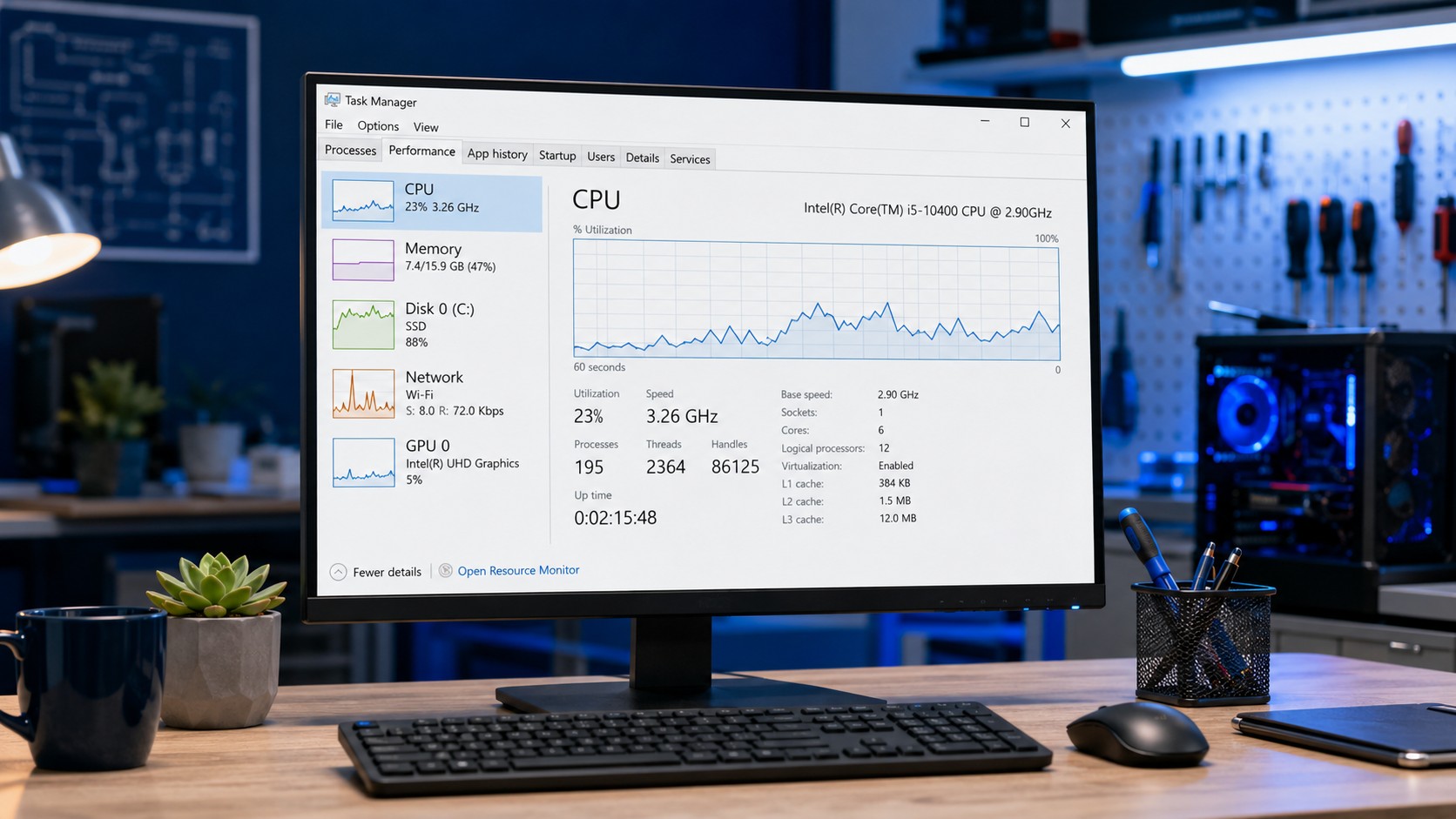
CPU: Look Beyond the Percentage
In the CPU section, Task Manager can provide information such as:
- Current utilization
- Current speed
- Base speed
- Number of cores
- Logical processors
- Uptime
This can help provide context.
For example, high CPU utilization combined with unusually low clock speeds may raise questions about:
- Power settings
- Thermal throttling
- Laptop power limits
- Cooling problems
That does not mean Task Manager alone can diagnose overheating.
But it can point us in the right direction.
Memory: Check How Much RAM Is Actually Installed
The Memory section shows how much RAM the computer has and how much is currently being used.
This is much more useful than simply assuming:
“My computer is slow, therefore I need RAM.”
Suppose a computer has 16 GB installed and uses only 6 GB during its normal workload.
Installing 32 GB probably will not transform performance.
The existing RAM was not the bottleneck.
On the other hand, if an 8 GB system routinely sits near its limit while the user works, a memory upgrade may make perfect sense.
Before upgrading, identify the problem first.
Disk: Check Whether You Have an HDD or SSD
Task Manager can also help identify the storage drive being used by the system.
This is especially useful when working on older computers.
If Windows is installed on a mechanical HDD and disk utilization constantly reaches 100%, storage performance may be a major reason the computer feels slow.
Moving Windows to an SSD can dramatically improve:
- Boot times
- Application launching
- Updates
- File access
- General responsiveness
Watch Task Manager While Reproducing the Problem
This is where Task Manager becomes genuinely useful.
Do not just open it while the computer is sitting idle.
Reproduce the problem.
If the computer slows down when opening Chrome:
Open Task Manager.
Then open Chrome.
Watch what changes.
If performance drops during a video call:
Keep Task Manager open while joining the call.
If games begin stuttering after ten minutes:
Watch CPU, memory, disk, and GPU activity while the problem occurs.
We want to see what changes at the same moment the symptom appears.
That correlation matters.
What Does an Idle Computer Look Like?
There is no universal perfect idle percentage.
Windows always has background processes running.
CPU usage may fluctuate.
Memory will remain occupied.
The disk may occasionally become active.
Network traffic may briefly appear.
The goal is not to force every graph to zero.
A computer with 0% CPU, 0% Disk, and 0 MB RAM would not be an optimized computer.
It would be turned off.
Do Not End Every Process You Don't Recognize
Task Manager includes an End Task option.
That does not mean you should use it on everything with a strange name.
Windows contains many background services and system processes that ordinary users may never recognize.
Ending the wrong process can:
- Close applications
- Interrupt Windows components
- Cause data loss
- Temporarily break features
- Force applications to restart
If you do not recognize a process, investigate it before terminating it.
A process having a weird name is not proof that it is malicious.
Windows has been naming things like an engineer lost a bet for decades.
Look at Startup Apps Too
Slow performance does not always begin after Windows loads.
Sometimes the real problem is everything trying to launch at once.
Many applications configure themselves to start automatically when you sign in.
Examples include:
- Chat clients
- Game launchers
- Cloud-storage tools
- Printer utilities
- Update agents
- RGB software
- Music applications
- Manufacturer utilities
Individually, they may be harmless.
Collectively, they can create a miniature stampede every time Windows starts.
Task Manager's startup section can help identify programs launching automatically.
Should You Disable Every Startup Program?
No.
Some startup applications are genuinely useful.
You may want:
- Security software
- Cloud synchronization
- Audio utilities
- Touchpad software
- Hardware-control software
- Business applications
The goal is not:
Disable everything.
The goal is:
Disable things you do not need starting automatically.
For example, if you use a game launcher twice a month, it probably does not need to greet you every morning before you have finished your coffee.
Startup Impact Can Be Helpful
Windows may rate applications by their startup impact.
That can help identify programs contributing heavily to sign-in time.
An application with a high startup impact is not automatically bad.
But if you do not need it running at startup, disabling automatic launch may improve the experience.
You can still open the program manually whenever you need it.
What If Task Manager Shows Nothing Obviously Wrong?
This happens.
The computer feels slow, but:
- CPU looks reasonable
- RAM is not full
- Disk activity is low
- GPU is fine
That tells us something too.
The problem may involve:
- Heat or thermal throttling
- Storage health
- Driver problems
- Windows corruption
- Background latency
- Malware
- Power settings
- Failing hardware
- Application-specific problems
Task Manager is useful, but it is not an X-ray machine for the entire computer.
A normal-looking Task Manager does not mean the user imagined the performance problem.
It simply means we need another diagnostic tool.
One Resource at 100% Does Not Automatically Mean You Found the Problem
This is another important point.
Suppose CPU usage reaches 100% while opening a large program.
That may be completely expected.
Suppose disk usage briefly reaches 100% during a file transfer.
Also expected.
Suppose GPU usage reaches 99% during a game.
That may be exactly what we want.
High utilization only becomes meaningful when it aligns with:
- Unexpected behavior
- Poor responsiveness
- Excessive duration
- An inappropriate process
- Performance below what the hardware should deliver
Numbers need context.
Otherwise Task Manager becomes the computer equivalent of staring at your car's tachometer and assuming 4,000 RPM means the engine is broken.
The Bottleneck Can Change
Another thing people often overlook is that a computer does not have one permanent bottleneck.
The limiting component changes depending on what you are doing.
- Opening Windows may be storage-heavy.
- Running many browser tabs may be memory-heavy.
- Rendering video may be CPU-heavy.
- Gaming may be GPU-heavy.
- Downloading a huge game may be network-heavy.
That is why “What component is slowing down my computer?” doesn't always have one answer.
A better question is:
“What component is limiting this particular workload?”
A Practical Example
Imagine an older laptop with:
- 8 GB RAM
- Mechanical hard drive
- Decent processor
- Integrated graphics
The user says:
“This laptop is painfully slow.”
We open Task Manager while using it.
- CPU: 22%
- Memory: 71%
- Disk: 100%
- GPU: 4%
And the disk stays near 100% while basic applications open.
That immediately makes the storage drive interesting.
Installing another 8 GB of RAM might help multitasking slightly.
Buying a new processor is probably impossible.
But replacing that mechanical drive with an SSD could completely change how the computer feels.
That's why diagnosis comes before upgrades.
Another Example
Now imagine a different computer:
- CPU: 35%
- Memory: 96%
- Disk: 8%
- GPU: 3%
The user has:
- 8 GB RAM
- 38 browser tabs
- Teams
- Outlook
- Excel
- Several background applications
In this case, storage is not screaming for help.
Memory is.
Adding RAM may be much more useful.
Same symptom:
“My computer is slow.”
Completely different cause.
Yet Another Example
Gaming computer:
- CPU: 48%
- Memory: 63%
- Disk: 5%
- GPU: 99%
The game is running at 1440p with maximum graphics settings.
That may simply mean the graphics card is doing exactly what it is supposed to do.
Upgrading RAM because Task Manager showed a big number somewhere would accomplish very little.
This is why understanding the numbers matters more than simply noticing them.
Task Manager Helps You Avoid Random Upgrades
This ties directly into something I recommend constantly:
Upgrade the bottleneck, not the specification sheet.
If RAM is not running out, more RAM may not help.
If the SSD is barely active, replacing it may not address the problem.
If CPU usage is constantly maxed out during the workload you care about, a storage upgrade cannot magically create additional processing power.
Throwing parts at a computer is easy.
Finding the correct limitation is better.
For more examples, see 5 Upgrades That Can Make an Old Computer Feel New Again.
When Task Manager Points to Malware
Unusual resource usage can sometimes be caused by malware, but high utilization alone does not prove infection.
Potential warning signs include:
- Unknown processes consuming large resources
- Heavy CPU usage while idle
- Unexpected network traffic
- Suspicious startup applications
- Processes repeatedly returning after being closed
- Performance problems combined with pop-ups or browser changes
Do not assume every unfamiliar Windows process is malicious.
If suspicious behavior appears alongside other warning signs, security investigation becomes more appropriate.
When Should You Seek Professional Help?
Task Manager is an excellent starting point, but professional diagnostics may make sense when:
- The computer remains slow despite normal-looking utilization
- Disk usage constantly reaches 100%
- CPU usage remains abnormally high
- Memory is regularly exhausted
- Performance drops as the computer heats up
- The computer freezes or crashes
- Storage health is questionable
- You suspect malware
- You are considering upgrades but do not know which component matters
- Performance suddenly changed without an obvious reason
A good diagnostic should identify why the machine is slow before recommending hardware.
Otherwise we are just shopping with extra steps.
A Simple Task Manager Troubleshooting Routine
When your computer starts feeling slow:
- Open Task Manager with Ctrl + Shift + Esc.
- Go to Processes.
- Look at CPU, Memory, Disk, Network, and GPU.
- Sort whichever resource appears unusually high.
- Identify the application using it.
- Reproduce the problem while watching Task Manager.
- Check the Performance section for the bigger hardware picture.
- Determine whether the behavior is temporary or persistent.
- Investigate the process before ending or removing anything.
- Only consider upgrades after identifying an actual limitation.
That is considerably more useful than immediately Googling:
“BEST PC OPTIMIZER 2026 FREE DOWNLOAD.”
Please don't do that.
We were having such a nice day.
Final Thoughts
Task Manager will not solve every performance problem.
But it can tell you something extremely valuable:
where to look next.
If CPU is saturated, investigate processor usage.
If memory is exhausted, investigate RAM usage.
If the disk stays at 100%, investigate storage.
If network activity is unexpectedly high, find what is transferring data.
If the GPU is maxed out, determine whether the workload explains it.
Good troubleshooting is about narrowing possibilities.
The next time someone says:
“My computer is slow.”
do not immediately reach for RAM.
Open Task Manager.
Make the computer misbehave.
And see which component starts screaming first.
For a broader look at common causes of poor performance, see Why Is My Computer Running Slow?
Frequently Asked Questions
What should CPU usage be in Task Manager?
There is no single correct percentage. CPU usage changes depending on what the computer is doing. Short spikes can be completely normal; persistent high usage during light workloads deserves investigation.
Is 100% disk usage bad?
Not necessarily for short periods, but persistent 100% disk utilization—especially on an older mechanical hard drive— can cause major responsiveness problems and may indicate heavy background activity, insufficient memory, storage limitations, or drive issues.
Is high RAM usage bad?
Windows is designed to use available RAM. High memory usage becomes more concerning when the system regularly approaches its limit and performance begins suffering.
Why does Chrome show so many processes in Task Manager?
Modern browsers separate tabs, extensions, rendering tasks, graphics functions, and other components into different processes for stability and security.
Should I end processes I don't recognize?
Not automatically. Windows and installed applications use many background processes with unfamiliar names. Research the process before terminating it.
Can Task Manager tell me if I need an SSD?
Task Manager can provide clues. If an older system uses a mechanical hard drive and disk utilization remains near 100% during everyday tasks while CPU and memory are reasonable, storage performance may be a major bottleneck.
Can Task Manager tell me if I need more RAM?
It can help. If memory usage consistently approaches the system's available capacity during your normal workload and the computer slows down, additional RAM may be beneficial—assuming the computer supports an upgrade.
Can Texas Tech Rescue diagnose a slow computer?
Yes. Texas Tech Rescue can evaluate CPU, memory, storage, temperatures, software, Windows health, startup applications, and other potential bottlenecks to determine what is actually causing poor performance.
Still Not Sure What Is Slowing Down Your PC?
Texas Tech Rescue can help identify whether the bottleneck is CPU, memory, storage, heat, software, startup programs, Windows, or failing hardware before you spend money on upgrades.
Get Professional Help