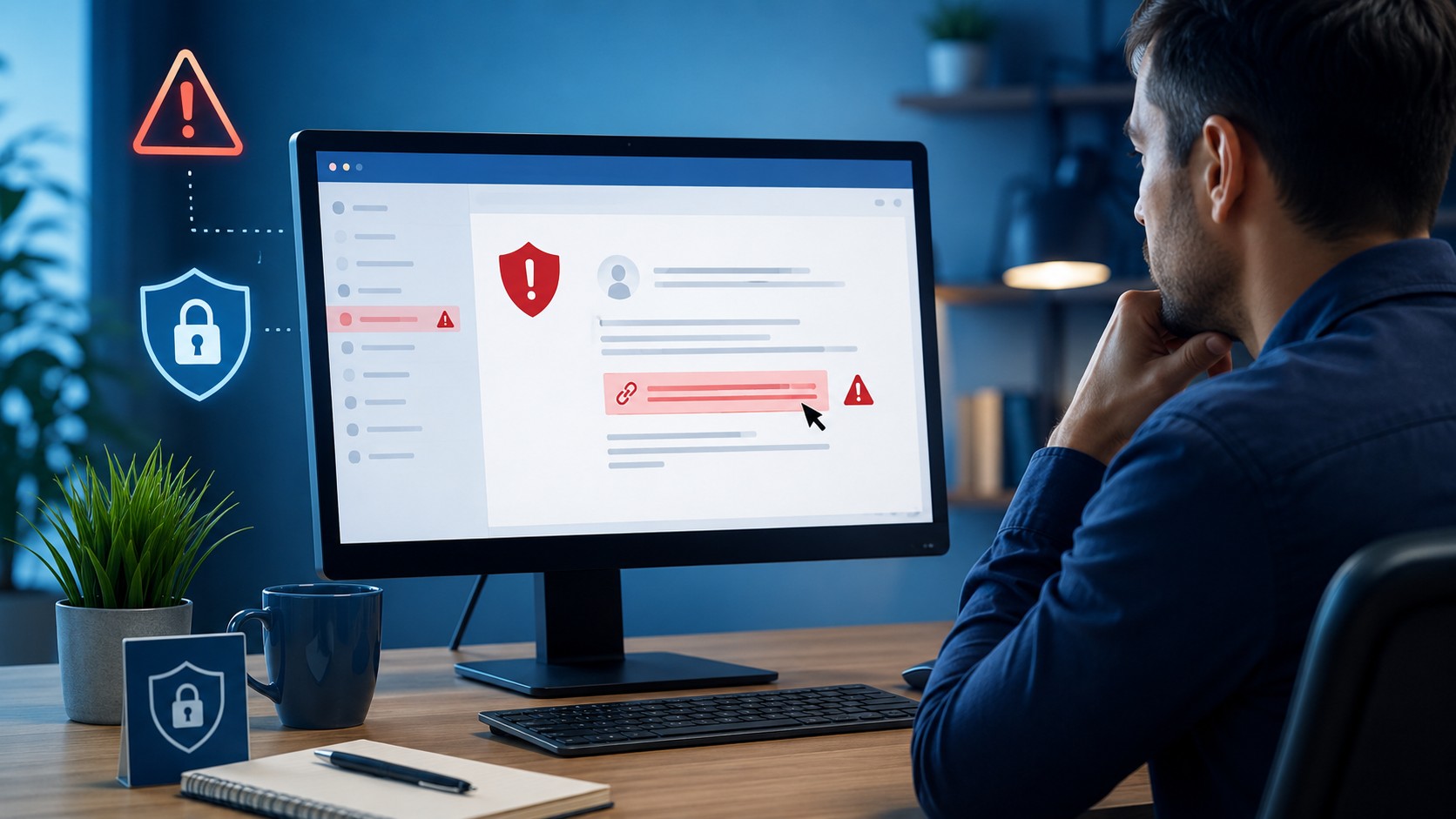
You click a link.
The page loads.
And about three seconds later your brain finally catches up.
Wait.
That email looked weird.
The sender's address was strange.
The website doesn't look quite right.
And now you're staring at the screen wondering whether you just handed your computer over to somebody in a basement on the other side of the planet.
First:
Do not panic.
Clicking a suspicious link is something you should take seriously, but it does not automatically mean your computer or accounts have been compromised.
The next steps depend heavily on what happened after you clicked it.
Did you simply open a webpage?
Did you enter a password?
Did you download a file?
Did you run something?
Did you give someone remote access?
Those situations carry very different levels of risk.
The goal now is to figure out what actually happened and respond accordingly.
First: Do Not Keep Interacting With the Page
If the page is still open, stop clicking around.
Do not:
- Enter passwords
- Enter payment information
- Call a phone number on the page
- Download anything
- Allow browser notifications
- Install browser extensions
- Click “Remove Virus”
- Click “Scan Now”
- Allow remote access
Close the browser tab or browser window.
If the page refuses to close normally, you can use Task Manager to close the browser.
If a webpage suddenly claims your computer has multiple viruses and tells you to call a support number, do not trust the message. Close the page and investigate through trusted security tools instead.
Clicking the Link Alone Is Not Always the Worst-Case Scenario
There is an important difference between:
Opening a malicious website
and:
Giving that website something valuable.
Modern browsers and operating systems include security protections designed to limit what websites can do automatically.
That does not mean malicious websites are harmless.
It means the response should be based on what happened.
For example, these situations progressively become more concerning:
- You clicked a link and immediately closed the page.
- You entered your email address.
- You entered your password.
- You entered banking or credit-card information.
- You downloaded a file.
- You opened or installed the file.
- You gave somebody remote access to the computer.
Those are not the same incident.
So before doing anything drastic, determine which one applies.
Situation 1: You Only Opened the Website
Suppose you clicked a suspicious link, the page opened, you realized something looked wrong, and you closed it.
You did not:
- Enter information
- Download anything
- Install anything
- Approve permissions
- Call anyone
- Run software
That is generally a much better situation.
I would still recommend checking the browser and computer for anything unusual, but you do not necessarily need to change every password you have owned since 2007.
Start with:
- Close the suspicious page
- Check the Downloads folder
- Look for unexpected browser notifications
- Verify no extensions were installed
- Run a security scan
- Pay attention to unusual behavior afterward
Then continue using the computer cautiously.
Situation 2: You Entered a Password
Now the situation changes.
If you entered a username and password into a phishing page, assume that password may have been captured.
Do not wait to see whether somebody uses it.
From a trusted device or a clean browser session, change the password for that account.
Then ask an extremely important question:
Do I use that same password anywhere else?
If the answer is yes, those accounts may also be at risk.
Change them too.
Start With the Most Important Accounts
Prioritize:
- Banking
- Microsoft or Google account
- Apple account
- Social media
- Online shopping
- Password manager
- Work accounts
- Anything containing payment or personal information
Your email account deserves especially high priority because password-reset messages for many other services are sent there.
If somebody controls your email, they may be able to reset other accounts.
Turn On Multi-Factor Authentication
If the affected account supports multi-factor authentication, enable it.
MFA adds another verification step beyond the password.
Depending on the service, that may involve:
- Authenticator app
- Security key
- Push approval
- One-time code
MFA is not invincible, but it can greatly reduce the usefulness of a stolen password.
A password says:
“I know the secret.”
MFA asks:
“Cool. Prove you're actually you.”
Much better arrangement.
If You Already Had MFA Enabled
Good.
But do not assume that automatically ends the investigation.
Check recent account activity.
Look for:
- Unknown logins
- New devices
- Strange locations
- Password changes
- Security-setting changes
- New recovery email addresses
- New phone numbers
If the service provides a way to sign out other sessions or revoke logged-in devices, consider using it.
Situation 3: You Entered Credit Card or Banking Information
Treat this as a financial-security issue.
Contact the appropriate bank or card issuer using a trusted number—not the number shown on the suspicious page or email.
Explain that the card or account information may have been exposed.
They can advise whether to:
- Lock the card
- Replace the card
- Change online banking credentials
- Monitor transactions
- Dispute suspicious charges
Also monitor the account closely afterward.
Do not wait for someone to buy six televisions in another state before deciding the card information might have been compromised.
Situation 4: Something Downloaded
Check your Downloads folder.
A suspicious website may attempt to convince you to download:
- ZIP file
- Word document
- Executable
- Installer
- Browser extension
- Script
- Fake antivirus tool
Downloading something is more concerning than simply loading a page.
But there is still an important distinction:
Downloaded
does not necessarily mean:
Executed.
If the file downloaded but you never opened it, do not open it now to “see what it is.”
That is not troubleshooting.
That is giving the suspicious file a second interview.
Delete it and run an appropriate security scan.
Situation 5: You Opened or Ran the Download
This deserves more attention.
If you ran a suspicious executable, installer, script, or other downloaded program, malware may have had an opportunity to execute on the computer.
At this point I would:
- Disconnect the computer from the internet if suspicious activity is occurring.
- Do not use that machine to change important passwords.
- Use another trusted device for account security.
- Run reputable security scans.
- Inspect startup applications and installed programs.
- Look for unfamiliar browser extensions.
- Check for unknown user accounts.
- Investigate unusual network or system activity.
Depending on what ran and what evidence is found, deeper cleanup—or even reinstalling Windows—may be appropriate.
Why Disconnect the Internet?
If you suspect malware actually executed, disconnecting the computer can limit its ability to:
- Communicate with an attacker
- Download additional components
- Upload information
- Receive commands
You can disable Wi-Fi or unplug Ethernet.
This is different from immediately disconnecting every computer merely because you opened a questionable webpage.
Again:
Respond to what actually happened.
Run a Security Scan
Windows includes Microsoft Defender Antivirus, and many computers may also have other reputable security software installed.
Run a scan.
If the situation is more concerning, a full scan may be appropriate.
You can also review Windows Security for:
- Detection history
- Quarantined threats
- Current protection status
- Security warnings
A clean scan is reassuring, although no scanner can promise absolute certainty.
Security tools are evidence.
They are not fortune tellers.
Check Your Browser Downloads
Open the browser's downloads history.
Look for files downloaded around the time you clicked the suspicious link.
If you see something you did not intentionally download, investigate it without opening it.
Also check the normal Downloads folder in File Explorer.
Check Browser Extensions
Malicious or unwanted extensions can:
- Read browsing activity
- Modify searches
- Inject advertisements
- Redirect websites
- Change the homepage
- Capture information entered into webpages
Review the browser's installed extensions.
If something appeared that you did not install or recognize, remove it.
Be particularly suspicious if the problem began immediately after the browser prompted you to:
“Install this extension to continue.”
Check Browser Notification Permissions
This one causes a ridiculous number of fake virus warnings.
Websites can ask permission to send browser notifications.
A malicious site may show something like:
Click Allow to prove you're not a robot.
You click Allow.
Later, Windows begins displaying alarming notifications:
Virus detected!
Computer infected!
Those messages may simply be browser notifications from the website.
They do not necessarily mean malware is installed.
Check your browser's notification permissions and remove suspicious websites.
This is one of my favorite examples of:
Computer doing exactly what the user authorized it to do
while appearing completely possessed.
Fake Virus Warnings Are Extremely Common
If a webpage suddenly claims:
- Your computer is infected
- Microsoft detected hackers
- Your IP address has been compromised
- Your computer will be locked
- You must call support immediately
- You have several viruses
- Your subscription expired
do not trust the page.
Legitimate security software does not normally diagnose your entire computer through a random webpage and then demand that you call the number printed inside the advertisement.
Especially if the page has:
Three countdown timers.
Four warning triangles.
and enough red text to declare a national emergency.
Close it.
Never Call the Number on a Suspicious Warning
Fake support pages often attempt to move the attack from the browser to the telephone.
The page may claim to represent:
- Microsoft
- Apple
- Your bank
- Your antivirus provider
- Your internet provider
The attacker then attempts to convince you to install remote-access software.
Once connected, they may:
- Manipulate the computer
- Show fake errors
- Access files
- Attempt financial fraud
- Request payment
- Steal credentials
If you already called the number and gave someone remote access, treat the incident much more seriously.
If You Gave Someone Remote Access
Disconnect the internet.
Do not continue using that computer for sensitive activity until it has been inspected.
Using a separate trusted device:
- Change important passwords
- Secure your email
- Review financial accounts
- Enable MFA
- Check recent login activity
Also determine which remote-access application was installed.
Common legitimate remote-support tools can be abused by scammers.
The software itself may not be malicious.
The person you gave access to is the problem.
Check Your Email Account Carefully
If the suspicious link involved your email credentials, inspect the email account itself.
Attackers sometimes modify settings to maintain access or hide activity.
Look for:
- Unknown forwarding rules
- New inbox rules
- Changed recovery information
- Unfamiliar sent messages
- Deleted security notices
- Unknown devices
- Recent login activity
An attacker may configure mail forwarding so copies of your messages quietly go somewhere else.
Changing the password without checking those settings can leave part of the compromise in place.
Change Passwords From a Trusted Device
If you think malware may actually be running on the affected computer, do not immediately type every new password into that same machine.
Use another device you trust.
For example:
- Your phone
- Another computer
- A work device if permitted
- A known-clean tablet
Secure the accounts first.
Then deal with the questionable computer.
Changing your password on a machine potentially capturing keystrokes is not an ideal security strategy.
What If You Reuse Passwords?
Change every account using the exposed password.
This is why password reuse is dangerous.
Imagine the phishing page captured your password for a streaming service.
If that same password also unlocks:
- Amazon
- Banking
- Cloud storage
the attacker may try those services too.
This type of automated credential testing is known as credential stuffing.
One stolen password can become a keyring.
Use unique passwords.
Should You Change Every Password You Have?
Not necessarily.
If you clicked a suspicious page but entered absolutely nothing and there is no evidence that malware ran, changing 86 unrelated passwords may accomplish little besides ruining your afternoon.
Prioritize based on exposure.
Change passwords when:
- You entered them on the suspicious page
- They are reused elsewhere
- Suspicious login activity appears
- Malware capable of stealing credentials may have run
- The associated account shows signs of compromise
Good security response should be deliberate.
Not ceremonial.
Check for New Programs
If you installed something from the suspicious page, review the computer's installed applications.
Look for anything that appeared around the time of the incident.
Unfamiliar software deserves investigation.
But once again:
Do not uninstall random Windows components simply because the names look strange.
Windows contains enough oddly named legitimate software to make everyone suspicious eventually.
Check Startup Applications
Malware and unwanted software sometimes configure themselves to run when Windows starts.
Review startup applications through Task Manager or Windows Settings.
Look for:
- Unknown programs
- Recently added entries
- Strange publisher names
- Programs related to the suspicious download
If you find something questionable, investigate it before making changes.
Update Windows and Your Browser
Make sure your operating system and browser are current.
Security updates regularly address vulnerabilities that malicious websites and files might attempt to exploit.
Update:
- Windows
- Browser
- Security software
- Frequently used applications
Updates are not just feature changes and new icons nobody asked for.
A large portion of them exist because somebody somewhere discovered a way to make software do something it absolutely should not have been doing.
Should You Clear Browser History and Cookies?
You can, but understand what this does.
Clearing browser history does not disinfect a computer.
It can remove:
- Browsing history
- Cached website data
- Cookies
- Stored sessions
This may be useful in certain situations, especially if you want to invalidate some website sessions.
But it is not a substitute for security scanning or changing compromised passwords.
Deleting browser history after running malware is like sweeping the driveway after your house was burglarized.
Wrong part of the incident.
Watch for Follow-Up Attacks
After interacting with a phishing attempt, you may receive additional:
- Emails
- Text messages
- Phone calls
- MFA prompts
- Password-reset notifications
Attackers sometimes use information collected during the first interaction to make the next attempt more convincing.
Be skeptical of unexpected security messages.
Do not click the next email merely because it says:
“URGENT: We noticed suspicious activity.”
Especially considering how this adventure started.
Open the service directly instead.
Go Directly to the Website
If you receive a security message from your bank, Microsoft, Google, Amazon, or another service, do not use the suspicious link to investigate.
Open the official application or manually navigate to the service.
Then check notifications or security settings from there.
This avoids using the attacker's doorway to verify whether the attacker's doorway was legitimate.
When Does Reinstalling Windows Make Sense?
A full Windows reinstall is not necessary every time somebody clicks a phishing link.
But it may become appropriate when:
- Malware definitely executed
- Multiple malicious programs were found
- Remote access was given to an attacker
- Security tools repeatedly detect threats
- System behavior remains suspicious
- You cannot establish confidence that the machine is clean
- Sensitive information is involved
Sometimes cleaning an infected system is reasonable.
Sometimes rebuilding from a known-good state provides greater confidence.
The correct choice depends on the severity of the incident.
If the situation has progressed beyond a suspicious click and you believe the computer or accounts may be compromised, see What to Do If You Think Your Computer Has Been Hacked.
When Should You Seek Professional Help?
Professional assistance is worth considering if:
- You executed a suspicious program
- Somebody remotely accessed the computer
- Banking information was entered
- Important account credentials were stolen
- Malware is detected
- Security warnings continue after cleanup
- Unknown programs keep returning
- The browser continues redirecting
- You are not sure what information was exposed
- The computer contains important business or personal data
The sooner the situation is understood, the easier it usually is to respond appropriately.
A Simple Response Checklist
If you clicked a suspicious link:
- Stop interacting with the page.
- Close it.
- Determine whether you entered information.
- Check whether anything downloaded.
- If you entered a password, change it from a trusted device.
- Enable MFA.
- Review account login activity.
- Check browser extensions and notifications.
- Run a reputable security scan.
- If you executed suspicious software, consider disconnecting the computer from the internet.
- Monitor important accounts.
- Seek help if you are unsure how far the incident went.
The biggest mistake is pretending it did not happen.
The second biggest is assuming the apocalypse has begun because you clicked one link.
Figure out what actually occurred.
Then respond to that.
Final Thoughts
Clicking a suspicious link is not automatically the same thing as being hacked.
The real question is:
What happened after you clicked it?
If you opened the page and immediately closed it, your response may be relatively simple.
If you entered credentials, secure those accounts.
If you entered financial information, contact the financial institution.
If you downloaded and executed something, investigate the computer.
If you gave someone remote access, treat the incident seriously.
Security works best when we replace panic with information.
Identify the exposure.
Secure the important accounts.
Check the computer.
And learn from the incident.
Because unfortunately, scammers only need you to click once.
Your job is to make sure that one click does not become five more mistakes.
Frequently Asked Questions
Does clicking a phishing link automatically infect my computer?
No. Simply opening a phishing or malicious webpage does not automatically mean malware was installed. Risk increases if you downloaded and executed files, granted permissions, entered credentials, or exploited software vulnerabilities were involved.
What should I do if I entered my password on a phishing page?
Change the password immediately using a trusted device, change it anywhere else you reused it, enable multi-factor authentication, and review the account's recent login and security activity.
Should I disconnect my computer from the internet after clicking a bad link?
Not necessarily if you merely opened a webpage and did nothing else. Disconnecting becomes more appropriate when you believe malicious software executed or an attacker gained remote access.
What if I downloaded a suspicious file but never opened it?
Do not open it. Delete the file and run a reputable security scan. Downloading a file and executing it are different levels of risk.
Are pop-up virus warnings real?
Many browser-based virus warnings are scams or abusive notifications. Do not call phone numbers or install software from a random webpage claiming your computer is infected.
What should I do if I gave a scammer remote access?
Disconnect the computer from the internet, stop using it for sensitive activity, secure important accounts from another trusted device, review financial activity, and have the computer inspected.
Should I reinstall Windows after clicking a phishing link?
Usually not solely because you clicked a link. A reinstall becomes more reasonable when malware executed, remote access was given to an attacker, repeated infections are found, or you cannot establish confidence that the system is clean.
Can Texas Tech Rescue help after a phishing or scam incident?
Yes. Texas Tech Rescue can help inspect the computer for suspicious software, browser changes, malware, remote-access tools, and other signs of compromise and recommend appropriate next steps.
Clicked Something Suspicious?
Texas Tech Rescue can help inspect the computer for browser changes, suspicious software, malware, remote-access tools, and other signs that an incident went beyond a simple click.
Get Professional Help