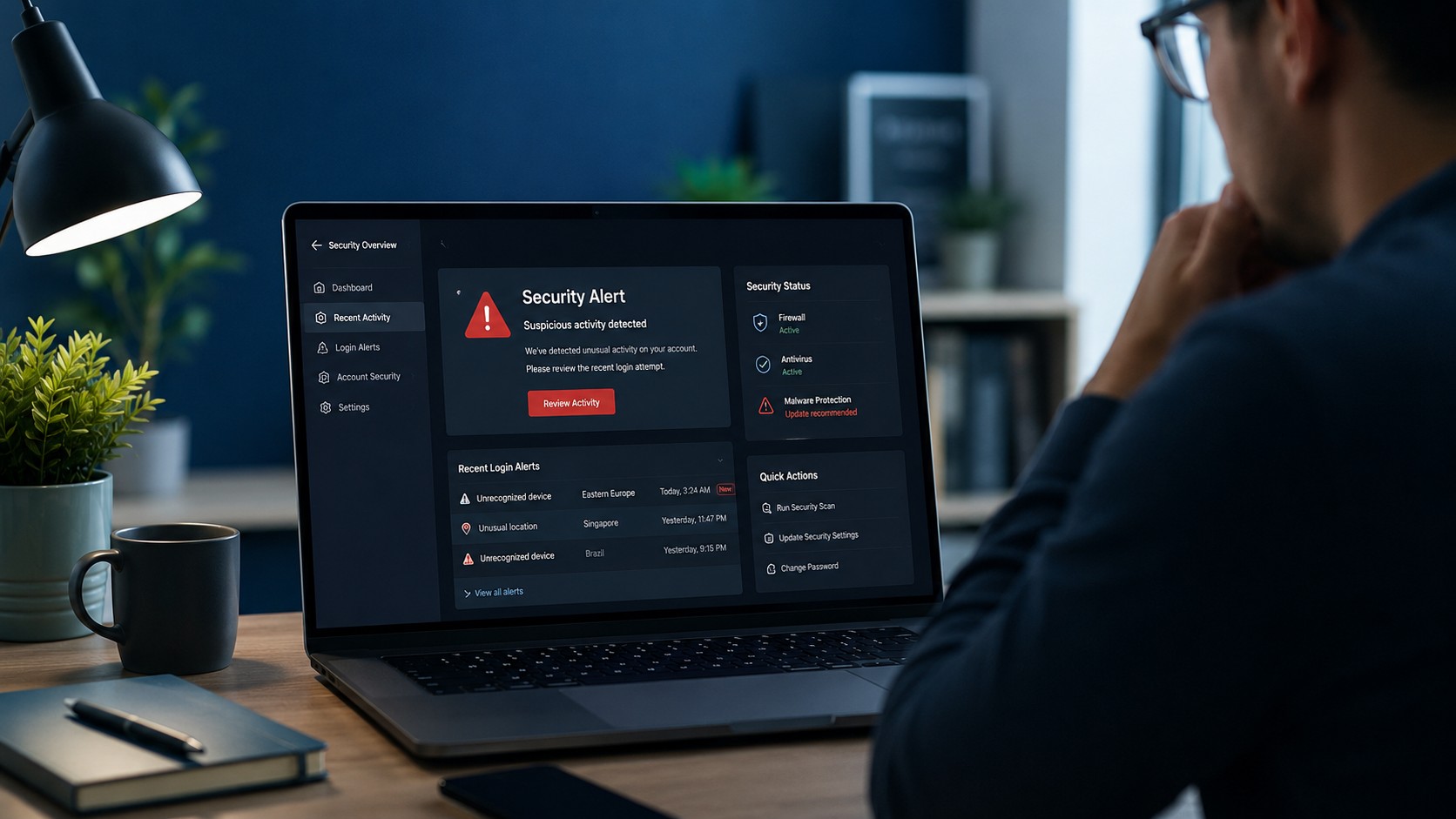
Seeing something unusual happen on your computer can be unsettling. Maybe your password suddenly stopped working. Perhaps unfamiliar programs appeared, your browser keeps redirecting you, or you received a security alert about a login you do not recognize.
The first thought is often: “Have I been hacked?”
Sometimes the explanation is relatively harmless. A buggy browser extension, damaged Windows installation, unwanted software, or forgotten password can all produce symptoms that look suspicious. Other times, however, unauthorized access or malware really may be involved.
If you believe your computer or online accounts may have been compromised, the most important thing is to respond carefully instead of clicking everything in sight trying to make the problem disappear.
1. Disconnect the Computer From the Internet
If you believe someone may currently have unauthorized access to your computer, disconnecting it from the network is a good first step.
For Wi-Fi, disconnect from the wireless network or temporarily disable Wi-Fi. For a wired connection, unplug the Ethernet cable.
This can interrupt communication between malicious software and an outside server and may prevent additional data from being transmitted. It can also help limit some threats from communicating with other devices on the same network.
Do not begin uninstalling programs, deleting files, or attempting major repairs on your own. Disconnect the device if appropriate and contact your company's IT or cybersecurity team. They may need to preserve logs or other information to determine what happened.
2. Do Not Trust Pop-Ups Claiming Your Computer Is Infected
One of the most common situations people describe as being “hacked” is actually a fake security warning. A website may suddenly claim that your computer has multiple viruses, flash warnings, play an alarm, imitate a familiar technology company, or tell you to immediately call a phone number.
Do not call the number. Do not install the program it recommends. And do not give someone remote access to your computer because a browser pop-up told you to.
If the warning exists only inside your browser, close the page. If the browser refuses to close normally, use Task Manager to end it and reopen the browser without restoring the suspicious page.
A scary pop-up does not automatically mean the computer has actually been compromised.
3. Use a Different, Trusted Device to Secure Important Accounts
If you believe the affected computer may contain malware, avoid using that same computer to immediately change all of your passwords.
If malicious software is recording keystrokes, capturing browser sessions, or monitoring activity, entering a brand-new password on the affected machine could expose that password too.
Instead, use another device you trust, such as your phone, tablet, or another computer. Start with the accounts that could give an attacker access to everything else.
- Your primary email account
- Banking and financial accounts
- Microsoft, Google, or Apple accounts
- Your password manager
- Social media accounts
- Shopping accounts containing saved payment information
- Work-related accounts
Use a different password for every important account. If one compromised password was reused across several websites, an attacker may try the same combination elsewhere.
4. Enable Multi-Factor Authentication
Changing your password is good. Changing your password and enabling multi-factor authentication is much better.
Multi-factor authentication, often called MFA or two-factor authentication, requires another form of verification in addition to the password.
- An authentication app
- A security key
- A push notification
- A one-time code
While securing your accounts, also check whether any unfamiliar MFA methods, phone numbers, recovery email addresses, or trusted devices have been added.
5. Check Your Accounts for Unfamiliar Activity
Changing the password is only part of the job. Look through recent account activity and check for anything you do not recognize.
- Recent logins
- Devices currently signed in
- Approximate login locations
- Password changes
- New recovery methods
- Recently authorized applications
- Email forwarding rules
- Purchases or transactions
Sign out unfamiliar devices and remove anything you do not recognize. Email accounts deserve particular attention because access to your email can often be used to reset passwords for many of your other accounts.
An attacker with access to an email account may create forwarding rules or filters so copies of certain messages are quietly sent somewhere else. Review those settings while securing the account.
6. Scan the Computer for Malware
Once your important accounts are protected, the computer itself needs to be examined. Start with your installed security software and perform a thorough scan.
On Windows, built-in Microsoft security tools can detect many common threats, but no scanner should be treated as magical. A clean scan does not automatically prove that nothing happened, and one unusual symptom does not automatically prove that you were hacked.
Things Worth Investigating
- Programs you do not remember installing
- Browser extensions you do not recognize
- Security software that has been disabled
- Unexpected startup programs
- New user accounts
- Strange scheduled tasks
- Repeated command windows appearing unexpectedly
- Unexplained network activity
- Browser redirects or persistent pop-ups
- Files being renamed or encrypted
- Remote-access software you did not install
7. Remove Suspicious Browser Extensions
Not every security problem is buried deep inside Windows. Sometimes the browser itself is the problem.
A malicious or unwanted extension can redirect searches, replace your homepage, display advertisements, track browsing activity, modify search results, or access information entered into websites.
Open your browser's extension or add-on management page and review what is installed. If you find something you do not recognize, investigate it before allowing it to remain.
Also review browser notification permissions. Some websites trick users into allowing notifications and then continuously send fake virus warnings that look like operating-system alerts.
8. Check for Unknown User Accounts
If someone gained meaningful access to the computer, they may have created another account to make returning easier.
On Windows, review the accounts configured on the system. An unfamiliar account does not automatically mean someone compromised the computer—some accounts may belong to software, another family member, or an organization managing the device—but an unexplained administrator account deserves investigation.
9. Install Security and Operating System Updates
Once you are confident the system is stable enough to reconnect, make sure Windows, your browser, and important software are current.
Security updates frequently address vulnerabilities that could otherwise be exploited. Keeping software updated does not make a computer impossible to compromise, but running outdated software can unnecessarily increase your exposure.
- Windows
- Web browsers
- Office applications
- PDF readers
- Remote-access software
10. Back Up Important Files Carefully
If the system contains important documents or photos that are not already backed up, protecting that data should become a priority.
Be careful, however. If you are dealing with possible ransomware or another active infection, blindly copying everything to an external drive could also copy unwanted files or expose the backup drive to the affected computer.
If files have already been encrypted, renamed, or replaced with ransom notes, stop experimenting and seek professional help before making major changes, especially when the files are irreplaceable.
When Should You Consider Resetting or Reinstalling Windows?
Sometimes cleaning the existing Windows installation is reasonable. Other times, starting fresh is the safer choice.
A complete Windows reinstall may be worth considering when:
- Unauthorized remote access is confirmed
- Malware keeps returning after removal
- Security settings have been heavily modified
- Multiple unknown programs or accounts appear
- You cannot determine what changes were made
- The system behaves suspiciously even after cleanup
- You simply no longer trust the installation
Before reinstalling Windows, make sure important files are safely backed up and that you have access to any accounts, software installers, licenses, or other information you may need afterward.
What If Money or Financial Information Is Involved?
If you discover unauthorized purchases, bank transfers, credit-card activity, or other financial changes, treat the computer problem and the financial problem separately.
Contact the financial institution using the phone number or official app you already trust, not contact information from an email, text message, or pop-up associated with the incident. Review recent transactions and follow the institution's instructions for securing the account.
What If Someone Remotely Controlled Your Computer?
Remote-access scams deserve special attention. If you allowed someone you do not trust to remotely control your computer, assume they may have been able to see or access information that was available during that session.
Disconnect the computer from the internet and secure your important accounts from another trusted device. The computer should also be inspected for remote-access tools, persistence mechanisms, browser changes, or other software installed during the session.
Signs That Deserve Immediate Attention
- Your files suddenly become encrypted
- Ransom notes appear
- Your password changes without your permission
- New administrator accounts appear
- Someone is actively moving the mouse or controlling the computer remotely
- Security software repeatedly disables itself
- Financial accounts show unauthorized activity
- You receive legitimate login alerts from unfamiliar locations
- Your email begins sending messages you did not write
- Important accounts suddenly become inaccessible
Those situations warrant more than simply running a quick antivirus scan and assuming everything is fine.
When to Call a Professional
There is nothing wrong with trying the basic steps yourself, but computer security issues can become difficult because the visible symptom may only be one piece of the problem.
Professional help is worth considering if you cannot determine how the compromise occurred, malware keeps returning, important files are involved, unauthorized remote access occurred, or you simply are not confident the computer can still be trusted.
The goal should not be to remove one annoying pop-up. The goal is to determine what happened, what may have been exposed, whether unauthorized access still exists, and what needs to be secured afterward.
Final Thoughts
Thinking your computer has been hacked can be stressful, but random clicking and panic usually make troubleshooting harder. Start with the basics and work methodically.
- Disconnect the affected computer.
- Secure important accounts from a trusted device.
- Change compromised passwords and enable multi-factor authentication.
- Review recent account activity.
- Scan and investigate the computer.
- Update your software and protect your files.
Cybersecurity is not about assuming every strange computer problem is an attack. It is about recognizing suspicious behavior, gathering evidence, and responding appropriately when something does not add up.
Frequently Asked Questions
Does a strange pop-up mean my computer has been hacked?
Not necessarily. Many fake security warnings are simply malicious or deceptive webpages designed to scare people into calling a phone number, downloading software, or paying for unnecessary services.
Should I change my passwords immediately?
Yes, if you believe an account may be compromised—but ideally use another trusted device if you suspect the computer itself contains malware.
Is changing my password enough?
Not always. Review login activity, sign out unfamiliar devices, remove unknown recovery methods, and enable multi-factor authentication.
Should I disconnect my computer from the internet?
If you believe an active compromise or malware infection may be occurring, disconnecting the computer can help limit communication with outside systems while you investigate.
Should I reinstall Windows after being hacked?
Not every incident requires a reinstall. However, if unauthorized access is confirmed and you cannot confidently determine what was changed, a clean installation may provide the safest path forward.
Can Texas Tech Rescue help with a possibly compromised computer?
Texas Tech Rescue can help inspect suspicious Windows behavior, remove unwanted software, diagnose malware-related problems, secure the computer, and determine whether additional recovery steps may be necessary.
Think Your Computer May Be Compromised?
If you are seeing suspicious behavior, unwanted software, repeated security warnings, or signs of unauthorized access, Texas Tech Rescue can help inspect the system, identify the problem, and recommend the safest next step.
Get Professional Help