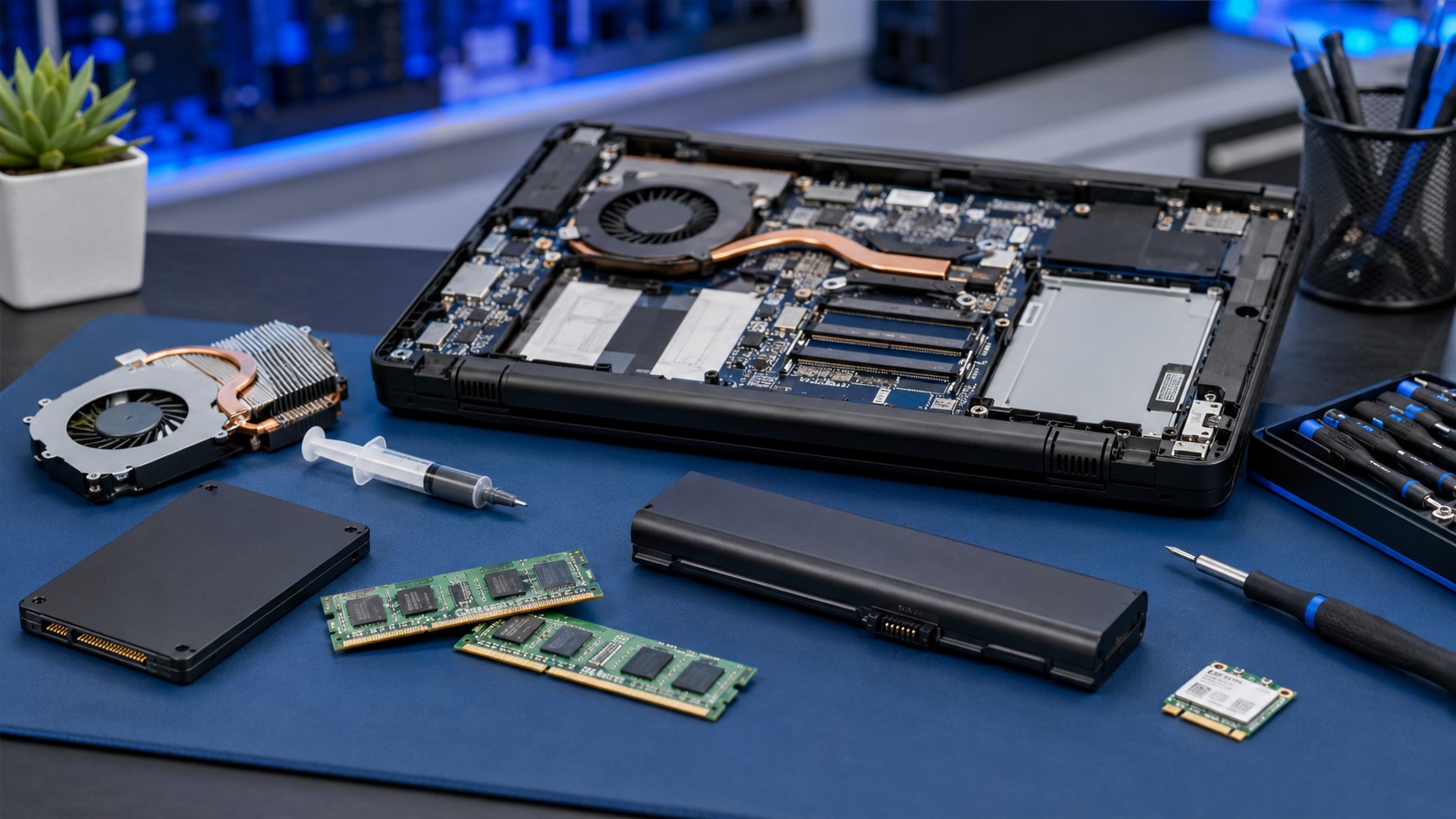
A slow or aging computer does not automatically need to be replaced.
Sometimes the processor is still perfectly capable. The motherboard is healthy. The screen works. The computer does everything you need—it just does it with the enthusiasm of someone being asked to work overtime on a Friday.
Before spending hundreds or even thousands of dollars on a replacement, it may be worth looking at what is actually holding the computer back.
Depending on the system, a few targeted upgrades can dramatically improve performance, reliability, and everyday usability.
Here are five upgrades that can breathe new life into an older computer.
1. Replace the Hard Drive With an SSD
If I could choose only one upgrade for an older computer still running from a mechanical hard drive, this would usually be it.
Traditional hard disk drives, or HDDs, store information using spinning platters and a mechanical read/write head. Solid-state drives, or SSDs, have no moving parts and can access data much faster.
The difference is immediately noticeable.
An SSD Can Improve:
- Windows startup time
- Application loading
- File searches
- Windows updates
- System responsiveness
- Multitasking
- Shutdown and restart times
A computer that previously took several minutes to become usable after signing in may feel completely different after moving Windows to an SSD.
But an SSD Does Not Make Everything Faster
This is important.
An SSD improves anything that depends heavily on storage performance, but it does not magically turn an old processor into a new one.
If the computer struggles because the CPU is extremely outdated, there is insufficient RAM, or the system overheats constantly, installing an SSD will not solve those underlying problems.
Still, for an otherwise healthy older computer with a mechanical hard drive, an SSD is often one of the best upgrades you can make.
For a deeper comparison, see SSD vs HDD: Which Upgrade Is Right?
2. Add More RAM
RAM, or system memory, gives Windows and your applications temporary workspace while the computer is running.
When there is not enough RAM available, Windows begins relying more heavily on virtual memory stored on the drive. Even with an SSD, that is considerably slower than having enough physical memory available.
Signs You May Need More RAM
You may benefit from a memory upgrade if:
- The computer slows down with many browser tabs open
- Programs reload when switching between them
- Video calls become sluggish while multitasking
- Task Manager regularly shows very high memory usage
- Large spreadsheets struggle
- Games stutter while other programs are running
- Creative applications frequently run out of available memory
For many general-purpose computers, moving from a small amount of memory to a more comfortable capacity can make multitasking significantly smoother.
More RAM Is Not Automatically Better
This is where people sometimes get carried away.
If your computer uses 7 GB of memory during its heaviest workload, installing 64 GB is not going to unleash some hidden supercomputer mode.
Unused RAM does not sit there becoming increasingly powerful out of boredom.
The goal is to have enough memory for your actual workload, plus reasonable room for future needs.
Before purchasing memory, verify:
- RAM generation
- Supported speed
- Maximum capacity
- Number of available slots
- Whether any memory is soldered
- Whether matched modules are recommended
Your exact computer model matters.
For a deeper breakdown, see How Much RAM Do You Really Need?
3. Replace an Aging Laptop Battery
Not every upgrade is about raw speed.
Sometimes improving an older computer means restoring functionality it used to have.
A laptop with a worn battery may still perform perfectly while connected to the charger but become nearly useless when unplugged.
You start at 100%. You open Chrome. You answer two emails. Battery remaining: 41%. Something has gone terribly wrong.
Lithium-ion batteries naturally lose capacity over time, so an aging battery does not necessarily mean the laptop itself is finished.
A New Battery Can Restore:
- Useful unplugged runtime
- Portability
- Reliable sleep and standby behavior
- More predictable battery percentages
- Freedom from living three feet away from an electrical outlet
If the laptop is still fast enough, physically sound, and compatible with the software you need, replacing the battery can be much cheaper than replacing the entire machine.
Watch for Swollen Batteries
A swollen battery is different from a battery that simply has reduced capacity.
Possible warning signs include:
- Trackpad lifting upward
- Bottom cover separating
- Keyboard or palm rest bulging
- Laptop no longer sitting flat
- Visible battery deformation
If you suspect battery swelling, stop using the device until it can be inspected. That is no longer an “I'll get around to it eventually” upgrade.
4. Clean and Service the Cooling System
This one technically falls somewhere between maintenance and an upgrade, but it can make a surprisingly large difference.
Computers generate heat. To control that heat, laptops and desktops rely on heatsinks, fans, ventilation, and thermal materials that transfer heat away from important components.
Over time, dust accumulates. Fans become clogged. Thermal compound can degrade.
And eventually your computer begins sounding like it has received clearance for takeoff.
What Happens When a Computer Gets Too Hot?
Modern processors protect themselves by reducing performance when temperatures become excessive. This is known as thermal throttling.
That means an overheating computer can actually become slower even though none of the major components have failed.
Symptoms may include:
- Fans running constantly
- Very hot surfaces
- Performance dropping during demanding tasks
- Games losing performance after several minutes
- Unexpected shutdowns
- Computer becoming sluggish under load
Cleaning dust from the cooling system and servicing thermal components where appropriate can restore proper temperature control.
Do Not Just Blow Compressed Air Into Everything
Cleaning a computer properly is more than holding a can of compressed air against a vent and hoping for the best.
In some systems, that can simply move dust deeper into the machine.
Proper servicing may require opening the computer, cleaning the fan and heatsink assembly, inspecting ventilation paths, and replacing thermal material where necessary.
And please hold the fan blades when cleaning them.
The goal is computer maintenance, not discovering how fast you can turn a laptop fan into a tiny wind turbine.
5. Upgrade the Wi-Fi Hardware
Sometimes the computer itself feels perfectly fine—but its wireless connection feels like it belongs to another decade.
Older laptops and desktops may use outdated Wi-Fi hardware that lacks support for newer wireless standards or modern Bluetooth versions.
Depending on the computer, upgrading the wireless card may improve:
- Wireless throughput
- Network stability
- Bluetooth support
- Compatibility with newer routers
- Performance in congested environments
A New Wi-Fi Card Cannot Fix Everything
Your wireless adapter is only one part of the connection.
Poor Wi-Fi can also be caused by:
- Weak signal
- Router placement
- Internet service limitations
- Interference
- Congested channels
- Old router hardware
- Building materials
- Network configuration
Installing faster Wi-Fi hardware into a laptop will not magically turn a slow internet plan into fiber.
It also will not help much if your router is sitting inside a metal cabinet at the opposite end of the house.
Before replacing hardware, identify where the bottleneck actually is.
Bonus Upgrade: A Better Graphics Card
For desktops—especially gaming or workstation systems—a graphics-card upgrade can provide one of the largest performance improvements available.
But this one is more complicated than simply buying a faster GPU and installing it.
Before upgrading, check:
- Power-supply wattage
- Power connectors
- Physical card dimensions
- Case clearance
- Motherboard compatibility
- CPU performance
- Monitor resolution
- Cooling and airflow
A graphics card that physically fits on the motherboard does not necessarily fit inside the case or work with the existing power supply.
Nothing says “upgrade day” quite like discovering your beautiful new GPU is approximately an inch longer than reality permits.
Bonus Upgrade: Increase Storage Capacity
Even if your computer already has an SSD, you may simply be running out of room.
Modern applications, games, photos, videos, and Windows updates can consume storage quickly.
When the primary drive becomes extremely full, Windows may have less room for:
- Temporary files
- Updates
- Virtual memory
- Application caches
- System maintenance
That can contribute to performance and reliability problems.
Upgrading from a smaller SSD to a larger one may allow you to keep the performance benefits of solid-state storage without constantly deciding which folder has been nominated for deletion this week.
Which Upgrade Gives the Biggest Improvement?
That depends entirely on the bottleneck.
- If you have a mechanical hard drive: SSD first.
- If memory usage is constantly maxed out: RAM may be the answer.
- If the laptop lasts twelve minutes on battery: You probably know what we're replacing.
- If temperatures are excessive: Fix the cooling problem before adding faster hardware.
- If only wireless performance is poor: Investigate networking before replacing the whole computer.
Good upgrades begin with diagnosis.
Buying random hardware because somebody online said it made their computer faster is an excellent way to spend money without actually fixing your problem.
When Is an Old Computer Not Worth Upgrading?
This is just as important as knowing when to upgrade.
Sometimes an older computer has reached the point where additional money would be better spent toward replacement.
I would be cautious about heavily upgrading a computer when:
- The processor is too old for your workload
- The operating system you need is no longer properly supported
- Multiple components are failing
- The motherboard has significant problems
- The laptop has major structural damage
- The display, battery, hinges, and storage all need replacement
- Replacement parts are unusually expensive
- You will still be unhappy with the performance afterward
Imagine spending money on an SSD, RAM, battery, and repairs only to discover the processor is still the technological equivalent of trying to run through waist-deep water.
At some point, replacement becomes the better investment.
For more on that decision, see Repair or Replace Your Computer?
Upgrade the Bottleneck, Not the Specification Sheet
This is probably the most important lesson.
The best upgrade is not necessarily the most expensive component. It is the component currently preventing the computer from doing what you need.
A machine with enough RAM but a mechanical hard drive needs storage performance. A machine with an SSD but insufficient memory may need RAM.
A powerful gaming laptop overheating because its heatsink is packed with dust does not need another stick of memory.
It needs to breathe.
Before spending money, find the bottleneck.
Then fix that.
Final Thoughts
Older computers can sometimes remain useful much longer than people expect.
A targeted upgrade may improve performance, restore portability, increase storage, improve connectivity, or extend the useful life of a machine that otherwise still works perfectly well.
The five upgrades I would consider first are:
- SSD upgrade
- RAM upgrade
- Laptop battery replacement
- Cooling-system service
- Wi-Fi hardware upgrade
And for the right desktop, a graphics-card or storage-capacity upgrade can make an equally significant difference.
You do not always need a new computer.
Sometimes your current one just needs the right part.
Frequently Asked Questions
What is the best upgrade for an old computer?
If the computer still uses a mechanical hard drive, replacing it with an SSD is often the most noticeable everyday performance improvement. The best upgrade ultimately depends on the system's actual bottleneck.
Will adding RAM make my computer faster?
It can if the computer regularly runs low on memory. If you already have enough RAM for your workload, adding more may provide little noticeable improvement.
Is upgrading an old laptop worth it?
It can be, especially when the processor is still capable and upgrades such as storage, memory, or battery replacement are inexpensive. Very old or damaged systems may be better candidates for replacement.
Can every laptop be upgraded?
No. Some laptops use soldered RAM, soldered storage, proprietary components, or designs that make upgrades difficult or impossible. Compatibility should be checked using the exact model.
Does replacing thermal paste make a computer faster?
It may restore lost performance if overheating is causing thermal throttling. It will not make a properly cooled processor inherently faster than its designed performance.
Can Texas Tech Rescue upgrade my computer?
Yes. Texas Tech Rescue can evaluate upgrade compatibility and assist with SSDs, RAM, batteries, hardware installation, storage migration, diagnostics, and other improvements.
Not Sure Which Upgrade Your Computer Needs?
Texas Tech Rescue can help identify the real bottleneck, verify hardware compatibility, and recommend the upgrade that makes the most sense before you spend money on parts.
Get Professional Help