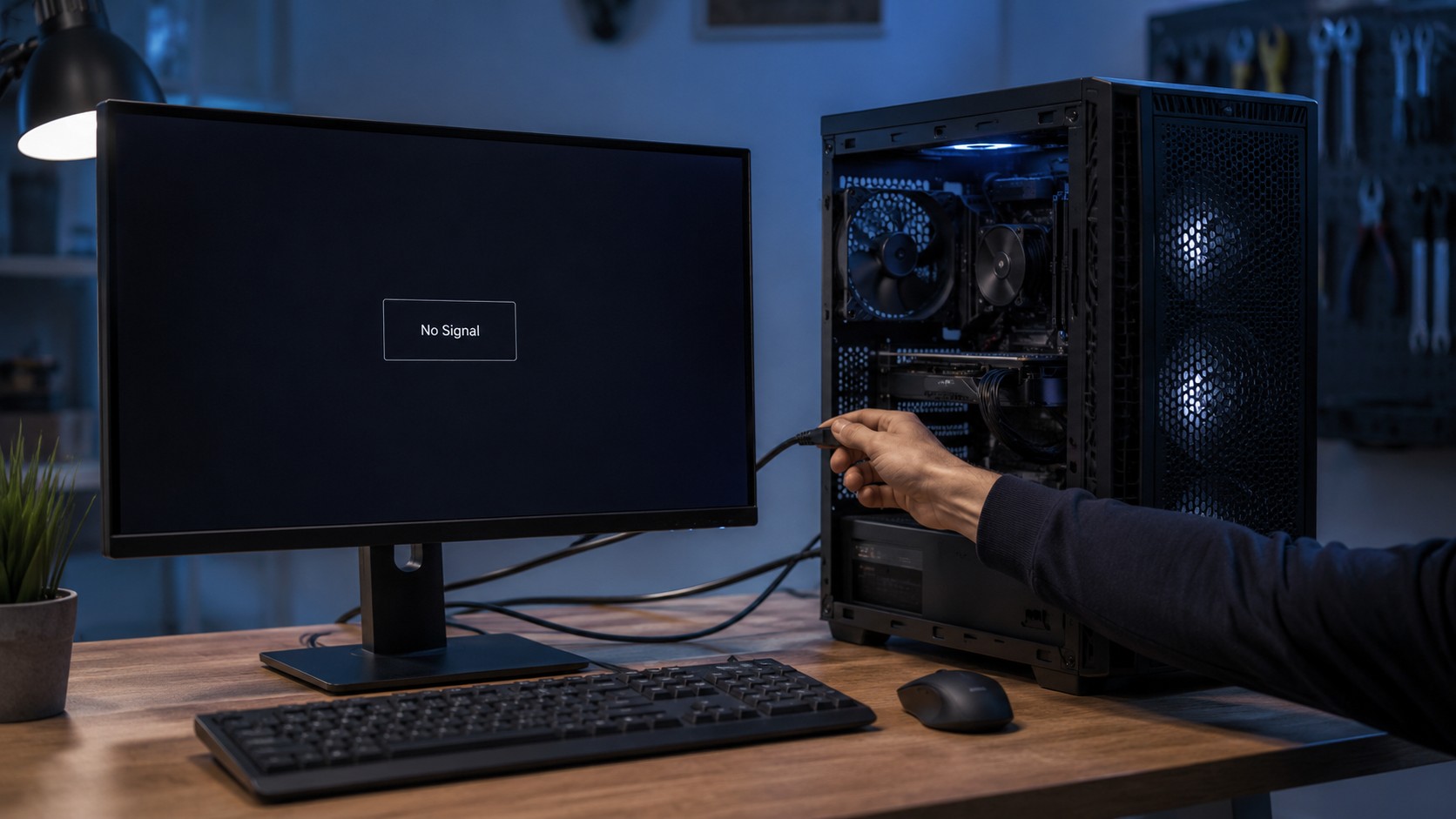
You press the power button.
The fans start spinning. Lights come on. Maybe you even hear the familiar sounds of Windows starting.
But the screen stays completely black.
At first glance, it can look like the entire computer has failed. In reality, a computer that powers on but produces no display can have several very different causes—some extremely simple and others requiring actual hardware diagnosis.
The important first step is figuring out whether the computer itself is failing to start or whether it is starting normally and simply failing to produce an image.
Those are two very different problems.
First: Is the Computer Actually Starting?
Lights and spinning fans do not necessarily mean a computer has successfully booted.
They only tell us that some power is reaching the system.
Look for other signs of normal startup:
- Do you hear the Windows startup sound?
- Does the keyboard respond when you press Caps Lock or Num Lock?
- Do RGB devices initialize normally?
- Can you hear notifications or other Windows sounds?
- Does the hard-drive or SSD activity light behave normally?
- Does the computer eventually respond to keyboard commands?
If Windows appears to be running in the background, the problem may be isolated to the display path.
If nothing progresses beyond fans and lights, the computer may not be completing its startup process at all.
1. Make Sure the Monitor Is Actually On
Yes, we have to start here.
And yes, there is a reason.
A black screen does not necessarily mean a dead computer.
Check the monitor's power light and press its power button.
If the monitor displays something like No Signal, that is actually useful information. It means the monitor itself is alive—it simply is not receiving a video signal from the computer.
If the monitor shows absolutely nothing, including its own menu or logo, the monitor or its power source may be the problem.
Check:
- Monitor power cable
- Monitor power button
- Power strip or surge protector
- Brightness level
- Whether the monitor's built-in menu appears
Sometimes the “dead computer” turns out to be a perfectly functional computer connected to a monitor enjoying an unscheduled nap.
2. Check the Monitor Input
Modern monitors often support several connections:
- HDMI
- DisplayPort
- USB-C
- DVI on older systems
- VGA on considerably older systems
If the monitor is set to HDMI 1 while the computer is connected to DisplayPort, you will get a black screen or No Signal message even though both devices are working perfectly.
Open the monitor's input or source menu and verify that it matches the cable you are actually using.
This is especially common after:
- Moving a computer
- Replacing a monitor
- Connecting another device
- Using a docking station
- Changing cables
The computer may be sending a perfectly good picture. The monitor is simply looking for it in the wrong place.
3. Check the Video Cable
A loose or damaged video cable can produce exactly the same symptom. Disconnect the cable from both the computer and monitor, inspect it, and reconnect it securely.
If possible, try another known-good cable.
Look for:
- Bent connectors
- Damaged DisplayPort latches
- Loose HDMI connections
- Frayed cable ends
- Adapters or converters
- Docking stations between the computer and monitor
The more equipment between the computer and the screen, the more suspects you have.
A laptop connected through USB-C → dock → DisplayPort cable → monitor has considerably more failure points than Laptop → HDMI → monitor.
Troubleshooting gets much easier when you temporarily remove unnecessary middlemen.
4. Try Another Monitor or Display
One of the fastest ways to isolate a display problem is substitution.
Try connecting the computer to another known-working monitor or television. Likewise, if possible, connect the questionable monitor to another computer.
This helps answer two very useful questions:
Does this computer display correctly somewhere else?
and
Does this monitor work with something else?
If the computer works on another monitor, the original monitor, cable, input selection, or related connection becomes the primary suspect.
If multiple known-good displays show nothing, it is time to look deeper.
5. Desktop Users: Make Sure You Are Connected to the Correct Video Port
This catches people surprisingly often.
A desktop with a dedicated graphics card may have video outputs in two different areas.
The motherboard may have HDMI or DisplayPort connections near the USB ports. The graphics card has its own video outputs farther down the back of the case.
If the system is configured to use the dedicated graphics card, plugging the monitor into the motherboard may result in no display. Your cable generally needs to connect directly to the graphics card.
One Important Exception
Some processors do not have integrated graphics at all. In those systems, the motherboard's video ports may physically exist but cannot produce an image with the installed CPU.
So yes:
The HDMI port can be sitting right there.
Looking useful.
Feeling important.
And accomplishing absolutely nothing.
6. Laptop Users: Try an External Monitor
If the laptop powers on but its built-in screen remains black, connect an external monitor or television.
If the external display works, that tells us quite a bit.
Possible problems may include:
- Failed laptop display panel
- Damaged display cable
- Backlight failure
- Loose internal display connection
- Lid sensor problem
- Other display assembly failure
If neither the internal display nor an external monitor works, the problem may be farther upstream.
7. Check the Brightness
This sounds almost too simple, but laptop brightness can occasionally be reduced far enough that the screen appears black.
Increase the brightness using the appropriate function keys. Also look carefully at the screen under a flashlight.
If you can faintly see an image but the display has no illumination, the laptop may have a backlight-related problem rather than a complete video failure.
That distinction matters when diagnosing the display.
8. Disconnect Docks, Adapters, and Extra Displays
Docking stations are incredibly useful. They are also capable of creating some wonderfully confusing display problems.
If the computer normally connects through a dock, bypass it temporarily. Connect one monitor directly to the computer if possible.
Also disconnect:
- Secondary monitors
- USB display adapters
- DisplayLink adapters
- KVM switches
- HDMI splitters
- USB-C hubs
Then test with the simplest possible configuration. If the display returns, start reconnecting devices one at a time.
Troubleshooting becomes much easier when the suspect list stops looking like a family reunion.
9. Perform a Full Power Reset
Sometimes hardware does not initialize correctly during startup.
For a Desktop:
- Shut the computer down.
- Disconnect power.
- Hold the power button briefly to discharge remaining power.
- Reconnect power.
- Start the computer again.
For a laptop, the process depends on the model and whether the battery is removable. Some manufacturers also provide specific hardware-reset procedures.
This can occasionally clear strange startup states involving docks, displays, embedded controllers, or other hardware.
10. Listen for Beep Codes or Look for Diagnostic Lights
If the computer powers on but never reaches normal startup, the motherboard may be trying to tell you what is wrong.
Some computers use:
- Beep codes
- Flashing power lights
- Diagnostic LEDs
- Numbered indicators
- On-screen manufacturer diagnostics
Desktop motherboards may have LEDs labeled things such as:
- CPU
- DRAM
- VGA
- BOOT
If one remains illuminated, it can provide an important clue about where the startup process is failing.
Laptop manufacturers may use repeating combinations of amber and white flashes or similar diagnostic patterns. The exact meaning depends on the manufacturer and model.
This is one of those situations where counting blinking lights suddenly becomes legitimate IT work.
11. RAM Can Cause a No-Display Condition
Memory problems are a common cause of computers powering on without successfully completing POST—the Power-On Self-Test.
Symptoms can include:
- Fans spinning
- Lights turning on
- Black screen
- Repeated rebooting
- Diagnostic memory LEDs
- Beep codes
On systems with replaceable memory, a technician may test modules individually, reseat them, or test known-good memory.
A Word of Caution
If you are comfortable working inside a computer, RAM is usually one of the more approachable components to service.
But laptops vary tremendously, and some have soldered memory or batteries that should be disconnected before internal work.
If you are unsure, there is nothing wrong with stopping here and having the computer inspected.
12. A Graphics Card Can Also Be Responsible
Desktop computers with dedicated graphics cards introduce another major component into the video path.
Possible problems include:
- Loose graphics card
- Failed GPU
- Missing PCIe power connector
- Faulty video port
- Power-supply issue
- Driver problems after Windows begins loading
If the computer never shows even the manufacturer's startup logo or BIOS screen, the problem is less likely to be a normal Windows graphics driver issue.
If BIOS displays normally but the screen goes black when Windows loads, software or driver problems move much higher on the list.
That distinction is extremely useful.
13. Does the BIOS Screen Appear?
Watch the computer carefully from the moment you press the power button.
Do you see:
- Manufacturer logo
- BIOS splash screen
- POST messages
- Windows loading animation
If you can see the computer normally until Windows begins loading, the display hardware is obviously capable of producing an image.
That shifts the investigation toward things such as:
- Graphics drivers
- Windows display configuration
- Corrupted system files
- Failed updates
- Incorrect resolution or refresh settings
If you never see anything from the moment the system powers on, hardware becomes more suspicious.
14. Try the Windows Graphics Driver Reset
If Windows is actually running but the screen suddenly went black, Windows includes a keyboard shortcut that can reset the graphics driver:
Windows + Ctrl + Shift + B
The screen may briefly flash or you may hear a beep.
This does not repair failed hardware, but it can sometimes restore a display when the graphics subsystem has stopped responding.
It is one of those strangely specific keyboard shortcuts that sounds made up until the day it actually saves you.
15. Motherboard or Power Problems Are Also Possible
A computer can receive enough power to spin fans and illuminate LEDs without receiving the correct power everywhere it needs it.
Possible deeper failures include:
- Faulty power supply
- Motherboard failure
- CPU power problem
- Damaged socket or processor
- Failed voltage regulation
- Short circuit
- BIOS or firmware corruption
This is where the symptom “It turns on.” can become misleading.
Spinning fans only confirm that something received electricity. They do not certify the entire computer as operational.
Desktop Power-Supply Safety
If you suspect a desktop power-supply problem, do not open the power-supply enclosure itself.
Power supplies contain components that can retain dangerous electrical energy even after being disconnected.
Testing or replacing the unit is one thing. Opening the metal PSU enclosure is another.
Leave that part closed.
A Useful Troubleshooting Order
When I am dealing with a no-display situation, I want to move from the simplest possibilities toward the deeper ones.
A practical order looks something like:
- Verify monitor power.
- Check the selected monitor input.
- Reseat or replace the video cable.
- Verify the correct video port.
- Test another display.
- Bypass docks and adapters.
- Perform a full power reset.
- Look for diagnostic lights or beep codes.
- Determine whether BIOS or POST appears.
- Test RAM, graphics, and other internal hardware if appropriate.
That keeps you from disassembling half the computer only to discover the monitor was set to HDMI 2.
When Should You Call a Professional?
A simple cable or input problem is easy enough to handle yourself.
Professional diagnosis becomes more useful when:
- Multiple monitors show no signal
- The computer never reaches POST
- Diagnostic lights indicate a hardware failure
- The system repeatedly powers itself off
- You suspect RAM, GPU, motherboard, or power-supply failure
- The laptop display needs internal repair
- You smell burning electronics
- Liquid damage occurred
- The computer contains important data you do not want to risk
You should also stop troubleshooting if you are uncomfortable disassembling the machine.
There is a difference between diagnosing a computer and turning one broken component into three.
Final Thoughts
A computer that powers on without displaying an image is not automatically dead.
Start by figuring out what does work.
Is the monitor alive? Is the correct input selected? Does another screen work? Does the computer reach BIOS? Is Windows actually running in the background? Are there diagnostic lights?
Each answer narrows the problem.
Good troubleshooting is not about immediately replacing parts.
It is about eliminating possibilities until the actual failure has nowhere left to hide.
And occasionally, after twenty minutes of contemplating GPUs, motherboards, BIOS corruption, and power supplies...
you discover the monitor cable was loose.
Such is IT.
Frequently Asked Questions
Why does my PC turn on but show no signal?
Common causes include an incorrect monitor input, loose cable, wrong video port, RAM problem, graphics-card issue, failed monitor, or a computer that is not successfully completing POST.
Can bad RAM cause a black screen?
Yes. Memory problems can prevent a computer from completing its startup self-test, resulting in fans and lights with no display.
How do I know if my monitor or computer is the problem?
Testing the computer with another known-working display—and testing the monitor with another device—is one of the fastest ways to isolate the problem.
Why does my computer show BIOS but go black when Windows starts?
That suggests the basic display hardware can produce an image. A Windows graphics driver, display configuration, update, or software problem may be involved.
Can a bad power supply cause no display?
Yes. A failing power supply may still operate fans and lights while failing to provide stable power to other components.
Can Texas Tech Rescue diagnose a computer with no display?
Yes. Texas Tech Rescue can diagnose display problems involving monitors, laptop screens, RAM, graphics hardware, power supplies, Windows, and other components to determine what is actually preventing the computer from displaying properly.
Computer Powers On but Still No Display?
Texas Tech Rescue can help isolate the problem and determine whether the cause is the monitor, display cable, RAM, graphics hardware, power supply, laptop screen, motherboard, or Windows.
Get Professional Help