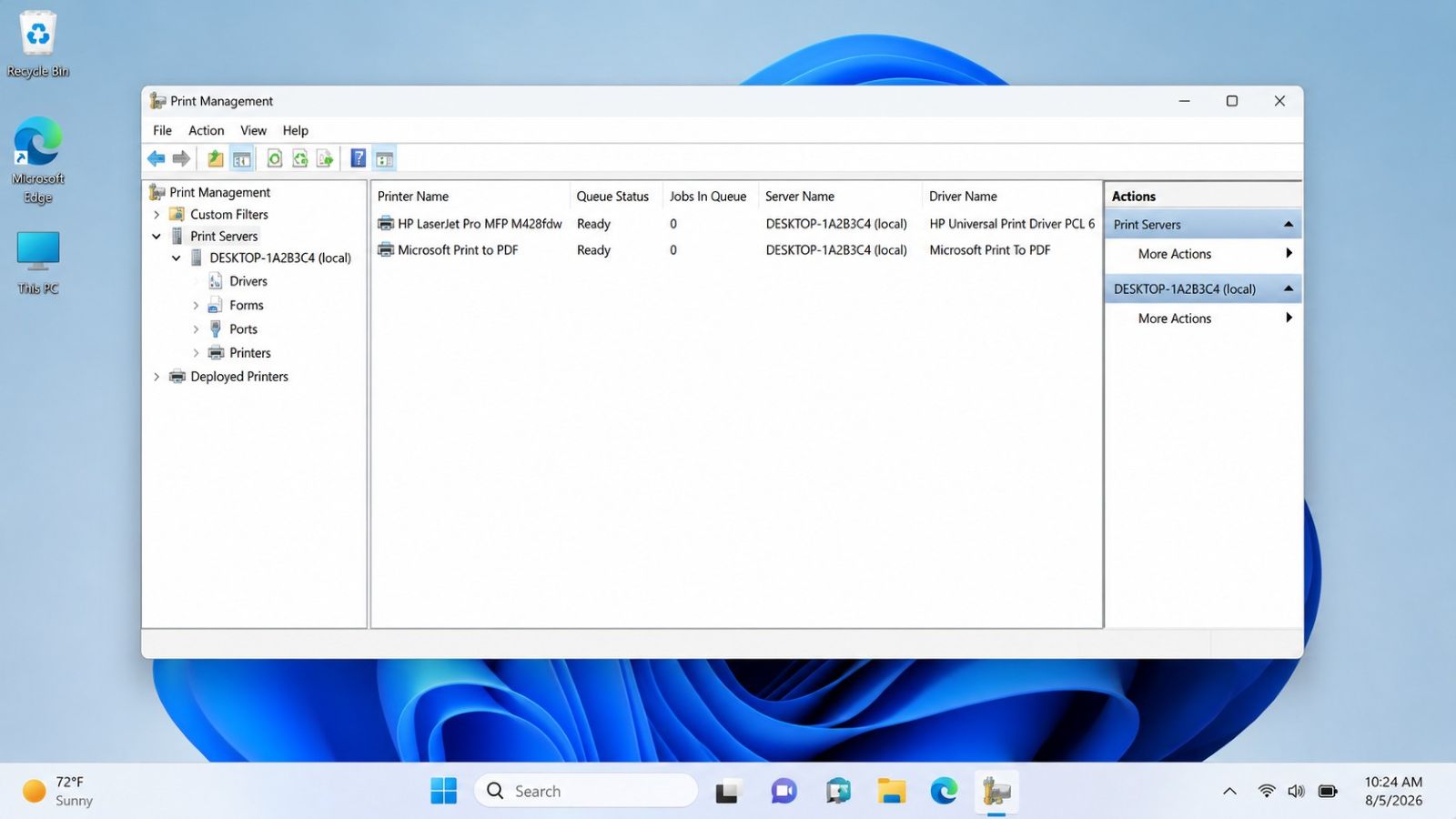
Print Management is one of the most useful built-in tools for diagnosing printer problems in Windows Pro. It provides a central place to inspect printer queues, remove old drivers, manage ports, review print servers, and troubleshoot stubborn printing issues.
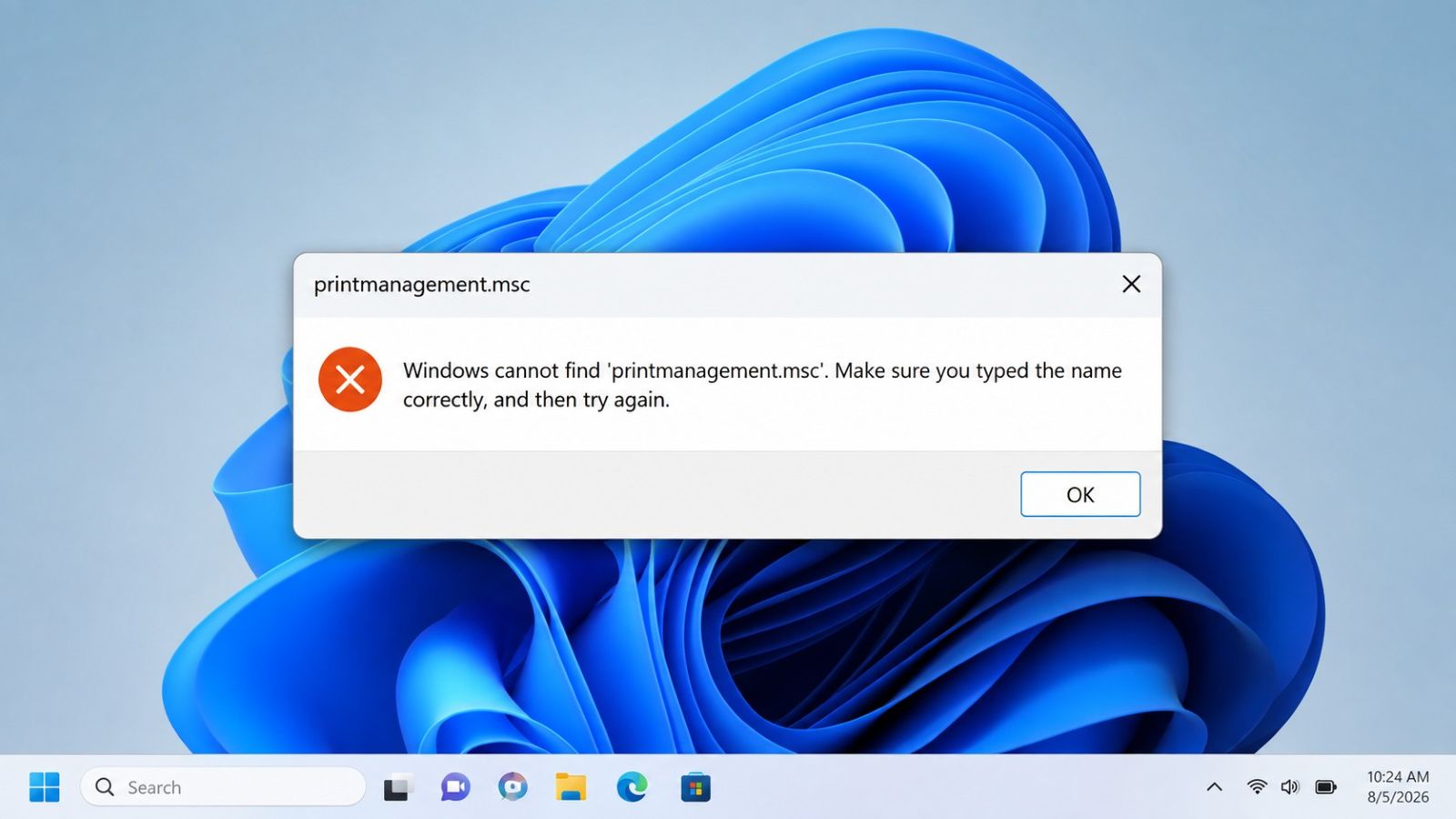
That is why it was unusual when I tried to open the console on a Windows 11 Pro laptop and
Windows reported that it could not find
printmanagement.msc
. The console was not
merely failing to launch—the file itself was missing, and Print Management did not appear in
Microsoft Management Console as an available snap-in.
This guide documents the complete troubleshooting process used to restore the missing component. It also explains what each command does, why some steps appeared to stall, what the Not Present capability state means, and why forcing DISM to use Windows Update ultimately resolved the problem.
These steps require an administrator account. Make sure the laptop is connected to the internet, save any open work, and avoid shutting down the computer while DISM or SFC is actively repairing Windows.
What Is Print Management?
Print Management is a Microsoft Management Console snap-in used to manage printers and related components. It is especially useful for technicians because it exposes details that are harder to reach through the standard Windows Settings app.
- View installed printers and print queues.
- Manage local and network printer ports.
- Remove outdated or damaged printer drivers.
- Inspect print servers and deployed printers.
- Review driver versions and processor architecture.
- Resolve queues that remain after a printer is removed.
In day-to-day troubleshooting, Print Management is often faster and more complete than repeatedly opening Settings → Bluetooth & devices → Printers & scanners .
The Symptoms
The affected Windows 11 Pro system showed several clear symptoms:
-
Running
printmanagement.mscdid not open the console. -
The Print Management file was missing from
C:\Windows\System32. - Microsoft Management Console opened normally.
- Print Management was absent from the Add/Remove Snap-in list.
- Other printer functions still worked after the printer queue was configured.
printmanagement.msc
.
Step 1: Confirm That the File Is Actually Missing
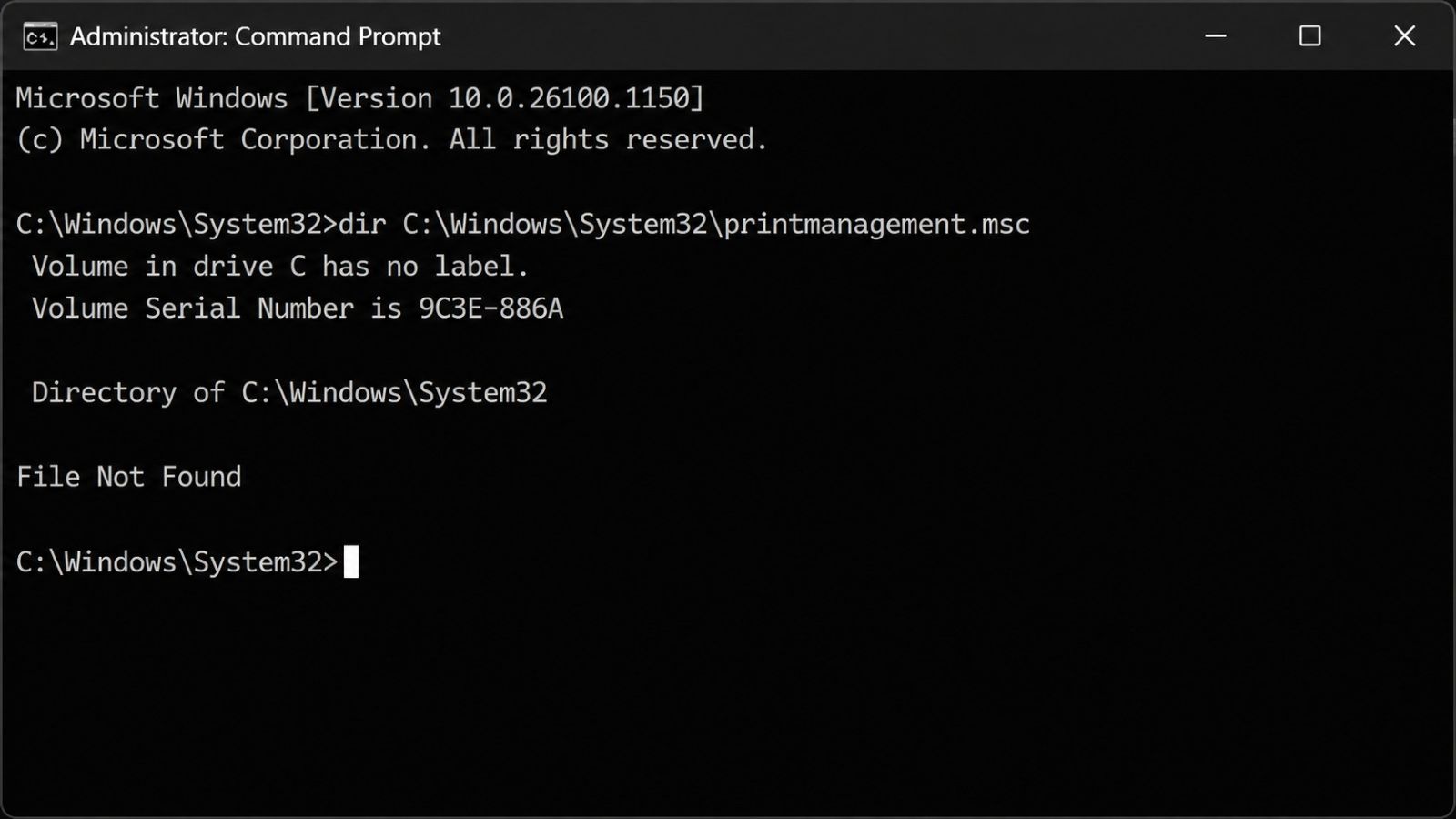
Before repairing Windows, verify whether the console file exists. Open Command Prompt as Administrator and run:
dir C:\Windows\System32\printmanagement.mscIf Windows returns File Not Found , the issue is not simply a broken shortcut. The console file is not present in System32.
Step 2: Test Microsoft Management Console
Press Windows + R , type the following command, and press Enter:
mmcIf a blank Microsoft Management Console window remains open, MMC itself is working. Next, select File → Add/Remove Snap-in and look for Print Management .
In this case, MMC opened normally, but Print Management was not listed. That narrowed the issue to the missing snap-in rather than a failure of MMC as a whole.
Step 3: Repair the Windows Component Store with DISM
When Windows tools or system files are missing, the next step is to repair the Windows component store. Run:
DISM /Online /Cleanup-Image /RestoreHealthWhat DISM Does
DISM stands for Deployment Image Servicing and Management. In this context, it checks the component store Windows uses as a source for repairs. If the component store contains corruption, System File Checker may not have clean source files available to restore damaged components.
A useful way to think about the process is:
- DISM repairs the Windows repair source.
- SFC uses that repaired source to replace damaged system files.
Why DISM May Appear Frozen
During this repair, DISM remained at approximately 67.5% for more than an hour. Task Manager showed little or no obvious activity, which made the process appear frozen.
After pressing Ctrl + C once, the command did not cancel. Instead, the displayed progress jumped forward. DISM eventually reached 100% and printed:
The restore operation completed successfully.
The operation completed successfully.
This is an important reminder that DISM progress is not always displayed smoothly. A long pause does not automatically mean the repair has failed.
Avoid interrupting DISM simply because the percentage has not changed for several minutes. Give it time, especially between roughly 60% and 80%. Only consider stopping it after an extended period with no progress, no related activity, and no response from the process.
Step 4: Run System File Checker
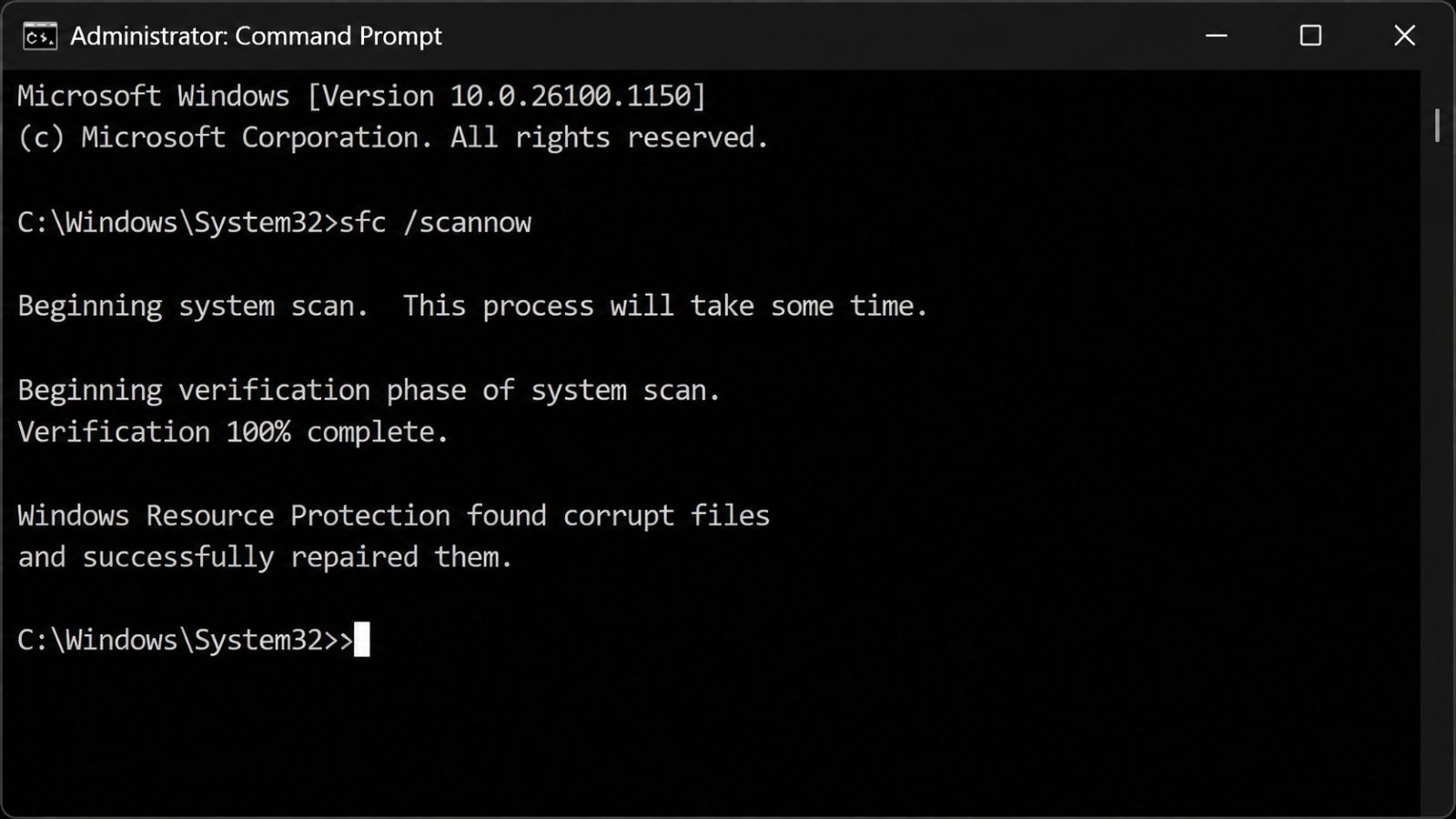
After DISM completes successfully, run:
sfc /scannowSFC scans protected Windows system files and replaces damaged copies when possible. On this laptop, Windows reported:
Windows Resource Protection found corrupt files and successfully repaired them.
That confirmed the system had contained damaged files. However, after a restart,
printmanagement.msc
was still missing. This meant corruption was not the only issue.
Step 5: Check Whether Print Management Exists as a Windows Capability
Modern versions of Windows separate some tools into optional capabilities, sometimes called Features on Demand. A capability can be known to Windows without being installed locally.
To list printing-related capabilities, run:
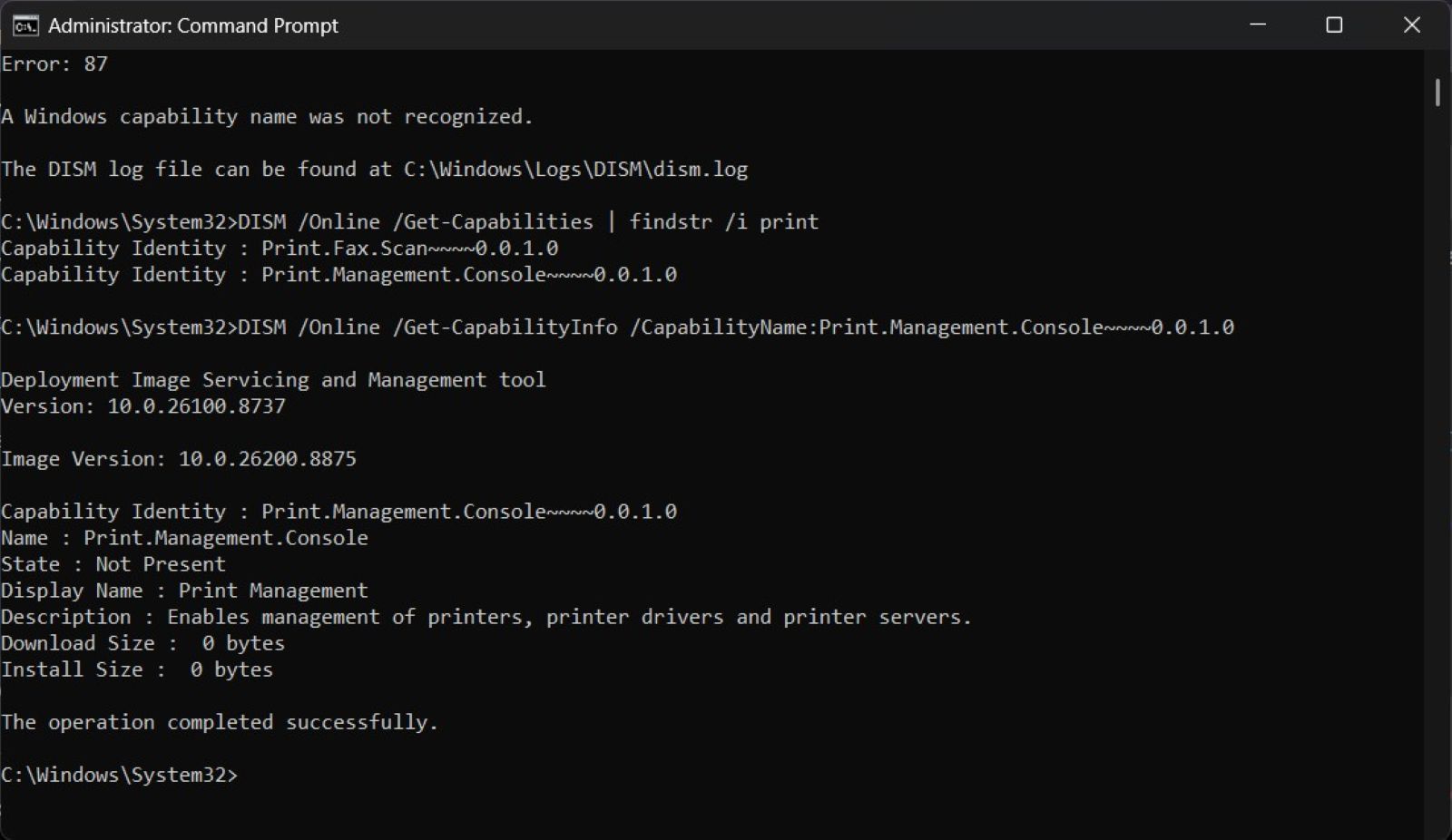
DISM /Online /Get-Capabilities | findstr /i printThe output included the following capability:
Print.Management.Console~~~~0.0.1.0Next, check its exact state:
DISM /Online /Get-CapabilityInfo /CapabilityName:Print.Management.Console~~~~0.0.1.0The important line was:
State : Not PresentWhat “Not Present” Means
Not Present does not mean Windows has never heard of the feature. It means the operating system recognizes the capability, but the files required to use it are not currently installed.
This discovery changed the direction of the repair. The Print Management console was not merely corrupt—it had to be installed as a Windows capability.
Step 6: The First Installation Attempt Returned Error 87
The first installation attempt used:
DISM /Online /Add-Capability /CapabilityName:Print.Management.Console~~~~0.0.1.0Windows responded with:
Error: 87

A Windows capability name was not recognized.
This was confusing because the same system had already listed the capability and returned its information successfully.
Why Error 87 Can Be Misleading
Error 87 is commonly associated with invalid parameters or syntax, but in this case the capability name was valid. The more useful clue was that the payload was not available locally and DISM was not successfully retrieving it from its default source.
Instead of assuming the capability was invalid, the next step was to tell DISM explicitly where to obtain it.
Step 7: Install Print Management from Windows Update
Run the following command in an elevated Command Prompt:
DISM /Online /Add-Capability /CapabilityName:Print.Management.Console~~~~0.0.1.0 /Source:WindowsUpdate
Once
/Source:WindowsUpdate
was added, DISM accepted the request and began installing
the missing capability.
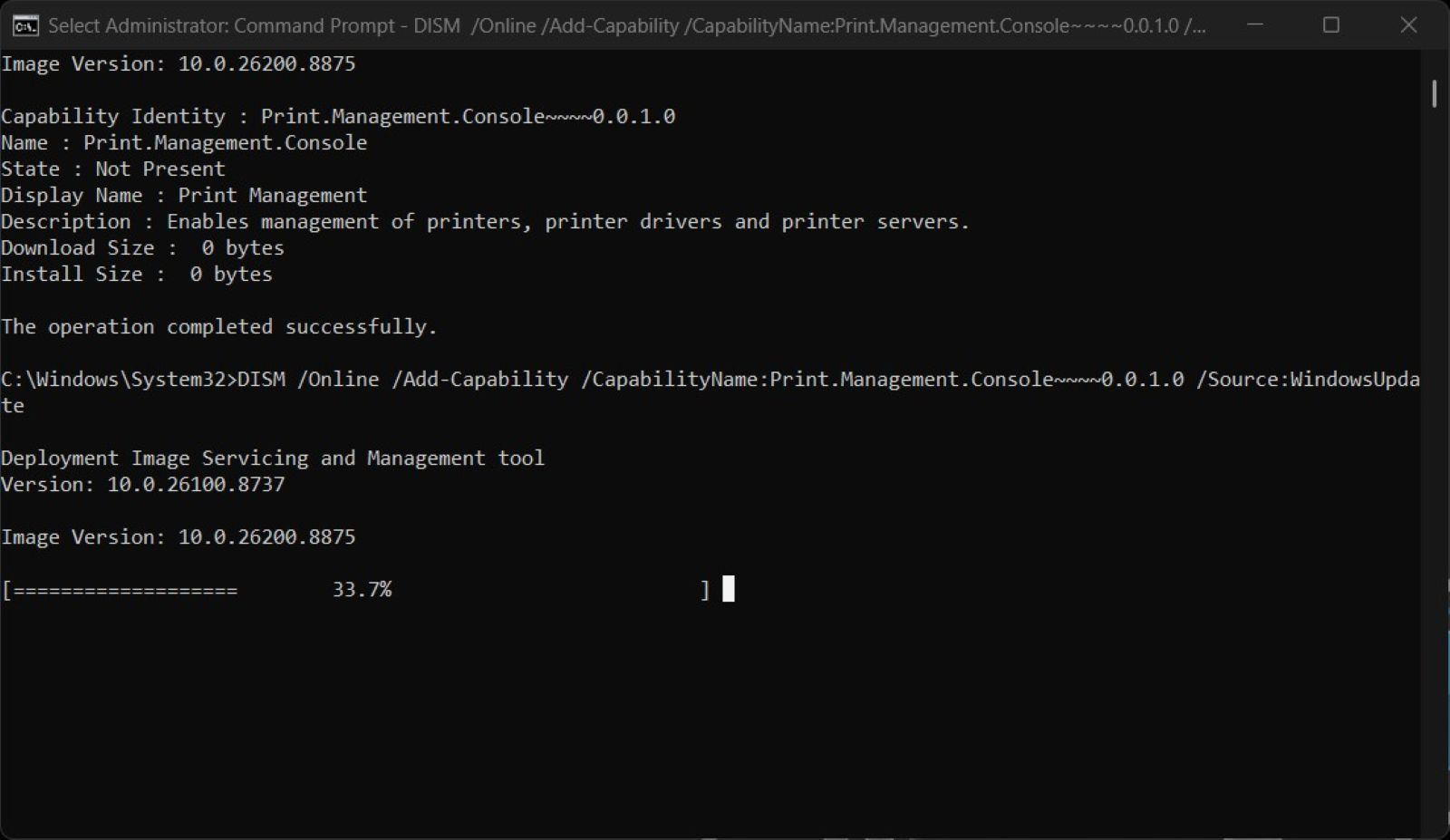
Allow the process to finish. When successful, DISM should return:
The operation completed successfully.Step 8: Restart and Verify the Repair
After installation completes, restart the computer. Then verify the repair in several ways.
Open the Console Directly
printmanagement.mscVerify the File Exists
dir C:\Windows\System32\printmanagement.mscCheck MMC
Open
mmc
, select
File → Add/Remove Snap-in
, and verify that
Print Management
now appears in the list.
Confirm the Capability State
DISM /Online /Get-CapabilityInfo /CapabilityName:Print.Management.Console~~~~0.0.1.0The state should now report that the capability is installed.
Why This Problem Can Happen
There is not always one single cause. Several conditions can leave the Print Management console unavailable:
- Windows capability not installed: the feature exists in the catalog but its state is Not Present.
- Component-store corruption: Windows may have damaged or incomplete repair sources.
- Interrupted updates: an update may install metadata without completing the feature payload.
- OEM deployment differences: a manufacturer image may not include every optional administrative tool.
- School or business policies: managed systems may restrict Features on Demand or Windows Update sources.
- Customized Windows images: stripped-down images may intentionally remove management components.
In this case, the laptop was a new Lenovo OEM system running Windows 11 Pro. DISM and SFC repaired corrupted system files, but Print Management remained absent until the capability was installed directly from Windows Update.
Common Mistakes to Avoid
Repeatedly Reinstalling the Printer Driver
A missing Print Management console is an operating-system component issue. Reinstalling an HP, Canon, Brother, Xerox, or Konica Minolta driver will not restore the MMC snap-in.
Downloading an MSC File from an Unknown Website
Do not download random copies of
printmanagement.msc
. The console depends on
supporting Windows files and registrations. A copied file may not work and could expose the
computer to malware.
Copying the File from Another Computer
Even a legitimate copy from another computer may not match the Windows build and does not install the underlying capability correctly.
Assuming Windows Must Be Reinstalled
Reinstalling Windows should be a last resort. Checking the Windows capability state takes only a few minutes and may provide a direct repair path.
Interrupting DISM Too Early
DISM can remain at one percentage for a long time. Give it sufficient time to complete before assuming it is frozen.
All Commands Used in This Repair
Verify the Console File
dir C:\Windows\System32\printmanagement.mscOpen Microsoft Management Console
mmcRepair the Windows Component Store
DISM /Online /Cleanup-Image /RestoreHealthRepair Protected System Files
sfc /scannowList Printing Capabilities
DISM /Online /Get-Capabilities | findstr /i printCheck Print Management Capability Information
DISM /Online /Get-CapabilityInfo /CapabilityName:Print.Management.Console~~~~0.0.1.0Install Print Management from Windows Update
DISM /Online /Add-Capability /CapabilityName:Print.Management.Console~~~~0.0.1.0 /Source:WindowsUpdateTechnician’s Notes
Device: Lenovo OEM laptop
Operating system: Windows 11 Pro 25H2
Primary symptom:
printmanagement.msc
missing
Additional finding: SFC found and repaired corrupt files
Capability state: Print Management Console was Not Present
Final repair: Installed the capability from Windows Update
Result: Print Management restored without reinstalling Windows
Frequently Asked Questions
Does Windows 11 Pro include Print Management?
Windows 11 Pro supports the Print Management console, but the capability may not be installed on every system.
Does Windows 11 Home include Print Management?
Print Management is generally associated with Professional, Enterprise, Education, and Server editions. Home users can still manage printers through Settings, Devices and Printers, Print Server Properties, and PrintUI.
Why does Windows say it cannot find printmanagement.msc?
The file may be missing because the capability is not installed, the component store is damaged, or the Windows installation was customized.
What does State: Not Present mean?
It means Windows recognizes the capability but the feature files are not installed locally.
Why did Add-Capability return Error 87?
Error 87 normally points to an invalid parameter, but it can also appear when DISM cannot resolve the requested capability through its default source. In this case, specifying Windows Update as the source allowed the installation to begin.
Can I install Print Management through Optional Features?
Depending on the Windows build, it may appear under optional features. When it does not, DISM or PowerShell can be used to inspect and install the capability.
Can I copy printmanagement.msc from another PC?
That is not recommended. The console relies on additional components and registrations that are installed with the Windows capability.
Should I run DISM or SFC first?
Run DISM first to repair the Windows component store, then run SFC so it has a healthy repair source available.
How long should DISM take?
The time varies by hardware, system condition, and the amount of repair work required. It can pause at a single percentage for an extended period and still complete successfully.
Do I need to reinstall Windows?
Usually not. Repair the component store, run SFC, check the capability state, and attempt the capability installation before considering a Windows reinstall.
Final Thoughts
The most important lesson from this repair is that a missing Windows tool does not automatically mean the entire operating system is broken. Modern Windows installations use capabilities and Features on Demand, so a tool can be supported by the operating system while still being absent from the local installation.
A methodical troubleshooting process prevented an unnecessary Windows reinstall. DISM repaired the component store, SFC repaired damaged files, the capability check revealed the true state of Print Management, and Windows Update supplied the missing payload.
Instead of treating the first error message as the final diagnosis, verify what Windows actually knows about the feature. That extra step can turn a confusing missing-file problem into a clean, targeted repair.
Need Professional Help?
If Print Management is still missing, Windows Update is blocked, or your printer drivers remain difficult to remove, Texas Tech Rescue can diagnose the Windows printing system and recommend the safest next step.
Get Professional Help