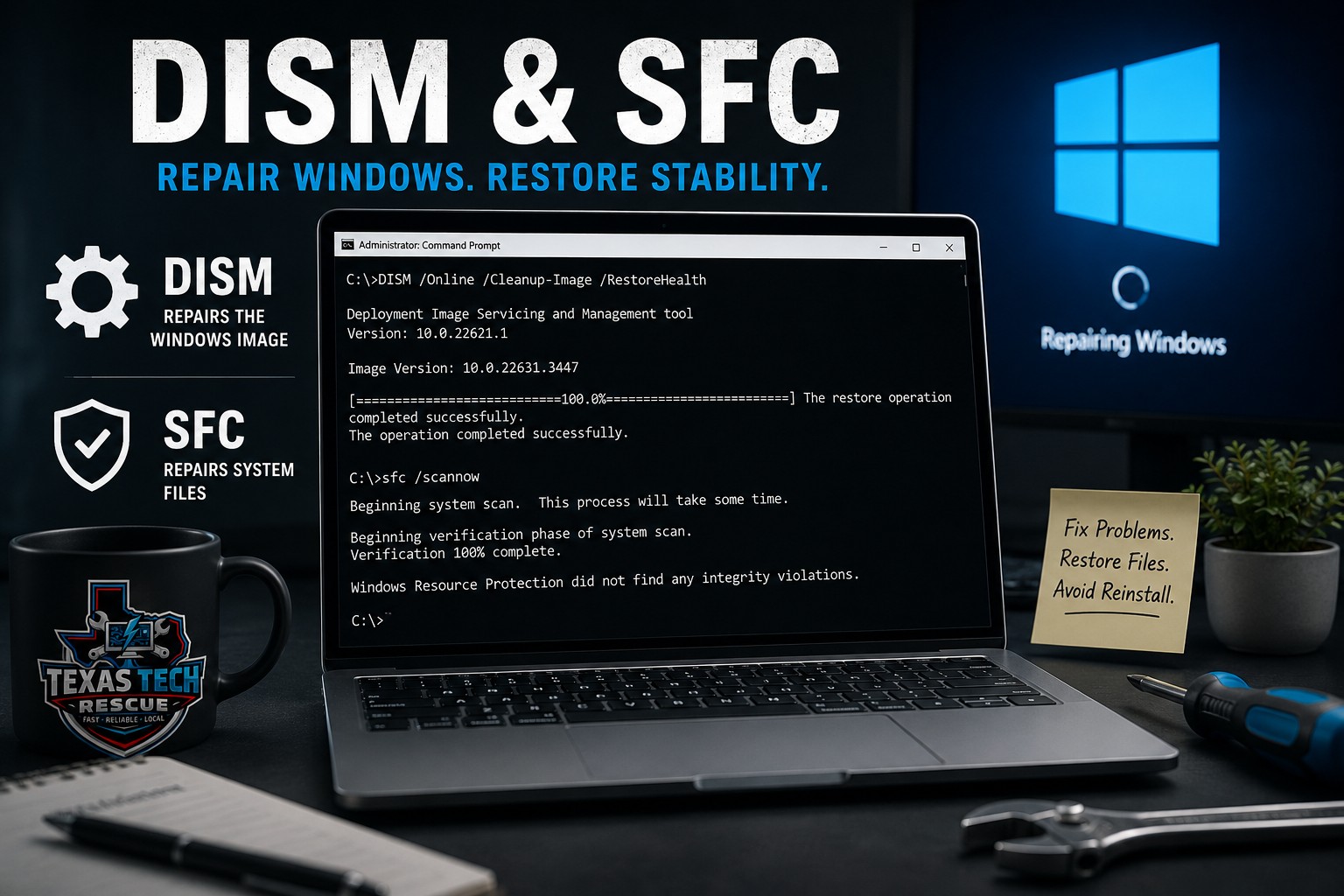
When Windows begins behaving strangely, the problem is not always a failing computer. Protected system files can become damaged or go missing after interrupted updates, unexpected shutdowns, storage errors, software conflicts, or other operating-system problems.
Windows includes two built-in repair tools that can often correct this type of corruption: Deployment Image Servicing and Management , usually called DISM, and System File Checker , usually called SFC.
I recently used both tools while troubleshooting a Windows 11 Pro computer that was missing the Print Management console. The repair process took longer than expected, and DISM appeared stuck at the same percentage for an extended period. It eventually continued, completed successfully, and SFC reported that corrupted files had been repaired. That experience is a good example of why it helps to understand what these tools are doing before assuming they have frozen.
Open Terminal or Command Prompt as an administrator, then run:
DISM /Online /Cleanup-Image /RestoreHealthAfter DISM completes, run:
sfc /scannowRestart Windows after the repairs finish.
What Is Windows System-File Corruption?
Windows depends on thousands of protected files and components. If an important file is damaged, altered, or missing, parts of the operating system may stop working correctly.
Possible symptoms include:
- Windows features that no longer open
- Failed or repeatedly rolling-back updates
- Missing administrative tools
- Settings or Start menu crashes
- Unexpected errors and application failures
- Blue screens or startup trouble
- Commands that report missing Windows components
These symptoms can also be caused by drivers, malware, storage problems, memory errors, or other hardware faults. DISM and SFC are useful diagnostic steps, but they are not universal fixes.
What Does System File Checker Do?
System File Checker examines protected Windows system files. It compares them with known-good copies and replaces files that are missing or corrupted.
The standard command is:
sfc /scannowSFC repairs the active Windows installation, but it depends on the local Windows component store for replacement files. If that repair source is damaged, SFC may be unable to complete the job.
What Does DISM Do?
DISM is a broader Windows servicing tool. The command used in this guide checks and repairs the Windows component store—the source Windows uses when replacing damaged system files.
DISM /Online /Cleanup-Image /RestoreHealthThe command options mean:
- /Online targets the Windows installation currently running.
- /Cleanup-Image tells DISM to service the Windows image.
- /RestoreHealth scans for corruption and attempts a repair.
DISM may obtain replacement content through Windows Update unless a different repair source is specified.
Why DISM Usually Comes Before SFC
Think of the Windows component store as a supply cabinet containing replacement parts. SFC uses those parts to repair the active operating system.
If the supply cabinet itself is damaged, SFC may not have a clean copy available. DISM repairs the source first; SFC then uses that repaired source to replace damaged system files.
DISM: repairs the Windows repair source.
SFC: repairs protected files in the running Windows installation.
How to Run DISM and SFC
Step 1: Open an Elevated Terminal
- Right-click the Start button.
- Select Terminal (Admin) or Command Prompt (Admin) .
- Approve the User Account Control prompt.
The title bar should indicate that the window has administrator privileges. Without elevation, the commands may fail with an access-denied message.
Step 2: Run DISM
DISM /Online /Cleanup-Image /RestoreHealthPress Enter and allow the process to finish. Avoid closing the window or restarting the computer while DISM is actively servicing Windows.
Step 3: Run System File Checker
sfc /scannowSFC will scan protected system files and display a result after reaching 100 percent.
Step 4: Restart Windows
Restart after repairs complete. If SFC repaired files, running it once more after the restart can confirm that no integrity violations remain.
Why DISM Can Appear Stuck
DISM does not always progress smoothly. It may remain at one percentage for a long time and then suddenly move forward.
During my Print Management repair, DISM stayed near the same percentage for roughly an hour or longer. After I attempted to interrupt it with Ctrl + C , it did not cancel; instead, the percentage began moving again and eventually reached 100 percent.
Long pauses can occur while Windows examines the component store, processes packages, retrieves files, or completes a repair stage. The displayed percentage is not a precise timer.
Give DISM time, especially on slower drives or damaged installations. Check Task Manager for CPU, disk, or network activity. Avoid repeatedly pressing keys or closing the terminal unless the process has clearly failed and the computer is completely unresponsive.
What the SFC Results Mean
Windows Resource Protection Did Not Find Any Integrity Violations
SFC did not detect corruption in the protected files it examined. The original problem may have another cause.
Windows Resource Protection Found Corrupt Files and Successfully Repaired Them
SFC detected damaged or missing protected files and replaced them. Restart Windows and test the original issue.
Windows Resource Protection Found Corrupt Files but Was Unable to Fix Some of Them
Run DISM, restart, and run SFC again. If the result continues, the component store may require a separate repair source or Windows may need a repair installation.
Windows Resource Protection Could Not Perform the Requested Operation
The scan could not complete. Possible causes include storage errors, a pending repair, file-system problems, or Windows services that are not functioning correctly.
Common DISM Result Messages
The Restore Operation Completed Successfully
DISM completed the repair. Run SFC afterward to repair protected files in the active installation.
No Component Store Corruption Detected
The component store appears healthy. SFC may still be worth running because the active system files are checked separately.
Source Files Could Not Be Found
DISM could not locate suitable replacement content. Windows Update may be unavailable, damaged, or restricted, or the installed Windows version may not match the repair source.
When Should You Use These Tools?
DISM and SFC are reasonable steps when:
- A Windows feature is missing or will not open
- Updates repeatedly fail
- Windows tools crash unexpectedly
- System files are reported missing
- Windows begins behaving strangely after an interrupted update
- Other basic troubleshooting has not resolved the issue
In my case, the tools were part of diagnosing why Print Management was missing from Windows 11 Pro. They repaired corruption, but additional troubleshooting was still needed because the underlying optional capability was not present. That is an important lesson: successful repairs do not prove that every missing feature will immediately return.
What DISM and SFC Will Not Fix
- A failing SSD or hard drive
- Defective RAM
- A damaged motherboard
- Overheating
- Every driver problem
- All malware infections
- Deleted personal files
- Third-party application corruption
- Unsupported or absent optional Windows features
If corruption keeps returning, investigate the storage drive, memory, power stability, malware, and update history rather than repeatedly running the same commands.
Common Mistakes to Avoid
- Running the terminal without administrator privileges
- Closing DISM because the percentage pauses
- Typing the command with missing spaces or incorrect slashes
- Assuming SFC repairs third-party software
- Ignoring repeated storage or memory errors
- Interrupting the repair with a forced shutdown
- Expecting one command to solve every Windows problem
What to Try If DISM or SFC Fails
- Restart Windows and try again.
- Install pending Windows updates if possible.
- Check the system drive for errors and review drive health.
- Run the tools from Safe Mode or the Windows recovery environment when appropriate.
- Use a matching Windows installation image as a DISM repair source.
- Consider an in-place repair installation that preserves applications and files.
- Back up important data before more invasive repairs.
Frequently Asked Questions
Does DISM delete personal files?
The RestoreHealth command is intended to repair Windows components, not personal files. Backups are still recommended before significant system repair.
Does SFC remove installed programs?
SFC repairs protected Windows files. It does not normally uninstall third-party applications.
Do I need an internet connection?
SFC normally uses local files. DISM may use Windows Update to obtain replacement content, so an internet connection can be necessary unless another source is provided.
How long should DISM take?
Time varies with drive speed, system condition, corruption, update services, and internet performance. It may take minutes or much longer.
Can I use the computer while DISM is running?
Light use may be possible, but it is better to let the repair finish without heavy workloads, updates, or shutdowns.
Can I cancel DISM?
Avoid canceling it unless necessary. Interrupting Windows servicing may create additional problems.
Should I run SFC before DISM?
You can, but when corruption is suspected, running DISM first helps ensure that SFC has a healthy repair source.
Should I restart after SFC?
Yes, especially when files were repaired. Restart and test the original problem.
Do these commands work on Windows 10 and Windows 11?
Yes. The standard online repair commands are commonly used on both operating systems.
Will DISM and SFC fix blue screens?
They may help when corrupted Windows files are responsible. Blue screens can also be caused by drivers, storage, memory, overheating, or other hardware faults.
Final Thoughts
DISM and SFC are valuable because they can repair Windows without immediately requiring a complete reinstall. DISM restores the component store, and SFC uses that source to repair protected system files.
Run them patiently and in the correct order. A percentage that pauses does not always mean DISM has failed, and a successful result does not guarantee that every problem is caused by file corruption.
My missing Print Management case demonstrated both points: the tools took far longer than expected and successfully repaired corrupt files, but the troubleshooting process still had to continue. Used properly, DISM and SFC are strong first-line tools—not substitutes for a complete diagnosis.
Windows Still Acting Up?
If DISM and SFC do not resolve the problem, Texas Tech Rescue can diagnose Windows corruption, missing features, update failures, storage issues, and hardware problems before more drastic repairs are attempted.
Request Windows Help