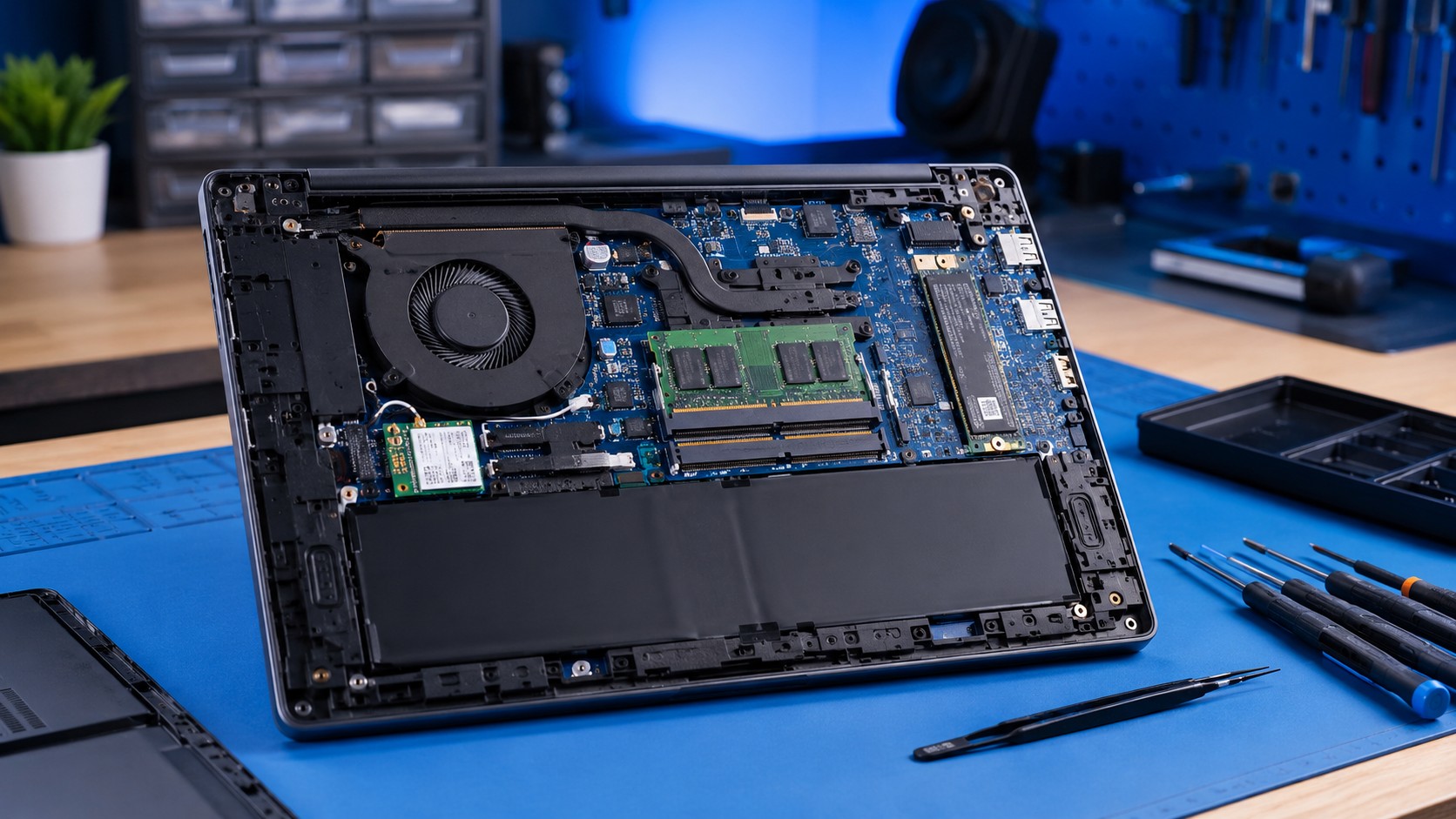
You have an older laptop.
It still works.
It just feels slower than it used to.
So naturally, the question becomes:
Can I upgrade it?
Sometimes the answer is yes.
Sometimes the answer is:
Technically yes, if you enjoy soldering under a microscope and making extremely poor financial decisions.
Modern laptops can be wildly different when it comes to upgradeability. Two machines that look nearly identical from the outside may have completely different options once you open them.
One might let you replace:
- RAM
- SSD
- Wi-Fi card
- Battery
while another may have almost everything soldered directly to the motherboard.
Before buying parts, you need to figure out what your specific laptop actually supports.
Here's how.
Start With the Exact Model Number
This is the most important first step.
Do not search for:
“HP laptop RAM upgrade.”
That is far too broad.
HP has made approximately seventeen billion laptops.
You need the exact model or product number.
For example:
Dell Latitude 5420
is much more useful than:
Dell laptop
And sometimes even the model family is not specific enough.
Manufacturers may sell multiple hardware configurations under nearly identical names.
Look for the model number on:
- Bottom label
- BIOS or UEFI
- Windows System Information
- Manufacturer support application
- Original packaging
- Purchase receipt
In Windows, you can also press:
Windows + R
then type:
msinfo32
and press Enter.
Look for fields such as:
System Manufacturer
System Model
That gives you a much better starting point.
Always research the exact laptop model before buying upgrade parts. A model family may include several internal configurations that look nearly identical from the outside.
Why the Exact Model Matters
A single laptop family may have versions with:
- Different processors
- Different motherboard layouts
- Different memory configurations
- Different storage options
- Different display types
- Different batteries
One model may use replaceable RAM.
Another may use soldered RAM.
A third may have both.
Which brings us to one of the most common upgrade questions.
Can You Upgrade the RAM?
Sometimes.
RAM is one of the easiest and most useful upgrades on many laptops.
But modern laptops increasingly use soldered memory.
Replaceable RAM
Traditional laptop RAM usually comes in removable modules called SO-DIMMs.
If your laptop uses SO-DIMM slots, you may be able to:
- Add more RAM
- Replace smaller modules
- Upgrade to higher-capacity modules
For example, a laptop may come with 8 GB and support 16 GB or 32 GB, depending on the motherboard and processor.
Soldered RAM
Some laptops have memory chips permanently attached to the motherboard.
That means the RAM is not designed to be removed.
If the laptop shipped with 8 GB soldered RAM, then you may be stuck with 8 GB permanently.
Unless the machine also includes an additional memory slot.
Soldered Plus Upgradeable RAM
Some laptops use a combination.
For example: 8 GB soldered + one empty SO-DIMM slot.
That gives you some upgrade flexibility.
You might add another 8 GB module and end up with 16 GB total.
This is why you cannot assume anything based on appearance alone.
The laptop has to be researched by exact model.
How Much RAM Does the Laptop Support?
Even if the memory is replaceable, the system may have a maximum supported capacity.
That maximum can depend on:
- Processor
- Motherboard
- BIOS
- Number of slots
- Supported memory generation
Common laptop memory types include:
- DDR4
- DDR5
These are not interchangeable.
You cannot install DDR5 into a DDR4 slot simply because the number is larger and therefore feels more powerful.
Computer hardware unfortunately does not reward optimism.
Check Task Manager
Task Manager can provide some useful clues.
Press:
Ctrl + Shift + Esc
Then go to:
Performance → Memory
Depending on the system, you may see:
- Total installed RAM
- Speed
- Slots used
- Form factor
For example: Slots used: 1 of 2.
That may indicate an available memory slot.
But I would still verify the laptop's hardware documentation before ordering anything.
Task Manager tells you what Windows sees. It does not always tell the whole story.
For help deciding how much memory is actually useful, see How Much RAM Do You Really Need?
Can You Upgrade the Storage?
Storage is one of the most common laptop upgrades.
And fortunately, it is still upgradeable in many systems.
You may encounter:
- 2.5-inch SATA drives
- M.2 SATA SSDs
- M.2 NVMe SSDs
- Soldered storage
- Multiple storage slots
2.5-Inch SATA Drives
Older laptops frequently used 2.5-inch hard drives.
If your laptop still has a mechanical hard drive, replacing it with a SATA SSD can provide one of the most noticeable performance improvements possible.
Startup becomes faster.
Applications load faster.
Windows feels more responsive.
The laptop stops sounding like a tiny mechanical filing cabinet.
For many older computers, this upgrade alone can dramatically improve usability.
M.2 SSDs
Modern laptops commonly use M.2 SSDs.
These small drives attach directly to the motherboard.
M.2 describes the physical form factor.
It does not automatically tell you what communication standard the drive uses.
An M.2 drive may use:
- SATA
- NVMe / PCIe
The slot has to support the drive you intend to install.
This is another reason to verify compatibility instead of simply buying whatever Amazon labels:
SUPER ULTRA GAMING NVME 7000 MB/S RGB TURBO
and hoping for the best.
Does the Laptop Have a Second SSD Slot?
Some laptops include multiple storage locations.
- One M.2 NVMe slot
- Second M.2 slot
- 2.5-inch drive bay
That can be great because you may be able to add storage without replacing the original drive.
Other laptops only have one storage slot.
In that situation, upgrading may mean replacing the existing SSD with a larger one.
You can usually clone the original drive or reinstall Windows depending on your needs.
What If the Storage Is Soldered?
Some very thin or inexpensive laptops use storage permanently attached to the motherboard.
If the storage is soldered, internal upgrades may be impossible.
External storage can still be used, but that is obviously not the same thing.
For a deeper comparison of storage types, see SSD vs HDD: Which Upgrade Is Right for Your Computer?
Can You Upgrade the Wi-Fi Card?
Often, yes.
Many laptops use a small M.2 wireless card for:
- Wi-Fi
- Bluetooth
These cards can sometimes be replaced with newer models.
A Wi-Fi upgrade may help with:
- Compatibility with newer routers
- Connection stability
- Wireless performance
- Bluetooth support
Antenna Compatibility Matters
Laptop Wi-Fi cards connect to small internal antenna wires.
The number and type of antennas can affect compatibility.
A new card cannot magically create antennas that do not exist.
BIOS Restrictions
Some older laptop manufacturers occasionally used hardware restrictions that limited which wireless cards could be installed.
This is less common than it once was, but it is still worth checking on older systems.
Your Router Still Matters
Installing a newer Wi-Fi card does not automatically improve your internet connection.
If your router is old, poorly positioned, or your internet service itself is slow, upgrading the laptop's wireless adapter may not solve the real problem.
If Wi-Fi performance is your concern, diagnose the network first.
Can You Replace the Battery?
Usually.
Laptop batteries eventually wear out. That is normal.
Lithium-ion batteries gradually lose capacity over time.
Symptoms may include:
- Short battery life
- Sudden shutdowns
- Battery percentage dropping quickly
- Laptop only working while plugged in
- Battery swelling
Older laptops often had batteries that could be removed in approximately three seconds.
Slide two latches.
Battery falls out.
Done.
Modern laptops usually require removing the bottom cover.
The battery itself is often secured internally with screws and a cable.
Still replaceable.
Just slightly less:
“Grandma can do this at the kitchen table.”
Battery Replacement Is Not an Upgrade in the Traditional Sense
Replacing a worn battery usually restores original runtime.
It does not necessarily increase performance.
Although higher-capacity compatible batteries sometimes exist for certain models.
Always verify:
- Voltage
- Connector
- Physical dimensions
- Part number
- Manufacturer compatibility
If a laptop battery is swollen, stop using the laptop until the battery is addressed. A swollen battery can damage the chassis, trackpad, and other internal components.
Can You Upgrade the CPU?
Usually not.
Laptop processors are commonly soldered directly to the motherboard.
That means the processor cannot simply be removed and replaced.
Older laptops sometimes used socketed CPUs.
Those systems occasionally allowed processor upgrades.
But even then, compatibility depended on:
- Chipset
- BIOS
- Cooling system
- Power requirements
For most modern laptops: CPU upgrade = motherboard replacement.
At that point you are not really upgrading the processor.
You are replacing the majority of the computer.
Can You Upgrade the Graphics Card?
Usually not.
Laptop graphics hardware is commonly integrated into:
- Processor
- Motherboard
- Dedicated GPU chips soldered to the motherboard
Unlike desktop computers, laptops generally do not have a standard graphics card slot.
There have been exceptions. Some high-end workstation or gaming laptops used modular graphics designs.
But those are not typical.
For most laptops: The GPU you bought is the GPU you have.
This is extremely important when buying a laptop for gaming, CAD, video editing, or other graphics-heavy work.
You usually cannot decide two years later: “I think I'll just throw a newer graphics card in this thing.”
The laptop will respond: No.
Can You Upgrade the Screen?
Technically, yes.
Practically? It depends.
Laptop displays can often be replaced.
But upgrading from one panel type to another may involve compatibility issues with:
- Connector type
- Resolution
- Refresh rate
- Cable
- Power requirements
- Display mounting
- BIOS
- Touchscreen hardware
For example, going from 1080p 60 Hz to 1440p high refresh is not automatically a drop-in upgrade.
Even if the panel physically fits.
Display upgrades can be done on certain laptops, but they require much more careful research than a basic SSD or RAM upgrade.
Can You Upgrade the Keyboard?
Usually, replacement is possible.
Upgradeability is another matter.
You might replace a damaged keyboard with:
- Same layout
- Backlit version
- Different language layout
But compatibility varies by model.
Some laptop keyboards are separate components.
Others are integrated into the palm rest assembly.
In those cases, replacing the keyboard may require replacing a much larger section of the laptop.
Because manufacturers occasionally enjoy turning a $35 part into a three-hour project.
Can You Add a Backlit Keyboard?
Sometimes.
If the laptop model was sold in configurations with both:
- Non-backlit keyboard
- Backlit keyboard
then an upgrade may be possible.
But the motherboard needs to have the correct connector and support the additional backlight cable.
Again: check the exact model. Do not assume.
Can You Upgrade the Laptop Cooling?
Sometimes.
But not usually in the same way you would upgrade desktop cooling.
Possible laptop cooling improvements may include:
- Replacing a failing fan
- Cleaning dust
- Replacing thermal paste
- Replacing thermal pads
- Installing the correct higher-capacity cooling assembly from another configuration
Some laptop models have different cooling systems depending on the processor or graphics configuration.
In rare cases, a more capable factory heatsink assembly may fit.
But this is extremely model-specific.
For most users, cooling maintenance matters more than cooling modification.
A clean fan and properly functioning heatsink can make a significant difference.
Can You Upgrade the Laptop's Ports?
Usually not internally.
Ports are generally attached directly to:
- Motherboard
- Daughterboard
You generally cannot add HDMI or USB-C internally just because you want another port.
But you may be able to expand connectivity through:
- USB hubs
- USB-C docks
- Thunderbolt docks
- Docking stations
Whether this works depends on what the laptop's existing ports support.
And as discussed in What Computer Specs Actually Matter?, just because a port is USB-C does not mean it supports charging, display output, Thunderbolt, or every high-speed data mode.
The connector is only part of the story.
Check the Manufacturer's Service Manual
This is one of the best resources available.
Many business laptops especially have excellent service documentation.
Look for terms such as:
- Service Manual
- Maintenance and Service Guide
- Hardware Maintenance Manual
These documents may show:
- How to remove the bottom cover
- RAM location
- SSD location
- Battery replacement
- Wi-Fi card replacement
- Supported components
- Part numbers
Business-class machines from Dell, HP, Lenovo, and others often have especially good documentation.
This is one reason I like working on many business laptops.
Some of them were clearly designed with the expectation that a technician might eventually need to touch them.
Which is refreshing.
Check Compatibility Tools
Memory and storage manufacturers sometimes provide tools or compatibility databases that can help identify supported upgrades.
These can be useful.
But I still prefer verifying against multiple sources when possible, especially if the laptop has unusual hardware configurations.
A compatibility tool should be part of your research.
Not a sacred prophecy.
Search the Exact Model Plus “Upgrade”
This can be extremely helpful.
For example:
Dell Latitude 5420 RAM upgrade
or:
HP EliteBook 840 G8 SSD upgrade
Look for:
- Manufacturer documentation
- Repair guides
- Teardown videos
- Service manuals
- Reputable hardware forums
Videos are especially useful because you can physically see:
- Number of slots
- Connector locations
- Battery layout
- Cooling system
- Whether components are soldered
Just make sure the video shows the exact model or a confirmed identical chassis.
Opening the Laptop Can Answer Questions Too
Sometimes documentation is unclear.
At that point, physically inspecting the laptop may be the fastest way to find out.
Once the bottom cover is removed, you may be able to see:
- RAM slots
- M.2 slots
- 2.5-inch drive bay
- Wi-Fi card
- Battery
- Cooling system
But opening a laptop is not always trivial.
Some use:
- Hidden screws
- Fragile plastic clips
- Ribbon cables
- Adhesive
- Different screw lengths
If you are unfamiliar with laptop disassembly, research the procedure first.
You do not want your upgrade project to begin with:
“I think I broke something while trying to see if I could upgrade it.”
That changes the scope considerably.
Check Before You Buy the Parts
This sounds obvious.
Yet somehow it remains necessary.
Do not buy RAM because: “It looks right.”
Do not buy an SSD because: “It says M.2.”
Do not buy a battery because: “The shape looks similar.”
Confirm compatibility first.
For RAM, Verify:
- DDR generation
- SO-DIMM vs. soldered
- Speed
- Capacity
- Maximum supported memory
For Storage, Verify:
- M.2 or 2.5-inch
- NVMe or SATA
- Physical length
- Available slots
- Maximum capacity if applicable
For Batteries, Verify:
- Part number
- Voltage
- Connector
- Physical compatibility
Five minutes of research can prevent the incredibly rewarding experience of opening a package and immediately realizing:
Yep. That's not going in there.
When Is an Upgrade Worth Doing?
Just because a laptop can be upgraded does not automatically mean it should be.
An upgrade makes sense when the rest of the machine is still in good condition.
For example, a laptop with:
- Decent processor
- Good screen
- Healthy motherboard
- Solid chassis
- Working keyboard
but only:
- 8 GB RAM
- Small SSD
may be a fantastic upgrade candidate.
Add more memory.
Install a larger SSD.
Keep using it.
When Upgrading May Not Make Sense
Suppose the laptop has:
- Very old processor
- Cracked hinge
- Weak battery
- Damaged keyboard
- Poor display
- Limited Windows compatibility
- Soldered RAM
- Tiny soldered storage
At that point, investing heavily in upgrades may not make financial sense.
You are no longer improving a good computer.
You are attempting to medically preserve one.
And eventually there comes a point where replacement is the smarter option.
If you are unsure, see Repair or Replace Your Computer?
The Best Laptop Upgrades
If your laptop supports them, the upgrades that usually provide the most practical value are:
SSD
Especially if the machine still uses a mechanical hard drive.
This can dramatically improve responsiveness.
RAM
Useful when memory is genuinely limiting your workload.
Especially for multitasking.
Battery
Not a performance upgrade, but extremely useful if the laptop has lost its portability.
Wi-Fi Card
Can improve wireless compatibility and capability on some older systems.
Larger SSD
Useful when the current drive is constantly full.
Running out of storage is annoying.
Running out of storage during a Windows update is a different category of annoying.
For more upgrade ideas, see 5 Upgrades That Can Make an Old Computer Feel New Again.
What Usually Cannot Be Upgraded?
On most modern laptops, assume these are difficult or impossible until proven otherwise:
- CPU
- GPU
- Ports
- Motherboard-integrated components
RAM and storage are much more likely to be upgradeable.
But even those are increasingly soldered in thin-and-light systems.
Upgradeability Is Worth Checking Before You Buy
This is something people rarely consider until years later.
When shopping for a laptop, it is worth checking:
- Is RAM soldered?
- Can storage be replaced?
- Is there a second SSD slot?
- Can the battery be serviced?
- Can the Wi-Fi card be replaced?
You may not need those upgrades today.
But flexibility can extend the useful life of the machine.
A laptop with 16 GB soldered RAM and 256 GB soldered storage might be perfectly fine now.
But what happens when your needs change?
Nothing.
That's what happens.
You buy another laptop.
A Simple Laptop Upgrade Checklist
Before buying any upgrade:
- Find the exact laptop model.
- Check the manufacturer service manual.
- Determine whether the component is replaceable.
- Check maximum supported capacity.
- Verify the correct interface and form factor.
- Look for teardown or upgrade documentation.
- Confirm whether an empty slot actually exists.
- Decide whether the rest of the laptop is worth upgrading.
- Back up important data before making hardware changes.
- Buy the part only after compatibility is confirmed.
That process prevents most mistakes.
Final Thoughts
Laptop upgradeability varies enormously.
Some laptops are fantastic to work on.
Remove the bottom cover and everything is right there:
RAM. SSD. Wi-Fi. Battery.
Beautiful.
Others open up and reveal a motherboard containing approximately:
one fan, one soldered SSD, soldered RAM, and contempt for repair technicians.
The most important thing is to research the exact model before spending money.
Find out:
- What is replaceable
- What is soldered
- What capacities are supported
- Which interfaces are compatible
- Whether the upgrade actually makes financial sense
A good upgrade can add years of useful life to a laptop.
But the right upgrade starts with knowing what the machine can actually support.
And if the answer is:
nothing
at least you found out before ordering $180 worth of parts.
Frequently Asked Questions
Can every laptop be upgraded?
No. Upgradeability varies by model. Some laptops allow RAM, SSD, battery, and Wi-Fi upgrades, while others have many components soldered directly to the motherboard.
How do I know if my laptop RAM can be upgraded?
Check the exact model's service manual or hardware specifications. You can also inspect Task Manager for memory-slot information, but manufacturer documentation is the better source.
Can I upgrade a laptop from 8 GB to 16 GB of RAM?
Often, yes, if the laptop has replaceable RAM and supports at least 16 GB. Some laptops use soldered memory and cannot be upgraded.
Can I install an NVMe SSD in any M.2 slot?
No. M.2 describes a form factor, but the slot may support SATA, NVMe, or specific configurations. Confirm the laptop's specifications before purchasing a drive.
Can I upgrade my laptop processor?
Most modern laptop processors are soldered to the motherboard and are not realistically upgradeable.
Can I upgrade my laptop graphics card?
Usually not. Laptop GPUs are commonly integrated into the processor or soldered to the motherboard.
Is upgrading an old laptop worth it?
It can be. A laptop with a decent processor and good overall condition may benefit greatly from more RAM, an SSD, or a new battery. Very old or damaged systems may be better candidates for replacement.
Can Texas Tech Rescue check whether my laptop can be upgraded?
Yes. Texas Tech Rescue can identify your laptop's hardware, determine which components are upgradeable, recommend compatible parts, and perform upgrades such as RAM, SSD, battery, and supported wireless hardware replacements.
Not Sure What Your Laptop Can Be Upgraded With?
Texas Tech Rescue can identify your laptop's hardware, check upgrade compatibility, recommend the right RAM, SSD, battery, or wireless hardware, and perform the upgrade for you.
Get Professional Help