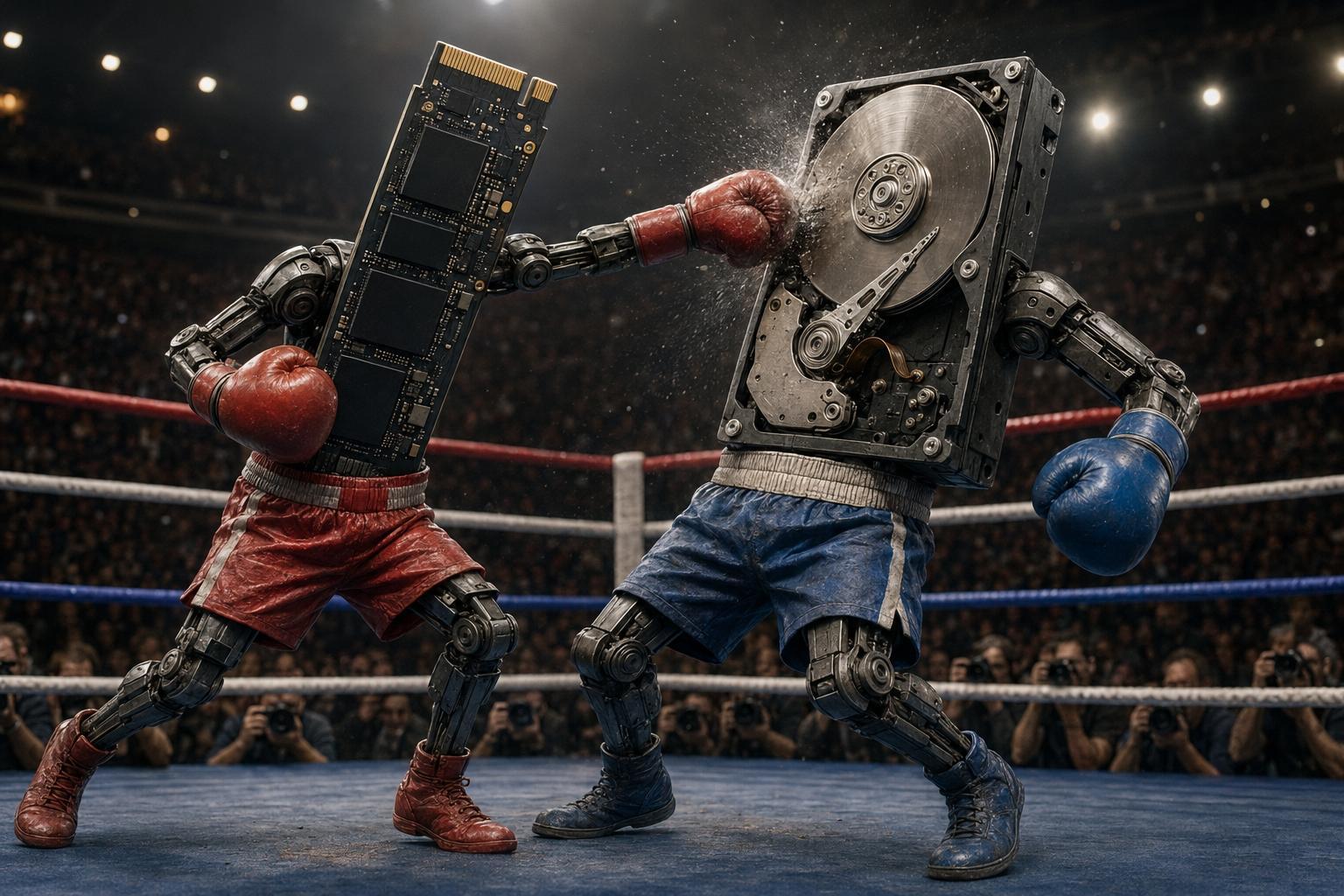
The image above may be playful, but the performance difference between a traditional hard disk drive and a modern solid-state drive can feel almost as one-sided. For many older computers, replacing the hard drive with an SSD is the single most noticeable upgrade you can make.
That does not mean hard drives are useless. HDDs still offer excellent value for large amounts of storage, backups, media libraries, and archival use. The real question is not simply, “Which technology is better?” It is: “Which one is better for the way I use my computer?”
This guide compares HDDs, SATA SSDs, and NVMe SSDs in plain English. We will cover speed, reliability, durability, heat, noise, power consumption, lifespan, gaming, capacity, cost, compatibility, data migration, and when an upgrade makes sense.
For Windows, applications, everyday computing, laptops, and gaming load times, an SSD is usually the clear winner. For inexpensive bulk storage and backups, an HDD can still be the better value.
Meet the Competitors
The HDD: The Experienced Heavyweight
A hard disk drive stores data on spinning magnetic platters. A small read/write head moves across those platters to access files. This design has been used for decades and remains one of the least expensive ways to store large amounts of data.
Hard drives are still commonly used for:
- Large photo and video collections
- Desktop secondary storage
- Backups
- Network-attached storage
- Surveillance recordings
- Archives that do not require fast access
Their main limitation is mechanical movement. The platters must spin and the read/write head must physically travel to the correct location. That process creates delay, noise, heat, and vulnerability to impact.
The SSD: The Fast, Modern Challenger
A solid-state drive stores data in flash memory. It has no spinning platters and no moving read/write head. Because the drive can access data electronically, it responds much faster than a mechanical hard drive.
SSDs are ideal for:
- Windows and application storage
- Laptops and portable computers
- Gaming systems
- Business computers
- Creative workstations
- Older PCs that feel slow despite having adequate processors and memory
SSDs are available in several forms, including 2.5-inch SATA drives, M.2 SATA drives, and NVMe drives. They all use flash memory, but their interfaces and performance levels differ.
Round 1: Speed
Speed is the most obvious difference between SSDs and HDDs. A hard drive must wait for mechanical parts to move into position. An SSD can access many pieces of data almost instantly.
This matters because normal computer use involves thousands of small reads and writes—not just one large file transfer. Windows loads system files, browser caches, application libraries, user settings, updates, and background services constantly.
| Everyday Task | HDD Experience | SSD Experience |
|---|---|---|
| Starting Windows | Often slow, especially on older or heavily used systems | Usually much faster and more consistent |
| Opening applications | Noticeable delay with larger programs | Applications generally open quickly |
| Installing updates | Can take significantly longer | Faster file access reduces waiting |
| Searching files | May feel sluggish | Much more responsive |
| Multitasking | Can stutter when the drive is busy | Handles simultaneous storage activity better |
An SSD does not make the processor itself faster. It removes the delay caused by waiting on storage. That is why a computer can feel dramatically more responsive after an SSD upgrade even though its CPU and RAM remain unchanged.
For startup time, application loading, updates, responsiveness, and general use, the SSD wins by a wide margin.
Round 2: Reliability
Reliability is more complicated than saying one technology never fails. Both SSDs and HDDs can fail, and neither should be trusted as the only copy of important data.
Hard drives contain motors, bearings, platters, and moving heads. Those parts wear over time and can be damaged by shock or vibration. Clicking, grinding, repeated spin-up attempts, and extremely slow access can be warning signs of failure.
SSDs have no moving parts, which makes them better suited to laptops and mobile use. They are less vulnerable to everyday bumps while operating. However, SSDs can still fail because of controller faults, power problems, firmware issues, or flash-memory wear.
The important takeaway is not that SSDs are indestructible. It is that removing mechanical parts eliminates several common causes of hard-drive failure.
For portable computers and resistance to normal movement, SSDs have the advantage. Backups are still essential regardless of drive type.
Round 3: Durability and Physical Shock
A laptop can be moved while running, bumped inside a bag, or accidentally dropped. A spinning hard drive is most vulnerable while its platters are rotating and its heads are active.
A sufficiently hard impact can cause the read/write head to contact the platter, potentially damaging the drive and the data stored on it. SSDs do not have this particular weakness because they contain no moving platters.
That makes an SSD a particularly valuable upgrade for students, field technicians, travelers, business users, and anyone who carries a laptop frequently.
For laptops and systems exposed to movement, SSDs are generally the safer choice.
Round 4: Noise, Heat, and Power Use
Hard drives produce sound because their motors spin and their heads move. Some drives are quiet, while others produce noticeable humming, vibration, clicking, or seeking noises.
SSDs are silent because there are no moving parts. They also generally use less power during normal activity, which can help reduce heat and improve battery life in laptops.
High-performance NVMe drives can become warm during sustained workloads, but that heat is different from the mechanical heat and vibration associated with hard drives. Some fast NVMe drives benefit from a heatsink in desktops or workstations.
| Characteristic | HDD | SSD |
|---|---|---|
| Noise | Audible spinning and seeking | Silent |
| Vibration | Possible | None from storage operation |
| Power consumption | Generally higher | Generally lower |
| Heat | Mechanical operation generates heat | Usually lower, though fast NVMe drives can run warm |
SSDs are quieter, more efficient, and usually cooler in everyday use.
Round 5: Capacity
Capacity is where hard drives remain competitive. HDDs are available in very large sizes at a lower cost per gigabyte than SSDs. For users who need several terabytes of storage, a hard drive may still make financial sense.
Large-capacity HDDs remain useful for:
- Raw video footage
- Photo archives
- Backup images
- Game libraries that do not need the fastest load times
- Home media servers
- Long-term file storage
SSD capacities have increased and prices have improved, but very large SSDs still cost more than equivalent hard drives.
When the goal is maximum storage for the lowest cost, the hard drive still has a legitimate advantage.
Round 6: Price and Value
HDDs usually provide more storage per dollar. SSDs cost more per gigabyte, but the price difference must be weighed against the performance improvement.
A 1TB SSD may cost more than a 1TB HDD, but using the SSD for Windows and applications can transform the entire experience of using the computer. The value comes from reduced waiting, faster updates, quicker application launches, and better responsiveness.
For many home and business users, the best value is not the drive with the lowest purchase price. It is the drive that improves productivity and extends the useful life of the computer.
A Practical Two-Drive Strategy
Desktop users do not always need to choose only one technology. A common arrangement is:
- An SSD for Windows, applications, and active projects
- An HDD for large files, backups, and archives
This approach combines SSD speed with HDD capacity.
HDD wins on cost per gigabyte. SSD wins on overall user experience and performance value.
Round 7: Gaming
An SSD does not usually increase average frame rate in the same way a faster graphics card or processor can. The GPU still determines most in-game rendering performance.
An SSD can improve:
- Game launch times
- Level-loading times
- Fast-travel transitions
- Texture and asset streaming
- System responsiveness while games update
- Installation and patching speed
Modern games often expect faster storage than older titles did. Some large open-world games can stutter or load assets slowly when installed on a mechanical drive.
For most gaming systems, a 1TB or larger SSD provides a good balance between capacity and speed. Users with large libraries may keep less frequently played games on an HDD and move active titles to the SSD.
It may not raise FPS by itself, but it substantially improves loading and overall convenience.
Round 8: Everyday Productivity
Storage performance affects nearly everything you do on a computer. Browsers, office applications, security software, cloud-sync tools, updates, search indexing, and background services all access the drive.
A hard drive can become saturated at 100% activity, making the entire system appear frozen even when CPU and memory usage are not high. This is common on older Windows computers.
An SSD handles many small operations more efficiently, which helps the computer remain responsive while several programs are active.
For students, remote workers, home users, and businesses, SSD responsiveness provides a clear everyday advantage.
How HDDs Work
Inside a hard drive are circular platters coated with magnetic material. A motor spins the platters at high speed while an actuator moves the read/write heads across their surfaces.
When Windows requests a file, the drive must wait for the correct section of the platter to rotate beneath the head. This delay is measured in milliseconds, but normal computer use requires many thousands of file requests. Those small delays add up.
Fragmentation can also affect hard-drive performance because pieces of a file may be stored in different physical locations. Windows generally manages this automatically through scheduled optimization.
How SSDs Work
An SSD stores information in NAND flash-memory cells. A controller manages where data is written, retrieves it when requested, balances wear across the memory, corrects errors, and handles communication with the computer.
Because the SSD does not wait for mechanical movement, it can access data much more quickly. Performance varies based on the type of flash, controller quality, cache design, interface, drive capacity, temperature, and workload.
Not all SSDs perform the same, but even a basic SATA SSD usually feels dramatically faster than a mechanical hard drive for Windows and everyday applications.
SATA SSD vs NVMe SSD
Once you decide to use an SSD, the next question is often whether to choose SATA or NVMe.
2.5-Inch SATA SSD
A 2.5-inch SATA SSD uses the same general data interface as many laptop and desktop hard drives. It is a popular upgrade for older computers because it can often replace a 2.5-inch HDD directly.
Advantages:
- Broad compatibility
- Excellent real-world improvement over HDDs
- Simple replacement in many laptops and desktops
- Often affordable
M.2 SATA SSD
M.2 describes the physical shape, not necessarily the speed. Some M.2 drives still use the SATA interface. They can look similar to NVMe drives but are not interchangeable in every computer.
NVMe SSD
NVMe drives use PCI Express connectivity and can provide much higher transfer speeds than SATA. They are common in modern laptops, gaming computers, and workstations.
NVMe is especially useful for:
- Large file transfers
- Video editing
- Professional creative workloads
- Modern high-performance systems
- Applications that regularly move large amounts of data
Will NVMe Feel Much Faster Than SATA?
Compared with an HDD, both SATA and NVMe SSDs feel dramatically faster. The difference between a good SATA SSD and an NVMe SSD can be less obvious during simple web browsing and office work.
NVMe has much higher benchmark numbers, but real-world improvement depends on the task. For an older computer that supports only SATA, a SATA SSD remains an excellent upgrade.
| Drive Type | Best Use | General Performance |
|---|---|---|
| HDD | Backups and low-cost bulk storage | Slowest |
| SATA SSD | Older-PC upgrades and general use | Very fast compared with HDD |
| NVMe SSD | Modern systems and demanding workloads | Fastest |
How Long Do SSDs Last?
Early SSDs created a lasting myth that flash storage wears out quickly. Flash memory does have a finite number of program/erase cycles, but modern controllers spread writes across the drive and reserve spare capacity to replace worn cells.
Manufacturers often publish endurance ratings such as terabytes written. For normal home, school, and office use, most users will not approach the rated write limit during the practical life of the computer.
Heavy server, database, or professional workloads may require higher-endurance drives, but normal users should focus more on product quality, warranty, capacity, and maintaining backups.
How Long Do HDDs Last?
Hard-drive lifespan varies widely. Some drives operate for many years, while others fail early. Heat, vibration, manufacturing variation, workload, age, and power quality all affect longevity.
Because failure is unpredictable, age alone should never be used as proof that a drive is healthy. SMART data and diagnostic tests can reveal warning signs, but no test can guarantee how long a drive will continue working.
A healthy status is not a backup. Important files should exist in more than one location, regardless of drive type.
Common Signs an HDD May Be Failing
- Clicking, grinding, or repeated spin-up noises
- Windows freezing during file access
- Extremely slow startup
- Files becoming corrupted or disappearing
- Frequent disk errors
- The drive vanishing from Windows or BIOS intermittently
- Bad-sector warnings
If the drive contains important data and shows these symptoms, minimize unnecessary use. Repeated attempts can worsen some failures.
Common Signs an SSD May Be Failing
- The drive disappears intermittently
- Windows suddenly becomes unable to boot
- Files become read-only or cannot be saved
- Repeated controller or firmware errors
- SMART warnings or rapidly increasing error counts
- Unexpected crashes during storage activity
SSD failures can sometimes be sudden, which is another reason backups matter.
Should You Upgrade Your Existing Computer?
An SSD upgrade is especially worth considering when:
- Windows takes a long time to start
- The system regularly reaches 100% disk usage
- Applications take a long time to open
- The computer still has a reasonably capable processor
- The current hard drive is aging or showing errors
- You want to extend the computer’s useful life
- You need better resistance to movement in a laptop
An SSD cannot fix every bottleneck. A computer with very low memory, severe overheating, or an extremely weak processor may need additional work. A diagnostic helps determine whether the storage drive is the main limitation.
Can Every Computer Use an SSD?
Many computers can use some type of SSD, but compatibility must be checked.
Important questions include:
- Does the computer use a 2.5-inch SATA drive?
- Does it have an M.2 slot?
- Does the M.2 slot support SATA, NVMe, or both?
- What physical M.2 length is supported?
- Does the BIOS support booting from the drive?
- Is the storage soldered and non-upgradeable?
Some thin laptops and low-cost systems use soldered storage that cannot be replaced. Always verify the exact model before purchasing a drive.
How Much Storage Should You Buy?
256GB
Suitable for light use, web browsing, and cloud-based work, but it can become cramped quickly after Windows, updates, applications, and personal files are installed.
500GB or 512GB
A practical entry point for many home and school users. It provides enough room for Windows, common applications, and a reasonable collection of personal files.
1TB
Often the best balance for general-purpose computers, gaming systems, and users who store photos, videos, or larger applications locally.
2TB and Larger
Useful for large game libraries, creative projects, virtual machines, and users who prefer keeping substantial data on the internal drive.
Avoid buying a drive that will be nearly full immediately. Leave room for Windows updates, temporary files, future applications, and normal growth.
Should You Clone the Old Drive or Install Windows Fresh?
Drive Cloning
Cloning copies the existing Windows installation, applications, settings, and files to the new drive. It is convenient because the computer can look and behave much like it did before the upgrade.
Cloning is often appropriate when:
- Windows is healthy
- The old drive is readable and stable
- The user wants to preserve applications and settings
- The destination drive has enough capacity
Fresh Windows Installation
A clean installation starts with a new copy of Windows and requires applications and settings to be restored manually.
It may be better when:
- The old installation is corrupted
- The system contains malware
- Years of unwanted software have accumulated
- The drive cannot be cloned reliably
- The user wants a clean start
Before either method, important files should be backed up independently.
Will You Lose Your Files During an SSD Upgrade?
Not necessarily. A properly planned upgrade can preserve files through cloning or data migration. However, moving data always carries some risk, especially if the old drive is already failing.
The safest process includes:
- Checking the health of the old drive
- Creating a separate backup
- Verifying the new drive’s capacity and compatibility
- Cloning or migrating the data
- Testing Windows and applications
- Verifying personal files before erasing the old drive
SSD and HDD Myths
Myth: SSDs Wear Out in a Few Years
Modern consumer SSDs are designed for years of normal use. Heavy write-intensive workloads require more careful endurance planning, but ordinary users rarely wear out a quality SSD through normal activity.
Myth: An SSD Always Increases Gaming FPS
SSDs improve loading and asset access, but they do not replace the role of the graphics card or processor. Frame-rate gains vary by game and are often small.
Myth: Every M.2 Drive Is NVMe
M.2 is a physical format. M.2 drives may use SATA or NVMe, and compatibility depends on the computer’s slot.
Myth: Old Computers Cannot Use SSDs
Many older computers can use a 2.5-inch SATA SSD and benefit greatly from the upgrade.
Myth: Data Recovery Is Always Easy on an SSD
SSD recovery can be difficult because of controller failures, encryption, TRIM, and how flash memory is managed. Backups remain the best protection.
Real-World Results We See
At Texas Tech Rescue, storage upgrades are among the most noticeable improvements we perform. Customers often assume the processor is the reason their computer feels old, but the mechanical drive is frequently the largest bottleneck.
After a successful SSD installation and data migration, common improvements include:
- Faster Windows startup
- Applications opening more quickly
- Less freezing during updates
- Better responsiveness while multitasking
- Quieter laptop operation
- More reliable operation when the old drive was beginning to fail
Every computer is different, and an SSD cannot compensate for every hardware limitation. Still, when storage is the bottleneck, an SSD upgrade often delivers one of the best performance improvements per dollar.
The Final Scorecard
| Category | Winner | Why |
|---|---|---|
| Startup and application speed | SSD | Much lower access latency |
| Durability in laptops | SSD | No moving parts |
| Noise | SSD | Silent operation |
| Power efficiency | SSD | Generally lower power use |
| Gaming load times | SSD | Faster loading and asset access |
| Everyday responsiveness | SSD | Handles many small operations efficiently |
| Price per gigabyte | HDD | Large capacities remain less expensive |
| Bulk storage and archives | HDD | High capacity at lower cost |
For most computers, the SSD wins by technical knockout. The HDD remains valuable for inexpensive bulk storage, but it is no longer the best choice for the primary Windows drive in most everyday systems.
Frequently Asked Questions
Is an SSD really worth the upgrade?
For a computer still using a mechanical hard drive, an SSD is often the most noticeable performance upgrade available.
Will an SSD make an old computer feel new?
It can make startup, applications, updates, and general responsiveness dramatically better. It cannot make an outdated processor perform like a new one, but it may remove the system’s biggest bottleneck.
Does an SSD improve internet speed?
It does not increase your internet connection speed, but browsers and applications may open faster, making the overall experience feel more responsive.
Does an SSD increase gaming FPS?
Usually not by much. The primary benefits are faster loading, smoother asset streaming in some games, and quicker updates.
Can I keep my old HDD after installing an SSD?
In many desktops, yes. You can use the SSD for Windows and applications and keep the HDD for large files or backups.
Can a laptop have both an SSD and HDD?
Some laptops support two drives, while others have only one slot or soldered storage. Compatibility depends on the exact model.
Is 500GB enough?
It can be enough for general home, school, and office use. Gamers and users with large media libraries may prefer 1TB or more.
Is NVMe worth it over SATA?
NVMe provides higher performance, especially for large file transfers and demanding workloads. For basic use, both NVMe and SATA SSDs feel dramatically faster than an HDD.
Can I clone a larger HDD to a smaller SSD?
Sometimes, if the actual used data fits on the SSD and the partition layout can be adjusted. A backup should be created before attempting the migration.
Will replacing the drive erase Windows?
A blank replacement drive does not contain Windows. The operating system must be cloned or installed fresh.
How do I know whether my laptop uses SATA or NVMe?
Check the exact model specifications, service manual, existing drive, or motherboard slot. Do not rely on the M.2 shape alone.
Should I buy the cheapest SSD available?
Price matters, but controller quality, flash type, warranty, endurance, firmware support, and brand reputation also matter.
Do SSDs need defragmenting?
No. Traditional defragmentation is designed for hard drives. Windows uses SSD-specific optimization automatically.
Can an SSD fail without warning?
Yes. SSD failures can be sudden, just as hard drives can fail unexpectedly. Maintain current backups.
Which is better for backups?
Both can be used, but HDDs are often more economical for large backup capacity. The backup should be disconnected or protected when not in use and should not be the only copy.
Which is better for a business computer?
An SSD is generally the better primary drive because of speed, responsiveness, and reduced mechanical risk. Business data should still be backed up separately.
Can an SSD reduce laptop battery use?
It may improve battery efficiency because it generally uses less power than a mechanical drive, though total battery life depends on the entire system.
What happens to my old drive after migration?
Keep it temporarily until the new drive and all important files are verified. Afterward, it can be securely erased, repurposed, stored as a temporary backup, or recycled.
Final Thoughts
HDDs and SSDs both have useful roles, but they are no longer equal choices for the primary drive in most computers. An HDD offers inexpensive high-capacity storage. An SSD delivers the responsiveness most users expect from a modern system.
For Windows, applications, gaming load times, laptops, and everyday productivity, an SSD is usually the right choice. For large archives, media libraries, and economical backup capacity, an HDD can still make sense.
The best solution may be a combination: an SSD for active work and an HDD for bulk storage. Before buying, verify compatibility, choose enough capacity, maintain backups, and decide whether cloning or a fresh Windows installation is the better migration method.
Ready to Upgrade Your Storage?
Texas Tech Rescue can verify compatibility, install the correct SSD, migrate your Windows installation and files, and confirm the computer is operating properly after the upgrade.
Request an SSD Upgrade