You decide it is finally time for a new computer.
You open a product listing.
And immediately get hit with something like:
Intel Core something-or-other.
16GB DDR5.
512GB PCIe NVMe SSD.
Integrated graphics.
Wi-Fi 6.
1920×1200 IPS.
57Wh battery.
Excellent.
Very informative.
Assuming you already know what all of that means.
For everyone else, computer specifications can feel like manufacturers competing to see who can fit the most numbers into a product description.
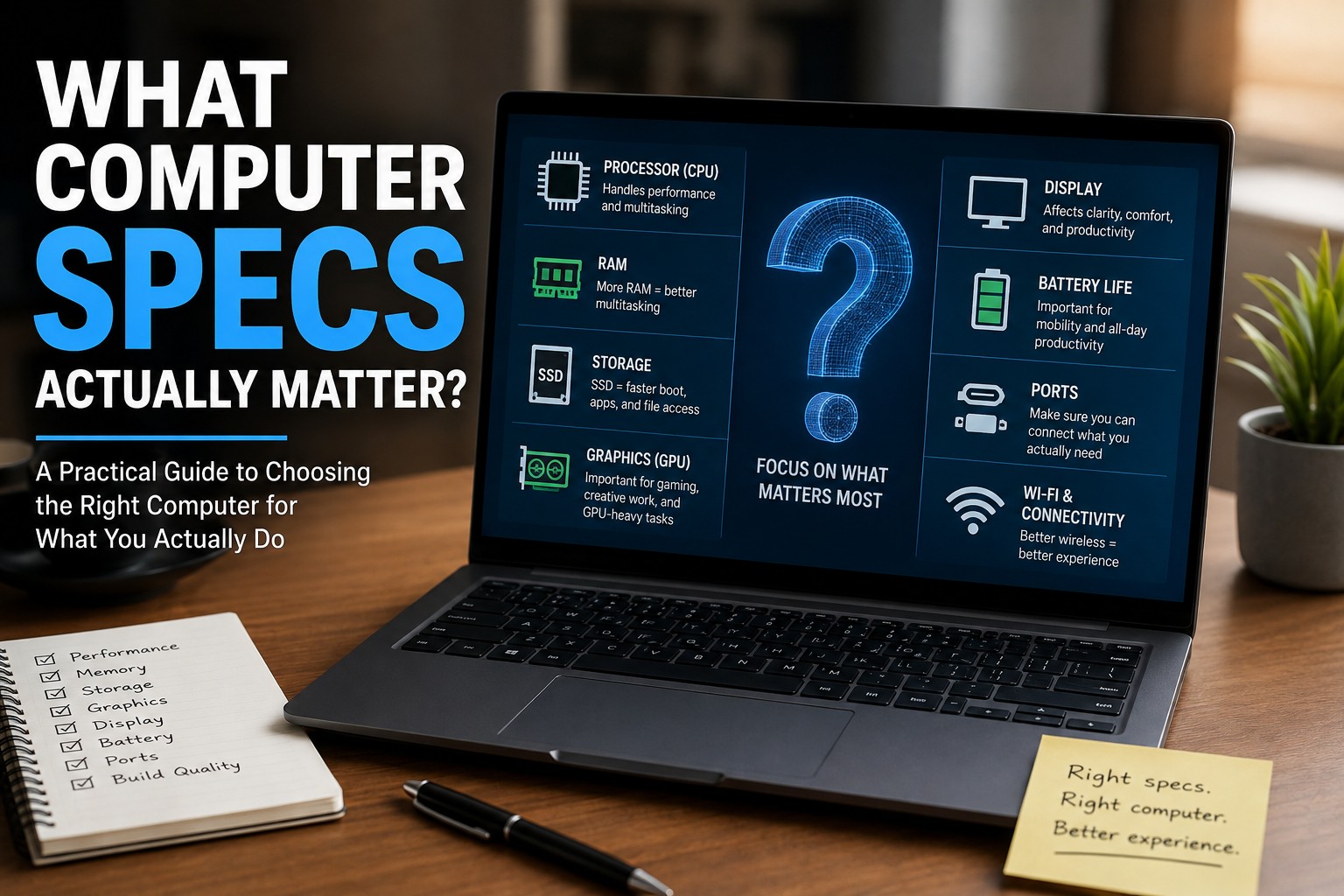
The good news is that you do not need to understand every specification to buy a good computer.
You mainly need to understand which specifications affect the way you actually plan to use it.
Let's break down the ones that matter.
Start With What You Actually Do on the Computer
Before looking at processors, RAM, or graphics cards, answer this:
What will you use the computer for?
Someone who primarily:
- Browses the web
- Checks email
- Uses Microsoft Office
- Watches videos
- Pays bills
does not need the same hardware as someone who:
- Plays modern games
- Edits 4K video
- Runs virtual machines
- Uses CAD software
- Creates 3D models
- Works with large datasets
This sounds obvious, but it is where a lot of buying mistakes begin.
People either buy far more computer than they need or save money in exactly the wrong place.
The goal is not to buy the computer with the biggest numbers.
The goal is to buy enough computer for your workload with some room to grow.
Do not ask, “Which computer has the best specs?” Ask, “Which computer has the right specs for what I actually do?” That one change makes shopping much easier.
1. The Processor: Important, but the Name Can Be Confusing
The processor, or CPU, is one of the main components responsible for running instructions and handling general computing workloads.
It affects things such as:
- Application performance
- Multitasking
- Video encoding
- Software installation
- Some gaming performance
- Large calculations
- General system responsiveness
But processor names are not always straightforward.
A higher number does not automatically mean a processor is better in every situation.
Generation, power class, architecture, core count, cooling, and the specific model all matter.
What Should a Normal Buyer Look For?
For everyday use, you generally want a modern mainstream processor, not necessarily the most expensive one available.
You do not need the top-tier CPU just to:
- Browse Facebook
- Write Word documents
- Watch YouTube
- Check email
- Print things
Putting an extreme high-end processor into a computer used primarily for email is a little like buying a commercial box truck because you occasionally bring home groceries.
Technically capable.
Slightly excessive.
Do Not Judge a CPU Only by Clock Speed
You may see specifications such as:
3.2 GHz
or:
Up to 4.8 GHz
Clock speed matters, but it is not a reliable way to compare completely different processor generations or designs.
A newer processor running at a lower clock speed may outperform an older processor with a higher advertised frequency.
So avoid shopping purely by:
“This one has more GHz.”
If CPU comparison matters for your workload, compare the actual processor models.
2. RAM: How Much Multitasking Room Do You Need?
RAM is your computer's short-term working memory.
It holds information that Windows and your applications need quickly while they are running.
The more you do simultaneously, the more RAM you may need.
Common memory users include:
- Web browser tabs
- Microsoft Teams
- Outlook
- Games
- Photo editing
- Video editing
- Virtual machines
- Large spreadsheets
- Creative software
Why Too Little RAM Feels Terrible
When the computer does not have enough physical memory available, Windows has to rely more heavily on storage as temporary overflow space.
That is much slower than using RAM directly.
Symptoms may include:
- Applications becoming sluggish
- Tabs reloading
- Delays switching programs
- Freezing
- Excessive disk activity
- Poor multitasking
But More RAM Does Not Automatically Mean More Speed
If your workload comfortably uses 8 GB and you install 64 GB, the unused 56 GB does not form a committee and begin optimizing Windows.
You simply have a lot of unused memory.
RAM should match the workload.
For a deeper explanation, see How Much RAM Do You Really Need?
3. Storage: SSD Matters More Than Many People Realize
Storage is where Windows, applications, photos, documents, and other files permanently live.
There are two important questions:
What type of storage does it use?
and
How much storage do you get?
SSD vs. HDD
For a primary modern computer, I strongly prefer an SSD.
An SSD can dramatically improve:
- Startup
- Application launches
- File access
- Windows updates
- General responsiveness
Mechanical hard drives still have uses, especially when large inexpensive storage capacity matters.
But using one as the main Windows drive can make an otherwise capable computer feel much slower than necessary.
If you want the full comparison, see SSD vs HDD: Which Upgrade Is Right?
How Much Storage Do You Actually Need?
This depends heavily on what you keep locally.
Someone who stores most files in the cloud may need much less storage than someone with:
- Large photo libraries
- Video projects
- Games
- Music collections
- Virtual machines
- Local backups
Do not forget that the advertised capacity is shared by:
- Windows
- Installed applications
- Updates
- Temporary files
- Your personal files
A tiny drive may look perfectly adequate on the specification sheet until Windows, Office, a few applications, and six months of updates move in.
Suddenly storage feels like a studio apartment with twelve roommates.
4. Graphics: Integrated or Dedicated?
This is one of the biggest areas where people accidentally overspend.
Most modern processors can provide some level of integrated graphics.
That is usually perfectly suitable for:
- Web browsing
- Office applications
- Video playback
- Video calls
- Normal desktop use
- Light creative work
A dedicated graphics card, or GPU, becomes more important for workloads such as:
- Modern gaming
- 3D rendering
- CAD
- Certain professional creative applications
- GPU-accelerated workloads
- Some AI applications
Do You Need a Dedicated GPU?
If your idea of intensive graphics use is watching Netflix in full screen:
Probably not.
A dedicated GPU increases:
- Cost
- Power consumption
- Heat
- Cooling requirements
In a laptop, it can also negatively affect battery life.
Do not pay several hundred dollars for graphics performance you will never use.
RGB wallpaper does not count as a graphics workload.
5. The Display Matters More Than People Think
Laptop buyers often focus heavily on the CPU and completely ignore the part they will stare at for several hours every day.
The screen matters.
Consider:
- Resolution
- Brightness
- Panel quality
- Color
- Viewing angles
- Refresh rate
- Screen size
- Aspect ratio
- Touch capability
A powerful laptop with a terrible display can still be unpleasant to use.
What Resolution Should You Look For?
For general-purpose laptops, a modern high-definition display is generally a sensible baseline.
Higher resolution can provide:
- Sharper text
- More workspace
- Better image detail
But higher resolution can also increase:
- GPU workload
- Power consumption
- Cost
You do not necessarily need an ultra-high-resolution display on a small laptop.
At some point you are paying the computer to render pixels that your eyes are negotiating a treaty to distinguish.
Brightness Matters
If you use a laptop near windows, outdoors, or in brightly lit environments, display brightness becomes much more important.
A beautiful display that becomes approximately invisible the moment sunlight enters the room is less useful than the specification sheet suggested.
Unfortunately, brightness is one of those specifications cheap laptops sometimes quietly avoid advertising.
That absence can itself be informative.
6. Battery Life: Do Not Treat the Advertised Number as a Promise
Laptop battery life varies enormously depending on:
- Screen brightness
- Processor workload
- Battery size
- Gaming
- Video calls
- Wireless activity
- Background applications
- Power settings
Manufacturer battery estimates are useful for comparison, but your actual experience can differ.
A laptop running Word at low brightness is doing something very different from one running a game with the display at maximum brightness.
If mobility matters, look beyond the biggest battery-life number printed in bold.
Consider:
- Battery capacity
- Processor efficiency
- Screen type
- Dedicated graphics
- Independent reviews
7. Ports: The Spec Nobody Checks Until After Buying the Laptop
This one gets people constantly.
You buy the new laptop.
Bring it home.
Then discover:
Where exactly am I supposed to plug everything in?
Look at the physical ports before buying.
You may need:
- USB-A
- USB-C
- HDMI
- DisplayPort capability
- Ethernet
- Headphone jack
- SD card reader
- Charging through USB-C
Do not assume USB-C automatically supports everything.
Different USB-C ports can support different capabilities.
Some may provide:
- Data only
- Charging
- Display output
- High-speed external devices
- Multiple functions
The connector looking identical does not guarantee the capabilities are identical.
Because apparently USB needed its own side quest.
8. Wi-Fi and Bluetooth
Wireless specifications matter, but they should be kept in perspective.
A newer Wi-Fi adapter can provide benefits such as:
- Better performance
- Improved efficiency
- Compatibility with newer routers
- Better operation in busy environments
Bluetooth version can also matter for:
- Headphones
- Mice
- Keyboards
- Controllers
- Other accessories
But remember:
A fancy new Wi-Fi adapter cannot make your internet provider deliver speeds you do not pay for.
It also cannot overcome terrible router placement through sheer optimism.
9. Upgradeability
This is one specification I think deserves much more attention than it receives.
Can you upgrade the machine later?
Check whether:
- RAM is replaceable
- RAM is soldered
- There is an extra memory slot
- SSD is replaceable
- There is a second storage slot
- Battery is serviceable
- Wi-Fi card is replaceable
Some modern laptops have increasingly integrated designs.
That can produce thin, lightweight machines.
It can also produce situations where buying 8 GB of RAM means you have 8 GB of RAM forever.
Why Upgradeability Matters
Suppose two laptops cost roughly the same.
Laptop A:
- 16 GB soldered RAM
- One SSD
- Limited serviceability
Laptop B:
- Replaceable RAM
- Replaceable SSD
- Extra storage slot
Depending on your needs, Laptop B may have considerably more long-term flexibility.
A computer does not need to be infinitely upgradeable.
But knowing the limitations before buying it is much better than discovering them with the bottom cover already removed.
10. Build Quality
Specifications do not tell the whole story.
Two laptops may have nearly identical:
- CPU
- RAM
- Storage
- Display size
and still feel completely different.
Build quality affects things such as:
- Hinges
- Keyboard
- Trackpad
- Chassis rigidity
- Cooling
- Port durability
- Serviceability
- Long-term reliability
This is one reason I often like business-class refurbished computers.
A well-built business laptop may have less flashy specifications than a cheap new consumer model while being significantly better constructed.
Because sometimes that $349 laptop achieved its price partly through innovative technologies like:
hinges made from hopes and dreams.
For more on buying refurbished systems, see New vs. Refurbished Computers: Is Refurbished Worth It?
11. Cooling
Cooling affects performance more than most buyers realize.
A processor can look fantastic on paper.
But if the laptop cannot cool it properly, performance may drop under sustained workloads.
This is called thermal throttling.
Thin laptops especially have to balance:
- Performance
- Heat
- Fan noise
- Battery life
- Physical size
Two computers with similar processors may perform differently because one has a better cooling design.
Unfortunately, this is difficult to determine from the specification sheet alone.
This is where independent reviews become valuable.
12. Webcam and Microphone
These became much more important once video meetings became a normal part of work and school.
If you regularly use:
- Teams
- Zoom
- Google Meet
- Remote learning
- Telehealth
- Video interviews
then webcam and microphone quality actually matter.
Also check whether the laptop includes features you value, such as:
- Privacy shutter
- Windows Hello-compatible camera
- Better microphone array
A computer can have a fantastic processor and still make you look like you are attending a meeting through a security camera from 2008.
13. Keyboard and Trackpad
This is another area specifications barely capture.
If you type for hours every day, keyboard quality matters enormously.
Things worth considering include:
- Key travel
- Layout
- Number pad
- Backlighting
- Arrow key size
- Trackpad size
- Trackpad accuracy
You cannot benchmark comfort very effectively.
Whenever possible, physically try the laptop before buying it.
Something can look fantastic online and still have a keyboard layout designed by someone who apparently dislikes human hands.
14. Operating System
Make sure the computer supports the operating system and software you actually intend to use.
For Windows computers, consider compatibility with:
- Current Windows versions
- Business applications
- Printers
- Specialized hardware
- Games
- Security tools
This becomes especially important when purchasing older refurbished or used computers.
A bargain stops being a bargain when the hardware cannot properly support the software you need.
15. Brand Matters Less Than the Exact Model
People often ask:
“Is Dell good?”
“Is HP good?”
“Is Lenovo good?”
The answer is:
They all make multiple product lines.
A manufacturer may sell:
- Budget consumer systems
- Premium consumer systems
- Gaming systems
- Business laptops
- Workstations
The logo on the lid tells you much less than the specific model and product family.
Do not assume every machine from one manufacturer has the same:
- Quality
- Cooling
- Serviceability
- Warranty
- Display
- Reliability
Evaluate the actual computer.
Not just the sticker.
What Specs Matter for Basic Home Use?
For someone primarily doing:
- Web browsing
- Documents
- Online banking
- Streaming
- Basic photo storage
I would prioritize:
- A modern processor
- Enough RAM for comfortable multitasking
- An SSD
- A decent display
- Good build quality
- Adequate ports
You do not need a monster graphics card.
You do not need absurd RAM capacity.
You need a computer that does basic tasks smoothly and should remain useful for years.
What Specs Matter for Office and Business Use?
For productivity users, I would pay particular attention to:
- Processor
- RAM
- SSD capacity
- Webcam
- Keyboard quality
- Ports
- Docking capability
- Build quality
- Warranty
- Battery life
If you spend eight hours per day on the computer, small ergonomic and reliability differences become much more important.
What Specs Matter for Gaming?
Gaming changes the priorities.
Pay closer attention to:
- Graphics card
- Processor
- RAM
- SSD
- Cooling
- Display refresh rate
- Display resolution
- Power supply on desktops
The GPU is frequently one of the most important components.
But the entire system needs to make sense together.
Buying an enormous GPU and pairing it with inadequate power, poor cooling, or an unsuitable CPU creates another kind of problem.
What Specs Matter for Creative Work?
Photo, video, audio, and design workloads vary dramatically.
Depending on the software, important specifications may include:
- CPU
- GPU
- RAM
- Fast storage
- Large storage capacity
- Color-accurate display
- High-resolution display
- Fast external connectivity
This is an area where software requirements matter.
Check what the programs you actually use recommend.
Do not buy a “creator laptop” solely because the marketing department put a picture of a camera on the product page.
Specifications I Would Not Obsess Over
There are plenty of numbers you can spend hours comparing for very little practical benefit.
For ordinary users, I would not obsess over tiny differences in:
- RAM frequency
- SSD benchmark scores
- Processor boost-clock numbers
- Wi-Fi marketing throughput
- Extremely small benchmark differences
There are absolutely workloads where those specifications matter.
But for someone choosing between two family laptops to browse the web and use Office?
A 3% benchmark difference will not change your life.
Buy the better overall machine.
Watch Out for “Big Number” Marketing
Manufacturers know consumers like bigger numbers.
So you may see:
Up to 5 GHz!
24 GB memory!
2 TB storage!
That sounds impressive.
But ask what the components actually are.
A computer can combine one eye-catching specification with weaknesses elsewhere.
For example:
- Huge storage. Terrible processor.
- Plenty of RAM. Poor display.
- Fancy CPU. Tiny SSD.
- Gaming graphics. Awful battery life.
Do not evaluate one number in isolation.
The whole machine matters.
Cheap Computers Are Often Cheap Somewhere
There are genuinely good inexpensive computers.
But when one machine is dramatically cheaper than everything else with apparently similar specifications, look closely.
Cost savings may come from:
- Display quality
- Build materials
- Battery
- Webcam
- Keyboard
- Cooling
- Storage quality
- Upgradeability
- Ports
- Warranty
- Processor class
The manufacturer found somewhere to save money.
Your job is to determine whether you care about where they saved it.
A Practical Buying Checklist
Before buying a computer, I would check:
- Processor — appropriate for the workload?
- RAM — enough for how you multitask?
- Storage type — SSD?
- Storage capacity — enough room?
- Graphics — integrated or dedicated based on need?
- Display — good enough to stare at every day?
- Battery — important if mobile?
- Ports — can everything actually connect?
- Wi-Fi/Bluetooth — appropriate for your setup?
- Upgradeability — can RAM or storage be changed later?
- Build quality — hinges, keyboard, cooling, chassis?
- Operating-system compatibility — supports what you need?
- Warranty — what happens if something fails?
- Price — are you paying for features you will actually use?
That list will tell you much more than:
THIS LAPTOP HAS A 4.9 GHZ PROCESSOR!!!
Cool.
What else does it have?
Do You Need the Most Powerful Computer You Can Afford?
Not necessarily.
I prefer buying something with enough performance that it is not immediately at its limits.
But there is a point where additional performance stops providing meaningful value for your workload.
If your normal computer use involves:
- Six browser tabs
- Word
- YouTube
you do not need a workstation designed to simulate aerodynamics.
Buy enough performance.
Leave some headroom.
Spend the remaining money on things you will actually notice:
- Better display
- Better keyboard
- Better build quality
- More storage
- Better warranty
Those improvements may affect your daily experience much more.
How Much Should You Future-Proof?
Some future-proofing makes sense.
You probably do not want a computer that barely meets your needs on day one.
But predicting technology five or ten years ahead is difficult.
Do not spend an extra thousand dollars trying to make a laptop immortal.
Buy a machine that comfortably handles today's workload with reasonable room for tomorrow.
Technology will eventually win.
It always does.
New vs. Refurbished Matters Too
Specifications are only part of the buying decision.
A quality refurbished business-class computer may offer better:
- Build quality
- Serviceability
- Keyboard
- Ports
- Durability
than a similarly priced new budget computer.
The right choice depends on age, condition, warranty, battery health, and hardware.
For more on that, see New vs. Refurbished Computers: Is Refurbished Worth It?
Final Thoughts
You do not need to memorize every computer specification.
Focus on the parts that affect your workload.
For most buyers, the big ones are:
- Processor
- RAM
- SSD
- Storage capacity
- Graphics
- Display
- Battery
- Ports
- Build quality
- Upgradeability
Then evaluate the computer as a complete system.
Do not buy a laptop because one number looks impressive.
And do not assume the most expensive option is automatically the best one.
The best computer is the one that comfortably handles what you actually need it to do without making you pay for a pile of performance you will never use.
Because a 24-core processor is fantastic.
But if all you're doing is checking email...
Gmail is unlikely to notice.
If you are deciding whether your current machine is still worth keeping, see Repair or Replace Your Computer?
Frequently Asked Questions
What are the most important specs when buying a computer?
For most users, the processor, RAM, storage type and capacity, display, build quality, battery life, and available ports matter the most. Graphics performance becomes especially important for gaming and certain professional workloads.
How much RAM should a new computer have?
The right amount depends on your workload. Basic users need less than heavy multitaskers, gamers, creators, and people running virtual machines. Avoid buying purely by a bigger-is-better mindset.
Should I buy an SSD or HDD?
For the primary Windows drive, an SSD is generally the better choice because of its much faster responsiveness. Hard drives can still be useful for inexpensive high-capacity secondary storage.
Do I need a dedicated graphics card?
Not for ordinary web browsing, Office applications, video playback, or general computer use. Dedicated graphics are more valuable for gaming, 3D work, certain creative applications, and other GPU-heavy workloads.
Is a higher GHz processor always faster?
No. Clock speed alone is not enough to compare processors from different architectures, generations, or product classes.
Is 1 TB of storage better than 512 GB?
It provides more capacity, but that does not automatically make the computer faster. Storage type and performance also matter. Buy enough capacity for your files and applications with some room to grow.
Should I buy the most powerful laptop I can afford?
Not necessarily. Once a computer comfortably handles your workload, spending more on performance may provide little practical benefit. Better build quality, display, battery life, storage, or warranty may be a better use of the budget.
Can Texas Tech Rescue help me choose a computer?
Yes. Texas Tech Rescue can help evaluate computer specifications, upgradeability, intended use, and overall value before you purchase a new, used, or refurbished computer.
Not Sure Which Computer Specs You Actually Need?
Texas Tech Rescue can help you compare processors, RAM, storage, graphics, upgradeability, build quality, and overall value before you spend money on the wrong machine.
Get Professional Help