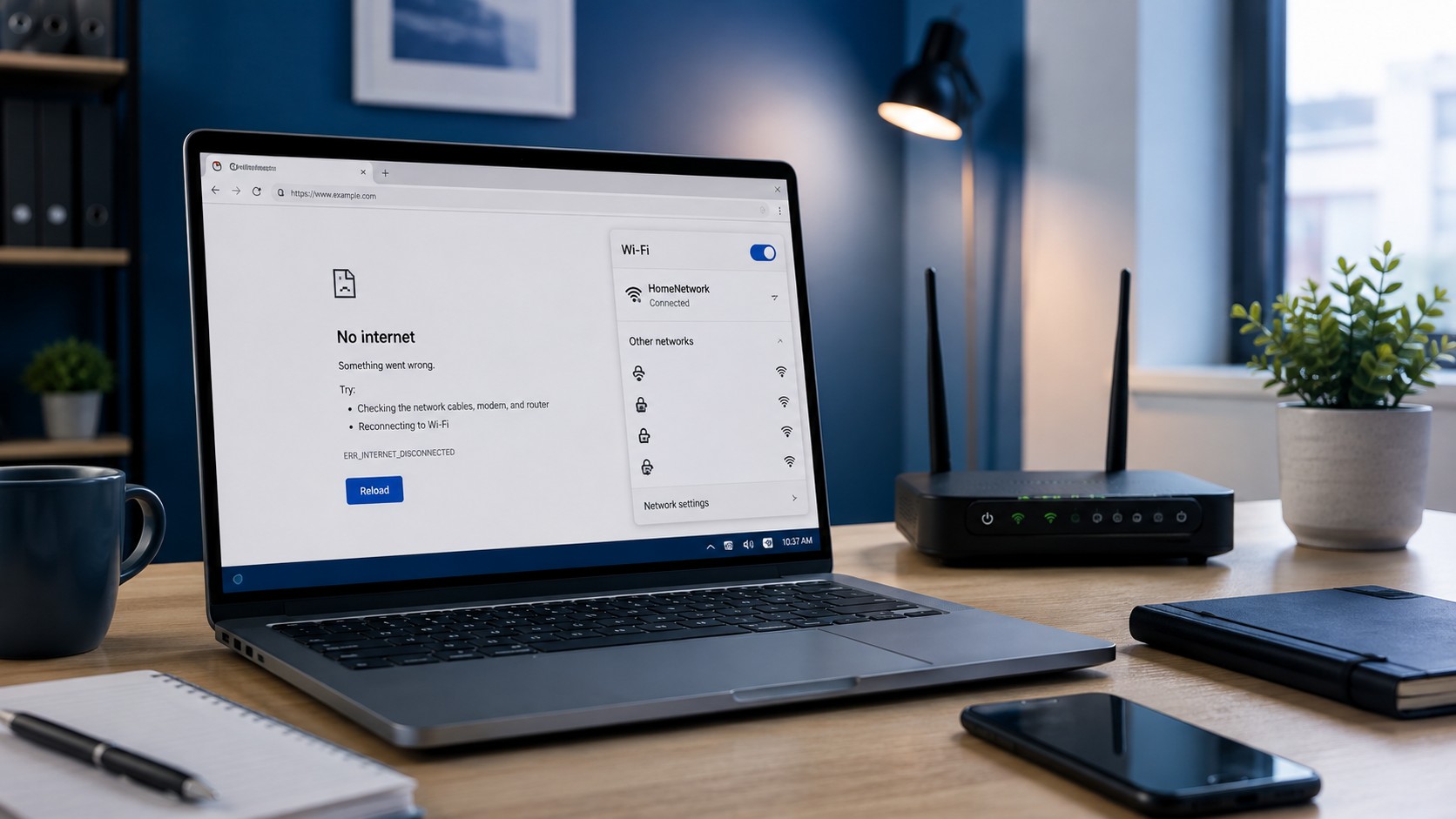
You look at the bottom-right corner of Windows.
The Wi-Fi icon says you are connected.
Your signal strength looks great.
You open a browser.
Nothing.
You try another website.
Still nothing.
Windows confidently insists that you are connected to Wi-Fi while your internet connection appears to have vanished from existence.
So what does “Connected, no internet” actually mean?
Usually, it means your computer successfully connected to the local wireless network, but something farther down the path to the internet is not working.
And that distinction is extremely important.
Wi-Fi and Internet Are Not the Same Thing
This is probably the biggest misconception surrounding home networking.
Wi-Fi is not the internet.
Wi-Fi is simply one way your device connects to your local network.
Your connection typically looks something like this:
Computer → Wi-Fi → Router → Modem/ONT → Internet Provider → Internet
Your computer can successfully complete the first step while something later in that chain has failed.
Think of Wi-Fi like the road from your driveway to the highway.
Being able to leave your driveway does not guarantee the highway is open.
That is how you can have excellent Wi-Fi signal and simultaneously absolutely no internet access.
Do not start by asking, “Why is the internet broken?” Start by asking, “How far can this device successfully communicate?” That one question makes network troubleshooting much easier.
First: Check Whether Other Devices Have Internet
Before changing settings on the computer, determine whether the problem affects one device or everything.
Try another device on the same Wi-Fi network:
- Smartphone
- Tablet
- Laptop
- Smart TV
- Another computer
If every device has lost internet access, your computer probably is not the problem.
Start looking at:
- Router
- Modem
- Fiber ONT
- Internet service provider
- Network cabling
- Possible outage
If every other device works normally and only one computer has trouble, the issue is much more likely to be local to that machine.
That one test can eliminate half the suspects immediately.
1. Disconnect and Reconnect to Wi-Fi
Start simple.
Disconnect from the wireless network and reconnect.
In Windows, click the Wi-Fi icon, disconnect from the network, wait several seconds, and reconnect.
Sometimes a device has technically remained associated with the access point while its network configuration has become stale or confused.
Reconnecting forces the device to establish the connection again.
And yes, “turn it off and back on” has once again entered the investigation.
IT remains undefeated.
2. Make Sure You Are Connected to the Correct Network
This one sounds obvious until it happens.
Homes, businesses, apartments, and public spaces may have multiple networks available.
You might see:
- Home Wi-Fi
- Guest Wi-Fi
- Router setup network
- Wi-Fi extender network
- Mobile hotspot
- Neighboring networks
- Corporate guest network
A device can be connected perfectly while still being connected to the wrong network.
This can become especially confusing in business environments.
A computer connected to a guest wireless network may reach the internet perfectly but be unable to access:
- Company printers
- Network drives
- Internal servers
- Local applications
- Other business devices
Conversely, a poorly configured guest or secondary network may provide a wireless connection without usable internet access.
Always verify the network name before troubleshooting anything deeper.
3. Forget the Network and Reconnect
If disconnecting normally does not help, Windows can forget the saved wireless profile.
You will need the Wi-Fi password again afterward.
Forgetting the network removes the stored configuration and allows Windows to recreate it when you reconnect.
This can help when the saved profile has become corrupted or contains outdated settings, especially after:
- Router replacement
- Wi-Fi password changes
- Security configuration changes
- Network upgrades
- Persistent connection problems
4. Restart the Computer
A restart can clear temporary problems involving:
- Wi-Fi drivers
- Network services
- DHCP configuration
- DNS cache
- VPN software
- Network adapters
And yes, I specifically mean Restart.
Depending on Windows settings, shutting down and turning the computer back on may not always behave exactly the same way as a restart.
That little Windows adventure deserves an article of its own.
5. Restart the Router and Modem
If several devices have no internet, move outward from the computer.
Many home networks use either:
- Separate modem and router
- Combined modem/router gateway
- Fiber ONT plus router
If appropriate for your setup, restarting the networking equipment can clear temporary connection failures.
For separate modem and router equipment, I generally prefer bringing them back online in order:
- Power everything off.
- Start the modem or ONT.
- Allow it time to establish service.
- Start the router.
- Allow the network to stabilize.
- Test internet access.
Do not repeatedly power-cycle equipment every thirty seconds.
Networking hardware occasionally needs a minute to remember its purpose in life.
6. Check the Modem or ONT Status Lights
Your modem or fiber equipment can provide useful clues.
Depending on the provider and equipment, you may see indicators for things such as:
- Power
- Online
- Internet
- Downstream
- Upstream
- WAN
- Optical signal
- Alarm
- Ethernet
The exact lights vary considerably between manufacturers.
If the equipment normally shows an internet or online indicator and that light is suddenly red, flashing unusually, or completely off, the connection problem may exist between your home and the internet provider.
In that situation, changing Wi-Fi settings on the computer probably will not accomplish much.
7. Check for an Internet Provider Outage
Sometimes there is absolutely nothing wrong with your equipment.
Your internet provider may simply be experiencing an outage.
This becomes especially likely when:
- Every device lost internet simultaneously
- Wi-Fi remains available
- Router appears functional
- Modem or ONT indicates a service problem
- Internet disappeared suddenly without configuration changes
If cellular service is available, use your phone to check your provider's outage information.
You can troubleshoot Windows for three hours if you want.
Unfortunately, Windows cannot repair an excavator cutting a fiber line six miles away.
8. Check Whether You Received a Valid IP Address
When a device joins a network, it normally receives network configuration through DHCP.
That usually includes:
- IP address
- Subnet information
- Default gateway
- DNS servers
If that process fails, the computer may connect to Wi-Fi but still be unable to communicate properly.
In Windows, open Command Prompt and run:
ipconfig
Look at the active wireless adapter.
On many typical home networks, you may see an IPv4 address beginning with something such as:
192.168.x.x10.x.x.x172.16.x.xthrough172.31.x.x
The exact address depends on the network.
What About 169.254.x.x?
If Windows assigns itself an address beginning with:
169.254
that can be an important clue.
This type of address commonly appears when the computer was unable to obtain normal configuration from a DHCP server.
In plain English:
Your computer joined the Wi-Fi network...
then asked,
“Okay, what address should I use?”
and apparently nobody answered.
That points toward things such as:
- DHCP failure
- Router problems
- Network configuration issues
- Adapter problems
- VLAN or infrastructure issues in larger environments
9. Check the Default Gateway
The default gateway is usually your router—the device your computer sends traffic to when it needs to reach something outside the local network.
You can find it using:
ipconfig
You may see something similar to:
Default Gateway . . . . . : 192.168.1.1
The actual address varies.
You can test whether your computer can reach it using:
ping 192.168.1.1
Replace that address with your actual gateway.
If the gateway responds, your computer can at least communicate with the router.
If it cannot, the failure may be between your computer and the local network rather than somewhere on the internet.
10. Test an Internet IP Address
Here is where troubleshooting gets more interesting.
Try:
ping 8.8.8.8
or another known reachable internet address.
If the gateway works and an external IP address also works, but websites still do not load, DNS becomes a major suspect.
If the gateway responds but external IP addresses do not, the router may not have internet connectivity.
This helps divide the network path into sections.
Instead of saying:
“The internet doesn't work.”
we can start saying:
“The computer reaches the router, but the router isn't getting us farther than that.”
That is much more useful.
11. DNS Can Break the Internet Without Actually Breaking the Internet
DNS stands for Domain Name System.
Its job is essentially to translate names such as:
example.com
into IP addresses computers use to locate servers.
Without functioning DNS, you might technically have a working internet connection while websites appear broken because their names cannot be resolved.
It is the networking equivalent of having a working telephone but deleting every contact from your phone.
You can call people.
You just don't know their numbers.
A Simple DNS Test
If:
ping 8.8.8.8
works...
but:
ping google.com
does not...
DNS may be involved.
Possible causes include:
- Router DNS problems
- ISP DNS outage
- Incorrect manual DNS configuration
- VPN software
- Security software
- Corrupted DNS cache
12. Flush the DNS Cache
Windows keeps a local DNS cache to improve performance.
Occasionally, cached information can become stale or problematic.
Open Command Prompt and run:
ipconfig /flushdns
Windows should report that the DNS resolver cache was successfully flushed.
This is not a magical universal internet repair command.
But when DNS caching is actually the issue, it can help.
13. Renew the IP Configuration
Another troubleshooting step is asking Windows to obtain fresh network configuration.
Commands commonly used include:
ipconfig /release
followed by:
ipconfig /renew
This temporarily releases the current DHCP configuration and requests a new one.
Do not be alarmed when the network disconnects after /release.
You literally just told Windows to give its address back.
14. Disable and Re-enable the Wi-Fi Adapter
Windows network adapters occasionally get themselves into strange states.
Disabling the adapter and enabling it again forces the interface to restart without rebooting the whole computer.
You can do this through Windows network settings or the adapter configuration interface.
This can help with temporary driver or adapter initialization problems.
If the issue repeatedly returns, however, the underlying driver or hardware may need further investigation.
15. VPN Software Can Cause Internet Problems
VPN software changes how network traffic travels through your computer.
When everything works properly, that is intentional.
When something goes wrong, you can end up with:
- Wi-Fi connected
- Valid IP address
- Router reachable
- Internet mysteriously unavailable
Temporarily disconnect the VPN and test again.
Corporate VPN clients can also enforce specific network policies, DNS settings, or traffic routes.
And remember:
A VPN saying Connected does not automatically mean the connection is actually functional.
Connected and working are not synonyms.
16. Proxy Settings Can Also Interfere
Windows or a browser may be configured to send internet traffic through a proxy server.
This is common in some business environments but unusual for many home users.
If an incorrect proxy is configured, browsers may fail even though basic network connectivity works.
Check Windows proxy settings if:
- Browsers cannot reach websites
- Other network tests succeed
- The computer was previously used on another network
- Malware or questionable software recently modified network settings
Do not disable corporate proxy settings on a work computer unless you know they are not required.
17. Security Software Can Block Connectivity
Firewalls, antivirus suites, DNS-filtering tools, endpoint-security software, and network-monitoring products can all affect network traffic.
Normally, that protection is beneficial.
But corrupted installations, broken updates, or incorrect rules can sometimes block legitimate communication.
This should generally be investigated after simpler network causes have been eliminated.
Do not immediately disable every security feature because Chrome took four seconds to load.
We are troubleshooting.
Not removing the front door because the key got stuck once.
18. Check the Wi-Fi Driver
If the problem affects only one computer, the wireless adapter driver may be involved.
Potential symptoms include:
- Repeated disconnects
- Wi-Fi connected but unusable
- Adapter disappearing
- Network list failing to populate
- Problems after Windows updates
- Very poor performance
- Device Manager errors
Check Device Manager for warning symbols around the wireless adapter.
Depending on the situation, resolving the problem may involve:
- Restarting the adapter
- Updating the driver
- Rolling back a recent driver
- Reinstalling the manufacturer driver
Whenever possible, I prefer drivers from the computer or adapter manufacturer rather than whatever random driver-download website Google places in front of you.
Driver-download websites have a remarkable ability to make one problem become several.
19. Try Ethernet If You Can
Connecting the computer directly to the router with Ethernet can provide another useful diagnostic clue.
If Ethernet works perfectly but Wi-Fi does not, the internet connection itself is probably functional.
Now the investigation becomes more focused on:
- Wireless adapter
- Wi-Fi configuration
- Signal
- Router wireless settings
- Driver
- Interference
If Ethernet also fails, the problem may be broader than Wi-Fi.
This is why substitution testing is so useful.
Every successful test removes suspects.
20. Public Wi-Fi May Require a Sign-In Page
Hotels, airports, restaurants, hospitals, and other public networks sometimes allow your device to connect before granting internet access.
You may need to accept terms or sign in through a captive portal.
Your computer may show Connected while websites remain inaccessible until that process is completed.
Opening a browser may trigger the sign-in page automatically.
If it does not, disconnecting and reconnecting or opening a normal non-HTTPS page can sometimes help trigger the portal.
Public networks love making “connected” a technically accurate but emotionally misleading statement.
When Should You Reset the Windows Network Stack?
Windows includes more aggressive network reset options.
Commands such as:
netsh winsock reset
and Windows' built-in Network Reset feature can help in some cases involving corrupted network configuration.
But I would not start there.
Resetting network components can remove or recreate adapters and may affect:
- VPN clients
- Static IP settings
- Virtual adapters
- Specialized business networking software
Use broader resets after you have gathered enough information to justify them.
A troubleshooting hammer is still a hammer.
A Better Troubleshooting Order
Instead of randomly changing settings, I would work through the problem in roughly this order:
- Check whether other devices have internet.
- Verify you are connected to the correct Wi-Fi network.
- Disconnect and reconnect.
- Restart the computer.
- Restart networking equipment if multiple devices are affected.
- Check for an ISP outage.
- Inspect the computer's IP configuration.
- Test the default gateway.
- Test an external IP address.
- Test DNS resolution.
- Check VPN or proxy software.
- Inspect the Wi-Fi adapter and driver.
- Try Ethernet if available.
- Use deeper network resets only if necessary.
Notice what we are doing.
We are not asking:
“How do I fix the internet?”
We are asking:
“How far can this computer successfully communicate?”
That question is much easier to answer.
When Should You Call Your Internet Provider?
Your ISP becomes the likely next call when:
- Every device has lost internet
- The modem or ONT indicates a service fault
- Your router cannot obtain a WAN connection
- An outage is reported
- Restarting your equipment does not restore service
- The physical service line may be damaged
Your ISP generally cannot fix a corrupted Wi-Fi driver on one Windows laptop.
Likewise, reinstalling that Wi-Fi driver will not repair an outage affecting your entire neighborhood.
Knowing which side of the router the problem is on can save a lot of time.
When Should You Call an IT Technician?
Professional troubleshooting may make sense when:
- Only one computer consistently has the problem
- Wi-Fi repeatedly disconnects
- The wireless adapter disappears
- VPN or business network settings are involved
- DNS problems repeatedly return
- Windows network components appear corrupted
- You need access to local printers or network resources
- The computer works on some networks but not others
- The problem began after a driver or Windows update
A technician can trace the connection piece by piece rather than replacing equipment randomly.
Final Thoughts
When Windows says:
Connected, no internet
it usually is not contradicting itself.
Your computer may genuinely be connected to the Wi-Fi network.
The failure simply exists somewhere beyond that connection.
Maybe the router lost internet service.
Maybe DHCP failed.
Maybe DNS is broken.
Maybe the ISP is down.
Maybe a VPN decided today was the day.
The fastest way to solve the problem is to stop treating Wi-Fi, your local network, and the internet as one giant thing.
Test each part individually.
Once you determine how far the connection works, the actual problem becomes much easier to find.
For more help with slow or inconsistent wireless performance, see Why Is My Wi-Fi Slow?
Frequently Asked Questions
Why does my Wi-Fi say connected but I have no internet?
Your device has successfully connected to the wireless network, but it may be unable to reach the router properly, receive valid network configuration, resolve DNS names, or reach the internet through your provider.
Can I have Wi-Fi without internet?
Yes. Wi-Fi provides a local wireless network connection. Your router can continue broadcasting Wi-Fi even when its connection to your internet provider is completely down.
What does a 169.254 IP address mean?
A 169.254.x.x address often indicates that Windows was unable to obtain a normal IP address
from the network's DHCP server and assigned itself a local fallback address.
Why does the internet work on my phone but not my computer?
If both devices are connected to the same Wi-Fi network and only the computer fails, the problem may involve the computer's network configuration, Wi-Fi adapter, driver, DNS settings, VPN, proxy, or security software.
Can DNS make it look like the internet is down?
Yes. If internet connectivity works but DNS name resolution fails, websites may not load by name even though the connection itself is still functioning.
Should I reset my router every time the internet stops working?
No. Restarting the router can resolve temporary problems, but repeated failures usually deserve further investigation. Constantly rebooting equipment can hide an underlying issue rather than identifying it.
Can Texas Tech Rescue troubleshoot Wi-Fi and networking problems?
Yes. Texas Tech Rescue can help diagnose connectivity problems involving Windows computers, Wi-Fi adapters, routers, DNS, local network access, printers, and other home or small-business networking issues.
Still Connected but Going Nowhere?
Texas Tech Rescue can help trace the problem from your Windows computer to the Wi-Fi adapter, router, DNS configuration, local network, and internet connection to determine where communication is actually failing.
Get Professional Help