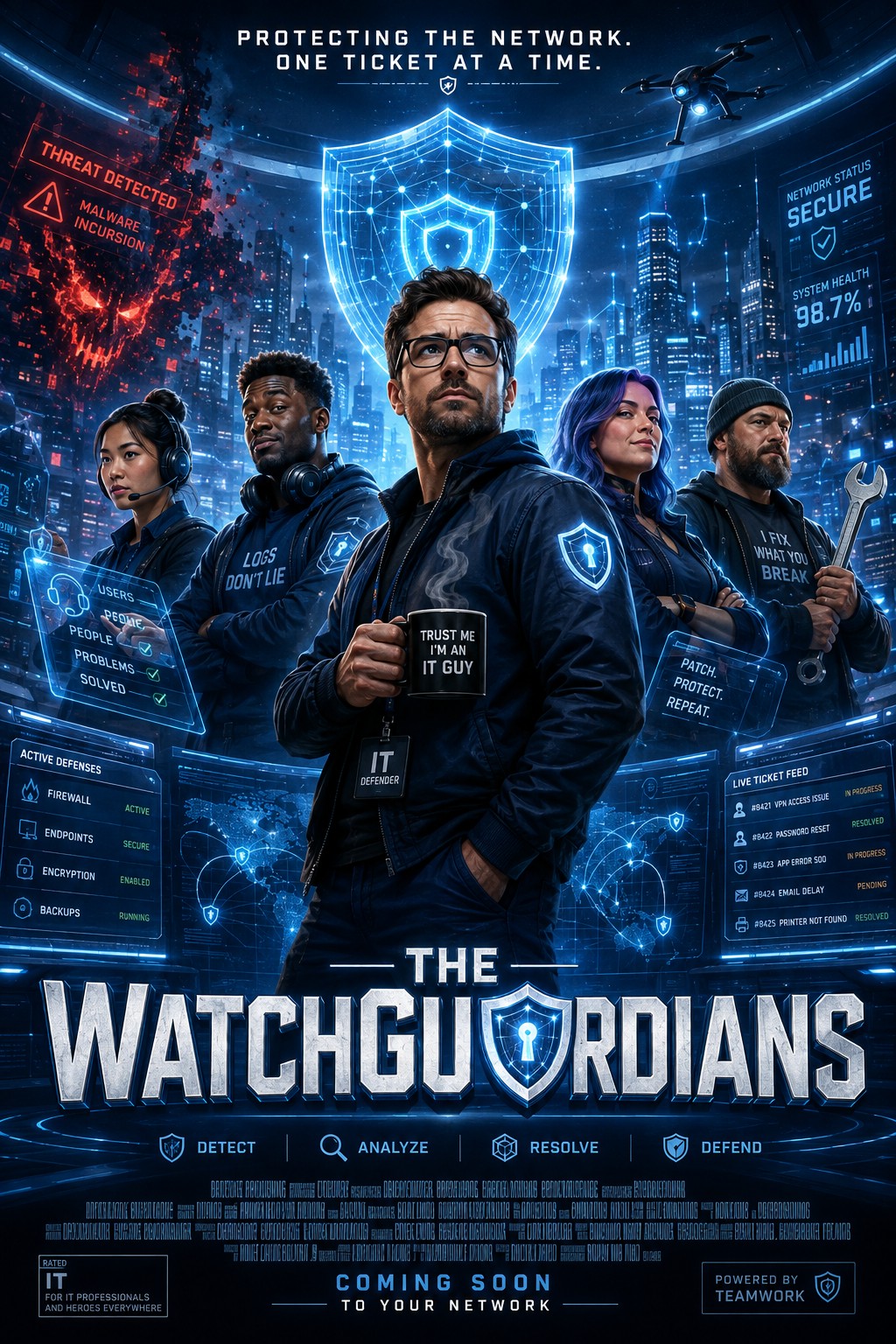
Every office has a group of people working quietly behind the scenes keeping technology alive. They troubleshoot networks, repair broken applications, recover access to shared resources, investigate mysterious Windows behavior, and occasionally explain why a computer with 37 MB of free storage is not having a particularly good day.
They are rarely surrounded by dramatic blue holograms. There is usually no heroic soundtrack. No drone circles overhead while the ticket queue refreshes.
But after looking at some of the situations IT teams deal with every day, maybe there should be.
Meet The WatchGuardians: defenders of the network, protectors of the users, sworn enemies of broken updates, questionable configurations, and anything displaying the words Connected while absolutely refusing to work.
The WatchGuardian Protocol
Underneath the jokes, most good troubleshooting follows a repeatable process. For the WatchGuardians, every mission follows four steps.
Mission #1: The Vanishing Network Drive
🔎 Detect
Incoming Ticket: “My shared drive disappeared.”
The user's laptop is running. Internet access works. File Explorer opens normally. But the mapped company drive that existed yesterday has apparently vanished into the digital void.
The first question is not, “How quickly can we remap the drive?” The better question is, “Why can this computer no longer reach it?”
🧠 Analyze
Check whether other users can access the same share. If they can, a server-wide outage becomes much less likely. Next, verify the affected laptop's connection to the company network.
Internet access is fine, but internal resources are unavailable. Then comes the useful clue: the laptop was recently used away from the office, and the VPN never reconnected.
The drive did not disappear. The computer simply left the neighborhood and forgot how to get home.
🛠️ Resolve
Reconnect the VPN, refresh the mapped drive connection if necessary, and confirm the user can access the share again.
No files were lost. No server was rebuilt. No ancient network ritual was required.
🛡️ Defend
Verify the VPN reconnect behavior, make sure the user understands when remote access is required, and document the resolution so the next technician knows where to look first.
Mission Status: ✅ Resolved
Threat Level: 🟡 Moderate inconvenience
Files Actually Missing: 0
Servers Rebuilt: Also 0
Mission #2: The Docking Station Rebellion
🔎 Detect
Incoming Ticket: “My monitors, keyboard, mouse, and Ethernet all stopped working.”
One failed peripheral is believable. Four unrelated peripherals failing simultaneously would be an impressive display of teamwork.
🧠 Analyze
Find the common point. The monitors, keyboard, mouse, and wired network connection all pass through the same docking station.
The dock has officially become a person of interest.
Check power, the USB-C or Thunderbolt connection, indicator lights, Windows detection, and whether the dock responds after being disconnected. If hardware and firmware are involved, those become part of the investigation too.
🛠️ Resolve
Disconnect the laptop, remove power from the dock, give it a moment to fully discharge, then reconnect power and the laptop. If the issue persists, continue with firmware, driver, cable, or hardware diagnostics.
Sometimes the sophisticated enterprise solution really is unplugging the expensive box and plugging it back in.
🛡️ Defend
Verify every connected device, update dock firmware where appropriate, inspect cabling, and document whether the dock has shown similar behavior before.
Mission Status: ✅ Resolved
Peripherals Allegedly Broken: 4
Actual Common Suspect: 1 docking station
Number of Cables Questioning Their Life Choices: Several
Mission #3: The Case of the Full C: Drive
🔎 Detect
Incoming Ticket: “My computer is extremely slow and programs keep crashing.”
The system boots, but applications struggle, updates may fail, temporary files cannot behave normally, and Windows appears to be operating through sheer determination.
🧠 Analyze
CPU usage looks reasonable. Memory is not exhausted. Malware checks do not reveal an obvious culprit. Then storage is inspected.
C: Drive — practically full.
Windows has approximately enough free space remaining to contemplate its own mortality.
A completely full system drive can interfere with updates, temporary files, application caches, paging behavior, installations, and normal Windows operations.
🛠️ Resolve
Identify what is consuming the storage. Remove unnecessary temporary files, obsolete installers, old downloads, unused applications, or other data that can safely be deleted or moved.
If the user's legitimate data simply exceeds the capacity of the drive, additional storage may be the proper long-term fix.
🛡️ Defend
Confirm that adequate free space remains, verify performance after cleanup, and help prevent the drive from immediately filling again. Storage cleanup that lasts twelve minutes is not a strategic victory.
Mission Status: ✅ Resolved
Threat Level: 🟠 Windows existential crisis
Free Space on Arrival: Basically a rounding error
Computer Replaced: Not today
Mission #4: The Application That's “Down”
🔎 Detect
Incoming Ticket: “The application is down.”
Those words can mean anything from a real service outage to one shortcut refusing to open. The WatchGuardians begin by checking the blast radius.
How many users are affected?
One.
The catastrophic enterprise outage has now been downgraded to: this computer is doing something weird.
🧠 Analyze
Verify the service itself. If other users can access the application, focus shifts toward the local machine or user account. Check authentication, permissions, cached credentials, application configuration, profile data, connectivity, and recent changes.
🛠️ Resolve
Repair the local issue based on what the investigation reveals — whether that means clearing a damaged cache, correcting permissions, repairing the application, refreshing credentials, or fixing the user's configuration.
🛡️ Defend
Have the user test the application themselves, confirm the problem is truly gone, and record what caused it. “It works on my computer” is not considered a complete defense strategy.
Mission Status: ✅ Resolved
Users Affected: 1
Enterprise Systems Actually Down: 0
Panic Level Upon Ticket Submission: 8/10
Mission #5: The Update That Refused to Finish
🔎 Detect
Incoming Ticket: “My computer keeps installing the same update.”
Windows downloads the update, installs it, restarts, and then announces that it would very much like to install the exact same update again.
Bold strategy.
🧠 Analyze
Review Windows Update history, pending restart states, available disk space, servicing errors, and system health. A repeatedly failing update can be the visible symptom of a deeper Windows servicing or system-file problem.
This is where tools such as DISM and System File Checker may become useful — not because every update problem requires them, but because damaged Windows components can prevent updates from completing normally.
🛠️ Resolve
Address the actual servicing issue identified during troubleshooting. That might involve repairing Windows component health, correcting update services, clearing a failed update state, freeing storage, or resolving whatever dependency is preventing completion.
🛡️ Defend
Run Windows Update again, restart when required, confirm the update remains installed, and verify there are no new system-health errors. A mission is not complete simply because the progress bar finally reached 100% without emotionally damaging the technician.
Mission Status: ✅ Resolved
Restarts: More than anyone wanted
Progress Bars Stared At: Too many
Technician Trust in Percentages: Permanently reduced
Why the WatchGuardian Protocol Works
Good IT troubleshooting is not about memorizing every possible error message or knowing a magical command for every problem. It is about having a repeatable way to narrow the possibilities.
- Detect what is actually happening instead of relying only on the wording of the ticket.
- Analyze the evidence and identify the common point, recent change, or difference between working and failing systems.
- Resolve the cause instead of throwing random fixes at the symptom.
- Defend by testing the repair, documenting it, and reducing the chance of a repeat incident.
Sometimes that process leads to a complicated Windows repair. Sometimes it leads to a failed dock, a broken VPN connection, a user-specific application problem, or a drive with almost no storage remaining.
The tools change. The process does not.
Never begin by asking, “What fix should I try?” Begin by asking, “What do I actually know?” The evidence is usually less dramatic than the ticket description — although admittedly not always.
WatchGuardian's Log
Primary Directive: Keep the systems running
Operational Method: Detect. Analyze. Resolve. Defend.
Primary Adversaries: Broken updates, failed hardware, bad configurations, DNS, and printers
Fuel Source: Coffee
Current Status: 🟢 Network Protected
The WatchGuardians.
Protecting the Network. One Ticket at a Time.
Frequently Asked Questions
Is Detect, Analyze, Resolve, Defend a real troubleshooting framework?
The name used here is part of the WatchGuardians theme, but the underlying idea is very real. Effective IT troubleshooting generally starts by confirming the problem, gathering evidence, applying a targeted fix, and verifying or documenting the result.
Why is identifying the scope of a problem so important?
Knowing whether an issue affects one user, one computer, one location, or everyone can immediately eliminate entire categories of possible causes. A problem affecting one user is approached very differently from a company-wide outage.
Should I try every common fix until something works?
It is usually better to gather evidence first. Random troubleshooting can temporarily hide symptoms, introduce new variables, or make it harder to understand what actually caused the issue.
Are the WatchGuardians available for cinematic network defense?
Dramatic holograms and action-movie lighting are not guaranteed. Practical troubleshooting, diagnostics, and technology support are much more realistic.
Need a WatchGuardian?
If your computer, network, Windows installation, or other technology has moved beyond the “have you restarted it?” stage, Texas Tech Rescue can help diagnose the actual cause and recommend the right solution.
Get Professional Help