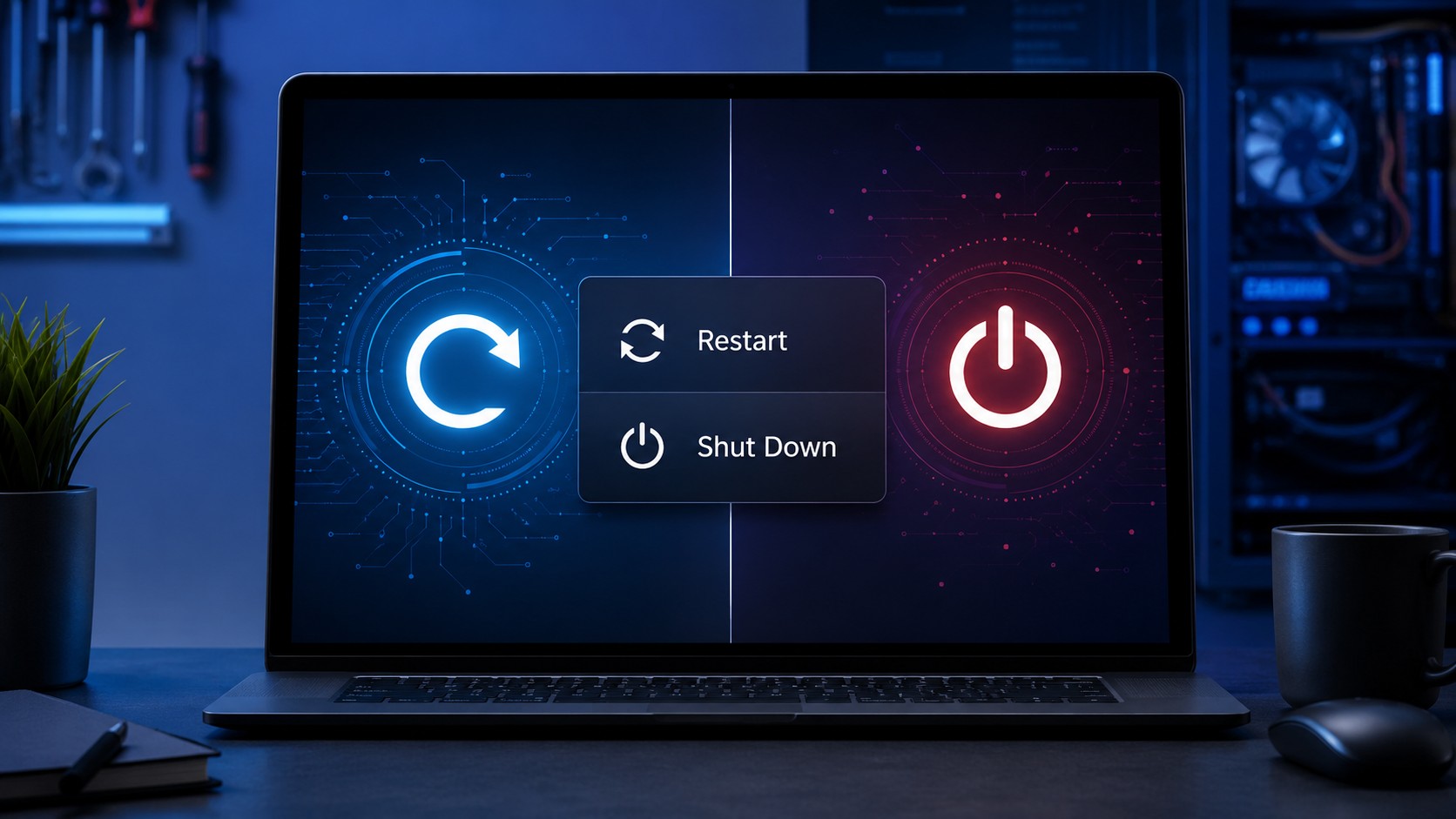
Your computer is acting weird.
Maybe the printer disappeared.
Maybe Bluetooth stopped cooperating.
Maybe an application refuses to work correctly.
Maybe Windows has simply decided that today will be difficult.
Someone tells you:
“Restart the computer.”
So you shut it down, turn it back on, and say:
“I already did.”
Except on Windows, depending on your power settings, those two actions may not actually do the same thing.
Welcome to another episode of:
Why Is Windows Like This?
Shouldn’t Shut Down and Restart Basically Do the Same Thing?
That would be a perfectly reasonable assumption.
Traditionally, shutting down a computer meant closing the operating system completely, powering the machine off, and starting everything fresh the next time it was turned on.
Modern Windows complicates that with a feature called Fast Startup.
When Fast Startup is enabled, Windows can use hibernation technology during a normal shutdown.
User sessions are closed, but the Windows kernel and loaded drivers can be saved to
hiberfil.sys so Windows can restore that initialized state during the next startup
instead of performing the entire boot process from scratch.
That can make startup faster.
It can also explain why:
Shut Down → Power On
and
Restart
sometimes behave differently.
If a Windows device, driver, printer, network adapter, or application is behaving strangely, choose Restart instead of assuming a normal Shut Down and power-on cycle is equivalent.
What Happens When You Restart?
A Windows Restart is designed to give the operating system a fresh boot cycle.
Fast Startup does not apply to Restart. When Windows restarts, the operating system performs a full boot rather than restoring the saved kernel state used by Fast Startup.
That means Restart can completely reload things such as:
- The Windows kernel
- Hardware drivers
- System-level components
- Low-level operating system state
This is one reason technicians frequently say:
“Restart it.”
rather than:
“Turn it off for a second.”
We are not just being picky about vocabulary.
There can actually be a technical difference.
What Happens During a Normal Shut Down?
When Fast Startup is being used, Windows performs what is often described as a hybrid-style shutdown.
Applications are closed and user sessions are logged off, but Windows saves the kernel session and loaded kernel-mode drivers into the hibernation file before powering down.
At the next startup, that saved system state can be loaded instead of initializing everything through a complete cold boot.
So your computer is absolutely powered off.
But parts of the Windows operating-system state have effectively been prepared for restoration.
This is why seeing the computer physically turn off does not necessarily mean Windows performed the same sequence that happens during Restart.
What Is Fast Startup?
Fast Startup exists to reduce boot time after shutting down a Windows computer.
Rather than completely rebuilding the operating-system environment every time the PC starts, Windows can save an initialized kernel state and retrieve it during the next boot.
Think of it this way.
Full Restart
Windows says:
“Everybody out. We are rebuilding this place.”
Fast Startup Shutdown
Windows says:
“Everybody out except management. We'll leave their paperwork exactly where it is for tomorrow.”
Not technically how kernels work.
But spiritually accurate.
Why Can Restart Fix Something That Shut Down Didn’t?
This is where the distinction matters during troubleshooting.
Suppose a driver or lower-level Windows component has entered a bad state.
You shut down.
The computer powers off.
You turn it back on.
If Fast Startup was used, Windows may restore kernel and driver information from the hibernation file instead of performing the same full initialization used during a restart.
Then you discover:
The problem is still there.
You select Restart.
Windows performs a full boot cycle.
Suddenly the problem disappears.
That is not necessarily coincidence.
The restart forced Windows through a different startup path.
This Is Why IT Keeps Asking Whether You Actually Restarted
If you work in IT long enough, you eventually have this conversation:
IT: “Did you restart the computer?”
User: “Yes.”
IT: “Did you click Restart?”
User: “I shut it down last night.”
Those are not always equivalent answers.
And this is also why a technician may restart the computer again even after being told that the user already turned it off.
They are not necessarily doubting you.
They may specifically want the Restart behavior.
There is an important difference.
What Kinds of Problems Can a Restart Help With?
A restart can be useful when dealing with temporary problems involving system-level software or drivers.
Examples may include:
- Device drivers behaving incorrectly
- Printers disappearing or refusing to communicate
- Network adapters acting strangely
- Bluetooth problems
- Audio devices disappearing
- USB devices behaving incorrectly
- Windows updates requiring completion
- Software installations requiring restart
- System services or components in a bad state
A restart is obviously not going to repair physically failed hardware.
If your SSD has failed, clicking Restart harder is unlikely to intimidate it back into working.
But for temporary operating-system and driver problems, a full restart is an excellent early troubleshooting step.
Windows Updates Are Another Important Difference
Windows updates and software installations may specifically require a restart to complete their changes.
When Windows tells you:
Restart required.
it does not mean:
“Turn the machine off whenever you get around to it and hope we're good.”
It means Restart.
Windows actually meant exactly what it said for once.
We should probably mark the occasion.
What About the Uptime in Task Manager?
This can create another confusing situation.
You shut your computer down every evening.
Then one day you open:
Task Manager → Performance → CPU
and discover that Windows reports an uptime considerably longer than expected.
Because Fast Startup can preserve the kernel session across a shutdown, Windows has not necessarily gone through the same full kernel restart that occurs when you choose Restart.
Choosing Restart resets that system state through a full boot.
If you want to learn more about reading system activity in Task Manager, see How to Use Task Manager to Find What Is Slowing Down Your PC.
Is Fast Startup the Same Thing as Hibernate?
Not exactly.
Traditional hibernation preserves your user session so that open work can be restored later.
Fast Startup uses the same underlying hibernation infrastructure differently.
During Fast Startup shutdown, Windows closes applications and logs off user sessions, then saves the remaining kernel state and drivers into the hibernation file.
So:
- Hibernate: preserve your working session.
- Fast Startup: preserve selected Windows system state so the next startup can be faster.
They share technology, but they serve different purposes.
Why Is Hibernation Connected to Fast Startup?
Because Fast Startup relies on Windows' hibernation infrastructure and the hiberfil.sys file.
Windows provides these commands from an elevated Command Prompt:
powercfg.exe /hibernate on
and
powercfg.exe /hibernate off
This leads to one of my favorite Windows situations.
You may encounter a computer where Fast Startup is unavailable because hibernation is disabled.
So to work with the Fast Startup setting, you may first need to:
Enable hibernation...
so that you can deal with:
the feature that partially uses hibernation during shutdown.
Windows.
Where sometimes you enable the thing so you can disable the other thing using the thing.
Beautiful.
Should You Disable Hibernation Just to Disable Fast Startup?
Usually, I would not start there.
Disabling hibernation with:
powercfg.exe /hibernate off
removes Windows' hibernation capability.
If the only goal is troubleshooting Fast Startup, use the appropriate Fast Startup setting rather than immediately removing Windows' entire hibernation capability.
There may be situations where disabling hibernation is appropriate.
But understand what the command does before running it.
Can You Perform a Full Shutdown Without Disabling Fast Startup?
Yes.
Windows supports:
shutdown /s /t 0
as a way to request an immediate full shutdown.
Windows also supports a hybrid shutdown option:
shutdown /s /hybrid /t 0
For ordinary troubleshooting, though, clicking Restart is much easier.
Nobody needs to turn shutting down the family laptop into a command-line certification exam.
Does Fast Startup Mean Shut Down Is Bad?
No.
This article is not:
NEVER SHUT DOWN YOUR COMPUTER AGAIN!!!
Fast Startup exists for a legitimate reason: reducing startup time.
For normal everyday computer use, there is nothing inherently wrong with shutting the computer down.
The important lesson is simply:
Shut Down and Restart can serve different purposes.
So When Should I Use Restart?
Use Restart when you are actively troubleshooting a Windows problem or when Windows specifically asks for one.
I would choose Restart after things such as:
- Driver installation
- Windows updates
- Strange hardware behavior
- Network problems
- Printer problems
- Bluetooth issues
- Audio problems
- Programs suddenly behaving incorrectly
- Windows features becoming unresponsive
- System changes that specifically request a reboot
Restart gives us a much cleaner troubleshooting baseline because Fast Startup does not apply to it.
When Should I Use Shut Down?
Use Shut Down when you are simply finished using the computer and want it powered off.
Examples:
- Finished for the evening
- Transporting a laptop
- Leaving the machine unused for an extended period
- Powering down before certain hardware work
- Normal daily shutdown
There is no requirement that you restart instead of shutting down every single time.
They are different tools for different situations.
What About Sleep?
Sleep is different from both.
Sleep is designed around quickly suspending your current working state so you can return to it without going through a normal startup process.
You generally use Sleep when you intend to come back relatively soon.
That gives us four concepts that users often lump together:
- Sleep — pause the session.
- Hibernate — save the working session to disk for later restoration.
- Shut Down with Fast Startup — close the user session but preserve selected Windows system state for faster startup.
- Restart — reload Windows through a full boot cycle.
Windows power options suddenly look considerably less simple.
Should You Disable Fast Startup?
For most users, probably not just because you read about it on the internet.
Fast Startup can become relevant while diagnosing certain shutdown, startup, driver, or hardware-state problems.
If you repeatedly experience an issue that survives:
Shut Down → Power On
but disappears after:
Restart
then Fast Startup may at least be worth understanding as part of the investigation.
That does not prove Fast Startup caused the original issue.
It tells you that a full Windows restart changed something.
How Do You Check Fast Startup?
On Windows systems where the traditional Fast Startup setting is exposed, it is associated with the Power Options settings for what the power buttons do.
Fast Startup also depends on hibernation being available.
Because Windows interfaces and manufacturer power configurations can vary, I would avoid changing the setting unless you have a reason to.
For ordinary troubleshooting:
Restart first.
That accomplishes the important part without permanently changing your power configuration.
The Five-Minute Troubleshooting Rule
Here is the practical takeaway.
Your computer suddenly starts doing something bizarre.
Before:
- Reinstalling drivers
- Editing the registry
- Running twelve Command Prompt commands
- Resetting Windows
- Buying RAM
- Blaming the motherboard
- Performing whatever ritual someone posted on a forum in 2013
try:
Restart.
Not Shut Down.
Restart.
Then test again.
If the problem disappears, we have learned something.
If it remains, continue troubleshooting.
Either way, we now have a cleaner starting point.
Why Technicians Love a Good Restart
Restarting accomplishes something extremely valuable in troubleshooting:
It removes temporary system state from the list of suspects.
Maybe the problem comes right back.
Fine.
That tells us we need to dig deeper.
But if it disappears after the restart, we know the issue may have involved temporary Windows, driver, or system state.
A restart costs very little time and gives us useful diagnostic information.
That makes it one of the highest-value troubleshooting steps available.
There is a reason IT keeps recommending it.
We would love to have a more exciting answer.
Unfortunately:
“Have you restarted it?”
keeps working.
Final Thoughts
Restart and Shut Down are not always interchangeable in Windows.
With Fast Startup enabled, a normal shutdown can preserve the Windows kernel session and drivers using hibernation technology so the next boot is faster.
Restart bypasses Fast Startup and performs a full Windows boot cycle.
For ordinary use:
Shut Down is fine.
For troubleshooting:
Restart is usually the better first choice.
So the next time IT asks:
“Did you restart it?”
and you say:
“I turned it off last night.”
do not be surprised when they reply:
“Okay... but did you restart it?”
They aren't trying to be difficult.
For once, Windows gave them a legitimate technical reason to ask twice.
Frequently Asked Questions
Is restarting a Windows PC the same as shutting it down and turning it back on?
Not necessarily. When Fast Startup is enabled, Shut Down can preserve the Windows kernel and drivers in the hibernation file. Restart does not use Fast Startup and performs a full boot cycle.
Why does Restart fix problems that Shut Down doesn't?
A restart forces Windows through a fresh boot cycle rather than potentially restoring the saved kernel state created by Fast Startup. That can clear temporary driver or operating-system state.
Is Fast Startup the same as Hibernate?
No. They use the same hibernation infrastructure, but traditional hibernation preserves the user's working session, while Fast Startup closes user sessions and preserves kernel and driver state to accelerate the next startup.
Does Fast Startup affect Restart?
No. Fast Startup applies to compatible shutdown behavior, not to Restart.
Can I force Windows to perform a full shutdown?
Yes. The command shutdown /s /t 0 can be used to request an immediate full shutdown.
How do I enable or disable Windows hibernation?
From an elevated Command Prompt, powercfg.exe /hibernate on enables hibernation
and powercfg.exe /hibernate off disables it.
Should I disable Fast Startup?
Not automatically. It can be relevant during specific troubleshooting situations, but simply choosing Restart is usually the easier way to get a full Windows boot when diagnosing a problem.
Can Texas Tech Rescue troubleshoot Windows startup and shutdown problems?
Yes. Texas Tech Rescue can diagnose Windows startup, shutdown, driver, update, power-management, and system problems to determine whether the issue involves Windows configuration, software, drivers, or hardware.
Windows Still Acting Weird After a Restart?
Texas Tech Rescue can help diagnose Windows startup, shutdown, driver, update, power-management, and system issues to determine what is actually causing the problem.
Get Professional Help