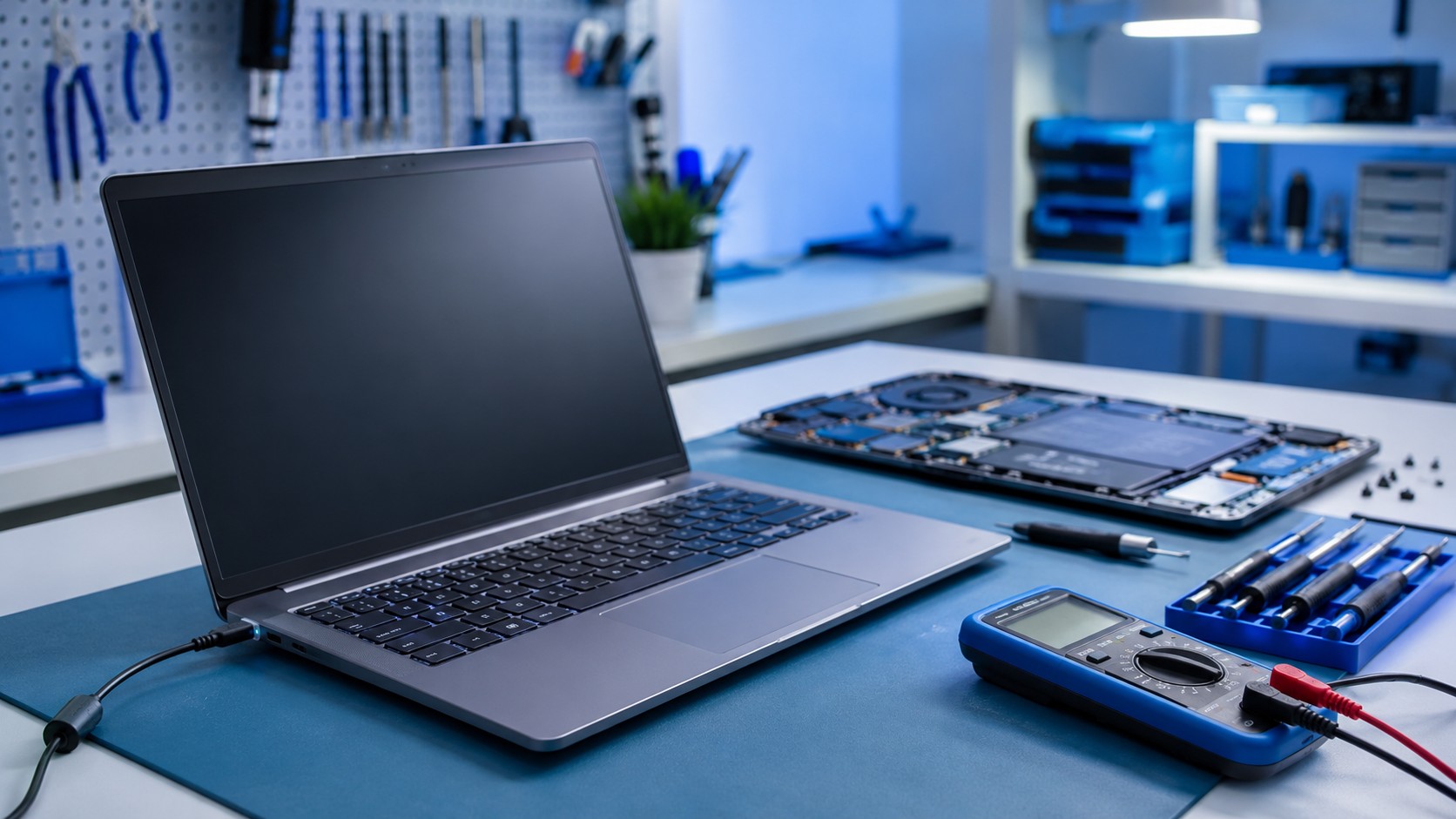
You plug your laptop in.
Nothing happens.
No charging light.
No battery icon.
No sign that the laptop has any interest whatsoever in the electricity you are trying to provide it.
Or maybe it does recognize the charger—but Windows says:
Plugged in, not charging.
Maybe it charges only if the cable is held at a certain angle.
Maybe it works perfectly while plugged in but immediately dies when the charger is removed.
Laptop charging problems can look very similar from the outside, but the actual cause can range from a bad power adapter to a failed battery, damaged charging port, or motherboard problem.
Before assuming the laptop is dead, there are several things worth checking.
Start With the Simple Stuff
Before taking anything apart, verify the obvious.
Yes, even if you are absolutely positive the outlet works.
Check:
- Is the charger firmly connected to the laptop?
- Is the charger firmly connected to the wall?
- Does the wall outlet work?
- Is a power strip turned on?
- Is the charger damaged?
- Is there debris inside the charging port?
- Does the laptop show any charging indicator?
Try plugging something else into the same outlet.
If you are using a surge protector or power strip, temporarily connect the laptop charger directly to the wall.
A troubleshooting session becomes much shorter when the problem turns out to be:
The power strip was switched off.
It happens.
Before buying a battery or opening the laptop, test the wall outlet and, if possible, try a known-good compatible charger. Those two checks can eliminate a surprising number of possibilities.
Inspect the Charger
Laptop chargers take a surprising amount of abuse.
They get:
- Bent
- Stepped on
- Rolled over by chairs
- Wrapped too tightly
- Stuffed into backpacks
- Pulled sideways
- Chewed by pets
Inspect the entire charger cable.
Pay particular attention to:
- The connector that plugs into the laptop
- The area where the cable enters the power brick
- The wall-side cable
- Any visible cuts or exposed wiring
If moving the cable causes charging to start and stop, the charger may have an internal break.
That is especially common near connector ends where the cable bends repeatedly.
Check the Charger Wattage
Not every charger that fits is necessarily the correct charger.
This has become even more important with USB-C laptops.
Two USB-C chargers may look nearly identical while providing completely different amounts of power.
A small phone charger may provide 20 watts while a laptop may require 65 watts, 90 watts, 100 watts, or more.
The laptop may:
- Charge very slowly
- Refuse to charge
- Charge only while turned off
- Lose battery while plugged in
- Display a low-power charger warning
A connector fitting into the laptop does not guarantee that the charger can provide enough power.
USB-C Makes This Slightly More Complicated
USB-C is a connector.
It does not automatically mean every USB-C charger, cable, and port supports the same capabilities.
A laptop may require USB Power Delivery and a particular wattage.
The cable itself may also matter.
For example, a high-powered laptop may require a cable rated for higher charging capacity.
So:
USB-C fits
does not necessarily mean:
USB-C is correct.
Try Another Known-Good Charger
If you have access to another charger that is confirmed compatible with the laptop, testing it can quickly narrow down the problem.
Make sure the replacement charger has:
- Correct connector
- Correct voltage
- Appropriate wattage
- Proper USB-C Power Delivery support when applicable
If the laptop charges normally with another adapter, the original charger is probably the problem.
If neither charger works, the issue may be somewhere inside the laptop.
Look at the Charging Port
Charging ports wear out too.
Barrel-style DC jacks can become:
- Loose
- Bent
- Cracked
- Separated from the motherboard
- Damaged internally
USB-C ports can also wear or become damaged.
Signs of a charging-port problem include:
- Charger feels loose
- Charging works only at an angle
- Plug falls out easily
- Charging repeatedly connects and disconnects
- Port feels unusually hot
- Visible physical damage
If moving the plug around makes charging start and stop, stop repeatedly forcing it into position.
That movement can make the damage worse.
What begins as a replaceable charging jack can eventually become damaged motherboard traces or pads.
And now everyone is having less fun.
Check the Port for Debris
USB-C ports especially can collect lint and debris.
A charger may appear fully inserted while actually being prevented from making proper contact.
Use a flashlight and inspect the port.
If debris is present, be careful.
Do not jam metal tools into a powered charging port.
If you are unsure how to clean it safely, have it inspected.
Does the Laptop Run on the Charger?
This question provides an important clue.
Suppose the laptop:
- Turns on normally while plugged in
- Runs normally on AC power
- Immediately shuts off when unplugged
That strongly suggests the charger is supplying power but the battery may not be functioning correctly.
Possible causes include:
- Failed battery
- Battery disconnected internally
- Battery no longer holding a charge
- Battery communication problem
- Battery protection circuitry issue
A worn battery is very different from a laptop that cannot receive power at all.
Check the Battery Status in Windows
If Windows recognizes the battery, click the battery icon in the taskbar.
You may see messages such as:
- Charging
- Plugged in
- Fully charged
- A message indicating that charging is limited
You can also check Settings → System → Power & battery, depending on your Windows version.
If the battery is detected but refuses to charge beyond a certain percentage, the laptop may have a battery-protection feature enabled.
Why Does My Laptop Stop Charging at 80%?
This is not always a problem.
Many laptops include battery-health features designed to reduce long-term battery wear.
Manufacturers may intentionally limit charging to something like 60%, 80%, or 85%.
This is particularly common on laptops that remain connected to AC power for long periods.
Look for battery settings inside:
- BIOS or UEFI
- Manufacturer software
- Battery management applications
Examples might be labeled something like:
- Battery Conservation
- Battery Health
- Smart Charging
- Charge Threshold
- Adaptive Charging
If the laptop consistently stops at the same percentage, check these settings before assuming the battery has failed.
Generate a Windows Battery Report
Windows includes a built-in battery reporting tool.
Open Command Prompt or Terminal and run:
powercfg /batteryreport
Windows will generate an HTML report showing information about the battery.
The report may include:
- Design capacity
- Full charge capacity
- Battery usage
- Charge history
- Estimated battery life
One useful comparison is Design Capacity versus Full Charge Capacity.
Suppose the battery originally had a design capacity of 50,000 mWh but its current full-charge capacity is only 22,000 mWh.
That battery has lost a significant amount of its original capacity.
Battery wear is normal.
Eventually every rechargeable laptop battery loses capacity.
They are consumable components.
The Battery May Be Completely Failed
Sometimes Windows reports No battery detected or the laptop refuses to charge at all.
A failed battery may:
- Refuse to accept a charge
- Disappear from Windows
- Cause sudden shutdowns
- Stay permanently at 0%
- Report incorrect percentages
- Prevent the laptop from powering on in some situations
If the laptop works normally from the charger but cannot operate from the battery, battery failure becomes a strong possibility.
What About a Swollen Battery?
This one should not be ignored.
Lithium-ion batteries can swell when they fail.
Possible signs include:
- Trackpad lifting upward
- Bottom cover bulging
- Keyboard becoming distorted
- Chassis separating
- Laptop wobbling on a flat surface
If you suspect a swollen battery:
Stop using the laptop and have the battery addressed.
Do not puncture it.
Do not compress it.
Do not try to force the laptop case closed around it.
A swollen battery can damage other components and should be handled carefully.
A swollen battery is a hardware safety issue, not a normal charging problem. Stop using the laptop and have the battery removed or replaced rather than continuing to press the chassis closed.
Try a Power Reset
Sometimes the laptop's power-management circuitry gets into an unusual state.
A basic power reset may help.
For laptops with an internal battery:
- Shut the laptop down.
- Disconnect the charger.
- Disconnect external USB devices.
- Hold the power button for approximately 15–30 seconds.
- Reconnect the charger.
- Try starting the laptop again.
On laptops with removable batteries, you can usually remove the battery as well before holding the power button.
This does not magically repair damaged hardware.
But it can clear certain temporary power states.
Check the BIOS
If the laptop turns on, entering the BIOS or UEFI can provide useful information.
Many business laptops show:
- Battery health
- AC adapter type
- Charger wattage
- Battery status
This can be extremely helpful.
For example, a laptop may report AC Adapter: Unknown even though the charger is connected.
That tells us the laptop can detect some power but may not be properly identifying the adapter.
That could point toward:
- Charger problem
- Charger identification circuit
- Damaged DC jack
- Motherboard issue
Dell Chargers and Adapter Identification
Some Dell laptops use a center identification pin inside the barrel-style charger connector.
The laptop uses this to identify the adapter.
If that identification system fails, the laptop may still receive power but display a warning that the AC adapter cannot be determined.
Possible symptoms include:
- Battery not charging
- Reduced processor performance
- Adapter warning during startup
The charger may still appear to work.
But from the laptop's perspective:
Electricity has arrived without proper identification.
Apparently there is paperwork involved.
USB-C Charging Port Problems
Many modern laptops charge through USB-C.
That introduces another possibility:
The laptop may have multiple USB-C ports, but not all of them necessarily support charging.
Look for markings near the port such as:
- Charging symbol
- Power symbol
- Thunderbolt symbol
Consult the laptop documentation if necessary.
Also try another compatible charging-capable USB-C port if the laptop has more than one.
What If the Laptop Charges Only When Turned Off?
This can happen when the charger provides some power but not enough to both operate the laptop and charge the battery.
Possible causes include:
- Underpowered charger
- Failing charger
- Incorrect USB-C adapter
- Damaged cable
- Power-management issue
Imagine the laptop requires 65 watts but the charger can only provide 30.
While the laptop is off, that power can go toward charging the battery.
While the laptop is running, most of that power may be consumed by the system itself.
There may be little or nothing left for charging.
What If the Battery Drains While Plugged In?
This often points toward insufficient incoming power.
It may occur during demanding workloads such as:
- Gaming
- Rendering
- Video editing
- Heavy CPU use
- High GPU use
If the charger cannot provide enough wattage, the laptop may supplement power using the battery.
You are technically plugged in.
But the battery percentage keeps going down anyway.
Check that the charger matches the manufacturer's required wattage.
Could Windows or a Driver Cause Charging Problems?
Sometimes.
Battery information in Windows relies on power-management hardware and drivers.
You may see entries inside Device Manager under Batteries such as:
- Microsoft AC Adapter
- Microsoft ACPI-Compliant Control Method Battery
Occasionally these can be refreshed by uninstalling the devices and allowing Windows to detect them again after a restart.
But software troubleshooting should not distract from obvious hardware symptoms.
If the charging connector physically moves around and charging cuts in and out:
That is probably not Windows being dramatic.
That is probably hardware.
Update the BIOS Carefully
Manufacturers sometimes release BIOS or firmware updates that improve:
- Battery detection
- Charging behavior
- USB-C compatibility
- Power management
However, BIOS updates should be approached carefully.
A laptop losing power during a firmware update can cause serious problems.
If the battery is failing and the charging system is unreliable, that may not be the ideal moment to casually update firmware.
Make sure power is stable first.
The Charging Jack May Be Replaceable
On some laptops, the charging jack is a separate component connected to the motherboard by a cable.
That is great.
A damaged jack may be relatively straightforward to replace.
On other laptops, the jack is soldered directly to the motherboard.
That changes the repair significantly.
USB-C charging ports are commonly soldered to the board and may require microsoldering equipment to replace.
This is another reason exact model identification matters.
For more on checking what parts your laptop can actually accept, see How to Know If Your Laptop Can Be Upgraded.
Motherboard Charging Circuit Failure
If the charger, battery, and charging port all test correctly, the problem may be on the motherboard.
The charging system includes components responsible for:
- Detecting the adapter
- Regulating voltage
- Charging the battery
- Switching between AC and battery power
- Protecting the system from electrical faults
Failures may involve:
- MOSFETs
- Charging controller ICs
- Fuses
- Current-sense components
- Damaged traces
- Short circuits
At this point, troubleshooting becomes board-level diagnostics rather than basic parts replacement.
That does not automatically mean the motherboard is beyond repair.
But it does mean:
We have officially left the “try another charger” portion of the program.
Liquid Damage Can Affect Charging
Liquid damage does not always kill a laptop immediately.
Corrosion can develop around:
- Charging circuitry
- USB-C controllers
- Battery connectors
- Motherboard components
A laptop may work normally except for charging problems.
If the charging issue began after a spill—even if the spill happened days or weeks earlier—that information matters.
Physical Damage Matters Too
A laptop that was recently:
- Dropped
- Hit
- Bent
- Pulled off a table by the charger
may have physical damage around the charging port or motherboard.
If the problem started immediately after something happened to the laptop, mention it during diagnosis.
That clue can save a lot of troubleshooting time.
Don't Keep Forcing a Charger to Work at an Angle
You've probably seen this before.
The charger only works if the cable is positioned:
exactly... right... there.
So somebody wedges the cord under a book and continues using the laptop for six months.
Please do not do this.
Intermittent charging can create:
- Heat
- Arcing
- Additional connector damage
- Motherboard damage
If charging depends on cable position, something is already wrong.
Fixing it early may prevent a more expensive repair later.
When Should You Replace the Charger?
Replacing the charger makes sense when:
- Cable is visibly damaged
- Adapter works intermittently
- Charger becomes excessively hot
- Laptop works with another compatible charger
- Charger wattage is incorrect
- USB-C charger does not meet laptop requirements
Use a quality replacement with the proper specifications.
Ultra-cheap power adapters are one place where saving twelve dollars can become surprisingly exciting.
Electricity has a sense of humor.
When Should You Replace the Battery?
Battery replacement may make sense when:
- Runtime has become extremely short
- Battery shuts down unexpectedly
- Battery no longer charges
- Full-charge capacity has dropped significantly
- Battery is swollen
- Laptop works only while plugged in
Before ordering a battery, verify the exact laptop model and battery part number.
Different configurations of the same laptop family may use different batteries.
When Is It Probably the Motherboard?
Motherboard problems become more likely when:
- Multiple known-good chargers fail
- Charger is not detected
- Battery is confirmed good
- Charging port appears intact
- Laptop has liquid damage
- Laptop has electrical damage
- No power reaches the system
- Charging circuitry tests abnormal
Proper diagnosis matters here.
Replacing the motherboard because:
“Laptop no charge.”
is not diagnosis.
That is parts roulette.
A Simple Laptop Charging Troubleshooting Checklist
Before assuming the laptop needs major repair:
- Test the wall outlet.
- Inspect the charger and cable.
- Confirm charger wattage and compatibility.
- Try a known-good compatible charger.
- Inspect the charging port.
- Check whether the laptop runs from AC power.
- Check whether it runs from battery power.
- Review battery status in Windows.
- Check manufacturer charging limits.
- Generate a battery report.
- Perform a power reset.
- Check BIOS battery and adapter information.
- Look for physical or liquid damage.
- Have the charging system diagnosed if the problem remains.
The pattern of symptoms usually tells you where to investigate next.
Final Thoughts
When a laptop refuses to charge, the battery is not automatically the problem.
The issue could be:
- Outlet
- Charger
- Cable
- Charging port
- USB-C compatibility
- Battery
- Firmware
- Power-management circuitry
- Motherboard
The key is determining what the laptop is actually doing.
Does it recognize the charger?
Does it run on AC power?
Does it run on battery?
Does charging change when the connector moves?
Does BIOS detect the adapter?
Those answers can narrow the problem considerably.
Sometimes the solution really is:
Replace the charger.
Sometimes it is:
Replace the battery.
And sometimes the laptop opens up and announces:
Welcome to motherboard diagnostics.
At least by then we know where we're looking.
Frequently Asked Questions
Why is my laptop plugged in but not charging?
Possible causes include a battery-health charging limit, incorrect or underpowered charger, failing battery, damaged charging port, or charging-system problem.
Can a bad charger damage a laptop?
A faulty or improperly designed charger can potentially cause electrical problems. Use a charger with the correct voltage, wattage, connector, and charging standard.
Why does my laptop only charge when the cable is moved?
That commonly suggests a damaged charger cable, worn charging connector, or loose charging jack. Continuing to use it this way can make the damage worse.
Why does my laptop stop charging at 80%?
Many laptops intentionally limit charging to around 80% to reduce battery wear. Check the manufacturer's battery-health or charging settings.
Why does my laptop work plugged in but die when unplugged?
The battery may be discharged, disconnected, worn out, or failed. A battery report and hardware diagnosis can help determine its condition.
Can a laptop charge with the wrong wattage charger?
Sometimes, but it may charge slowly, fail to charge while running, display warnings, or lose battery under load. The charger should meet the laptop manufacturer's power requirements.
Can a charging port be replaced?
Often, yes. Some models use a replaceable cable-mounted charging jack, while others have the charging port soldered directly to the motherboard.
Can Texas Tech Rescue diagnose a laptop that won't charge?
Yes. Texas Tech Rescue can test the charger, battery, charging port, and laptop power system to determine whether the problem is a simple accessory failure or something requiring internal repair.
Laptop Still Won't Charge?
Texas Tech Rescue can test the charger, battery, charging port, and laptop power system to determine what actually failed before you spend money replacing parts.
Get Professional Help