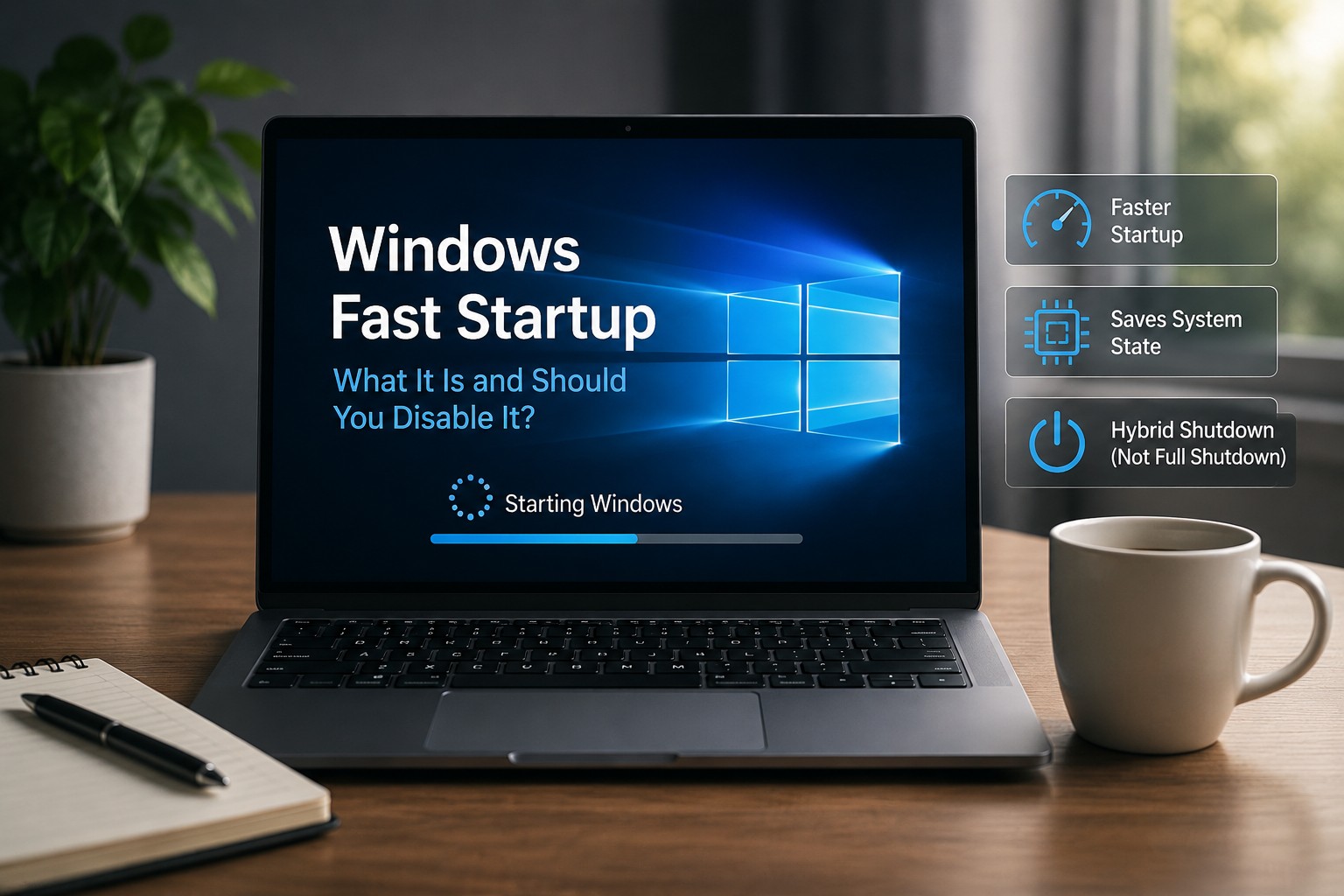
You shut down your computer.
The screen turns off.
The fans stop.
The lights go out.
Clearly Windows has shut down completely.
Right?
Well... not necessarily.
Modern versions of Windows include a feature called Fast Startup that changes what happens when you choose Shut down.
Instead of completely closing the Windows kernel and starting everything from scratch the next time the computer turns on, Fast Startup saves part of the Windows system state to the hibernation file and restores it during the next boot.
The goal is simple:
Make Windows start faster.
Most of the time, that's perfectly fine.
But Fast Startup also explains some strange Windows behavior—and occasionally disabling it can help troubleshoot shutdown, driver, device, or startup problems.
So what exactly is Fast Startup?
And should you leave it enabled?
What Is Windows Fast Startup?
Fast Startup was introduced with Windows 8 and remains part of modern Windows power management.
When Fast Startup is enabled and you choose Shut down, Windows closes your applications and signs out user sessions.
But instead of completely shutting down the Windows kernel, Windows saves the kernel session and loaded driver state into the hibernation file:
hiberfil.sys
The next time the computer starts, Windows can reload that saved system state instead of initializing everything from scratch.
That can reduce startup time compared with a traditional cold boot.
Think of it like Windows saying:
“Instead of rebuilding the entire office tomorrow morning, I'm just going to lock the doors and leave some of the important stuff exactly where it is.”
Then the next morning it opens the doors and continues from that saved system state.
If you're troubleshooting a Windows problem, choose Restart instead of assuming that shutting the computer down and turning it back on performs the same kind of fresh startup.
Is Fast Startup the Same as Hibernate?
Not exactly.
Hibernate is designed to preserve your entire working session.
If you hibernate a computer with applications open, Windows saves the system's memory state so that you can return to your previous session later.
Fast Startup works differently.
Your applications are closed.
Your user session is logged off.
Windows primarily saves the kernel session and loaded system components needed to accelerate the next startup.
So Fast Startup uses hibernation technology, but it is not the same thing as manually putting the computer into Hibernate.
Why Does Windows Use a Hibernation File?
The hibernation file is called:
hiberfil.sys
It is stored on the Windows system drive and is managed by Windows.
Fast Startup relies on this file to save the system state needed for the next accelerated boot.
This is why Fast Startup and hibernation are closely connected.
If you completely disable Windows hibernation, Fast Startup becomes unavailable as well.
Shutdown and Restart Are Not the Same Thing
This is where Fast Startup becomes especially interesting.
You might reasonably assume:
Shut down → turn computer back on
and:
Restart
accomplish essentially the same thing.
They don't.
When Fast Startup is active, Shut down can preserve the Windows kernel session in the hibernation file.
Restart does not use Fast Startup.
A restart performs a full restart cycle because Windows needs to initialize the operating system again rather than restore the hybrid shutdown state.
This is why IT technicians say:
“Restart the computer.”
and not:
“Turn it off and turn it back on whenever you feel emotionally prepared.”
Those commands can actually produce different Windows startup behavior.
For a broader explanation of this distinction, see Restart vs. Shut Down: Why They Aren't Always the Same.
Why Restarting Can Fix Problems That Shutdown Doesn't
Suppose Windows or a device driver gets into a strange state.
You choose Shut down and then turn the computer back on.
If Fast Startup is enabled, Windows may restore portions of the previous kernel and driver state rather than initializing everything through a completely fresh boot.
Restarting forces Windows through the full restart process instead.
That can make Restart more useful when troubleshooting problems involving things such as:
- Drivers
- Hardware detection
- Windows services
- Updates
- Startup behavior
- Certain device problems
It doesn't mean Restart magically repairs everything.
But when someone calls IT and says:
“I already shut it down.”
and the technician responds:
“Okay. Restart it anyway.”
there is actually a technical reason behind the request.
Why Is My Task Manager Uptime Still So High?
This is another symptom that confuses people.
Open Task Manager:
Ctrl + Shift + Esc
Then choose:
Performance → CPU
You will see:
Up time
Sometimes someone shuts their computer down every night, yet Task Manager reports:
7 days
14 days
or even longer.
They immediately assume Windows has lost its mind.
Fast Startup can explain that behavior.
Because a Fast Startup shutdown does not perform the same full kernel shutdown as Restart, the system's uptime can behave differently from what a user expects after powering the computer off and back on.
Restart the computer and check Task Manager again.
That is the better test when you want a fresh Windows session.
Is Fast Startup Enabled by Default?
On systems that support it, Windows normally enables Fast Startup by default.
That means many people are using Fast Startup without ever knowing it exists.
There is no big notification saying:
Congratulations! Your shutdown is now slightly more complicated than the word “shutdown” would suggest.
It just happens in the background.
Is Fast Startup Bad?
No.
Fast Startup exists for a legitimate reason.
It can reduce the amount of work Windows has to perform during startup and therefore improve boot time.
If your computer:
- Starts normally
- Shuts down normally
- Has no recurring driver problems
- Has no strange hardware behavior
then there may be no reason to disable it.
This is not one of those:
“TURN THIS WINDOWS FEATURE OFF IMMEDIATELY!!!”
articles.
If it works properly, you can leave it alone.
When Can Fast Startup Cause Problems?
Fast Startup can sometimes complicate troubleshooting because Windows is restoring a previously initialized kernel and driver state rather than creating everything again through a traditional cold startup.
If you are troubleshooting unusual behavior that disappears after Restart but returns after Shut down and power-on, Fast Startup becomes worth investigating.
Examples might include recurring issues involving:
- Device initialization
- Certain drivers
- Shutdown behavior
- Startup behavior
- Hardware detection
That does not prove Fast Startup caused the problem.
It simply gives you another troubleshooting variable to test.
Fast Startup and Windows Updates
Windows updates are another reason Restart matters.
Some updates require a full restart cycle to complete.
Because Fast Startup uses a hybrid shutdown rather than a traditional full shutdown, simply choosing Shut down may not always accomplish the same thing.
So when Windows says:
Restart required
Windows means:
Restart.
Not:
Shut down, make coffee, turn it back on, and argue that technically you restarted it yourself.
Windows is annoyingly specific about this one.
How to Check Whether Fast Startup Is Enabled
Fast Startup is normally controlled through Windows Power Options.
Open:
Control Panel
Then navigate to:
Hardware and Sound → Power Options
Look for:
Choose what the power buttons do
You may need to select:
Change settings that are currently unavailable
Under the shutdown options, look for:
Turn on fast startup
If the option is checked, Fast Startup is enabled.
If the option is unavailable entirely, hibernation may be disabled or the system may not currently support that configuration.
How to Disable Fast Startup
If you are troubleshooting a system and want to test whether Fast Startup is contributing to the problem:
- Open Control Panel.
- Open Hardware and Sound.
- Select Power Options.
- Select Choose what the power buttons do.
- Select Change settings that are currently unavailable if necessary.
- Uncheck Turn on fast startup.
- Save the changes.
Then shut down the computer normally and test the behavior again.
If the problem disappears after disabling Fast Startup, you have learned something useful.
If absolutely nothing changes:
Congratulations. We have eliminated one suspect.
That is still troubleshooting progress.
Can You Disable Fast Startup From Command Prompt?
You can indirectly disable Fast Startup by disabling Windows hibernation.
Open Command Prompt or Terminal as Administrator and run:
powercfg.exe /hibernate off
Because Fast Startup depends on the hibernation infrastructure, disabling hibernation also removes Fast Startup capability.
To enable hibernation again:
powercfg.exe /hibernate on
However, understand what you are doing.
Disabling hibernation does more than change Fast Startup.
It disables Windows hibernation functionality and can also affect other power features that depend on the hibernation file.
So I would not disable hibernation globally unless that is actually what you intend to do.
Can You Perform a Full Shutdown Without Permanently Disabling Fast Startup?
Yes.
Windows includes the shutdown command.
For a full shutdown:
shutdown /s /t 0
The /s option tells Windows to shut down.
The /t 0 portion tells Windows to do it immediately.
Windows can also explicitly request hybrid shutdown using:
shutdown /s /hybrid /t 0
That requests the Fast Startup-style hybrid shutdown behavior.
It's a handy distinction when troubleshooting.
Should You Disable Fast Startup on an SSD?
Not automatically.
Modern SSDs already allow Windows to boot very quickly.
That may make the practical difference between Fast Startup and a traditional boot less noticeable on some systems.
But the decision should be based more on:
Does Fast Startup cause a problem on this computer?
than:
Does this computer contain an SSD?
If everything works properly, leaving Fast Startup enabled is reasonable.
If you are troubleshooting recurring shutdown, startup, or device issues, temporarily disabling it can be a useful test.
What About Older Computers?
Fast Startup can be particularly useful when booting from slower storage.
An older computer with a mechanical hard drive has significantly more work to do when loading Windows than a modern system with a fast SSD.
That is exactly the kind of environment where avoiding a complete cold initialization can make startup feel noticeably quicker.
Of course, if the computer still uses a mechanical hard drive, there may be another solution.
Put an SSD in it.
Fast Startup is good.
Not listening to a hard drive seek noises while Windows loads is better.
Fast Startup vs. Sleep
These are also different.
Sleep keeps the computer in a low-power state so it can return to your existing session quickly.
Your applications remain open.
Fast Startup happens after you choose Shut down.
Your applications and user session are closed, but Windows preserves the system-level state needed to accelerate the next startup.
Fast Startup vs. Hibernate
Hibernate preserves your working session.
That means your open applications and work can return when the computer resumes.
Fast Startup closes the user session first and primarily preserves the Windows kernel session needed for startup acceleration.
They use related technology.
They serve different purposes.
Fast Startup vs. Restart
This is the distinction most people should remember.
Shut Down With Fast Startup
Windows:
- Closes applications
- Logs off users
- Saves kernel and driver state
- Powers off
- Restores that saved system state during the next startup
Restart
Windows:
- Closes applications
- Shuts Windows down
- Does not use Fast Startup
- Initializes Windows again through the restart cycle
That's why:
Restart is often the better troubleshooting choice.
Should You Disable Fast Startup?
For most users:
Probably not unless you have a reason.
Leave it enabled if:
- The computer works normally
- Startup and shutdown behave properly
- Devices initialize correctly
- You benefit from the faster startup
Consider temporarily disabling it if:
- Shutdown behaves strangely
- Startup behaves differently after Restart versus Shut down
- You are troubleshooting recurring driver or device problems
- You are trying to determine whether hybrid shutdown is involved in a Windows problem
Treat disabling Fast Startup as a troubleshooting step.
Not a universal Windows optimization.
Don't Disable Things Just Because the Internet Told You To
This applies to Fast Startup and approximately half of Windows.
You will find endless guides saying:
Disable these 17 Windows features immediately!
Usually followed by:
NUMBER 11 WILL SHOCK YOU.
Windows includes many features for specific reasons.
Turning things off without understanding what they do can cause new problems while attempting to fix problems that never existed.
Before changing Fast Startup, ask:
What problem am I trying to solve?
If the answer is:
Nothing. I saw a YouTube Short.
Maybe leave it alone.
A Simple Fast Startup Troubleshooting Checklist
If you suspect Fast Startup is involved in a Windows problem:
- Restart the computer first.
- Test whether the issue disappears after Restart.
- Shut the computer down normally.
- Turn it back on and see whether the problem returns.
- Check whether Fast Startup is enabled.
- Temporarily disable Fast Startup.
- Shut down and test again.
- Re-enable it if disabling the feature makes no difference.
- Continue troubleshooting drivers, hardware, or Windows if the problem remains.
The important part is changing one variable at a time.
Otherwise you end up changing twelve settings, fixing the problem, and having absolutely no idea which change did it.
Also known as:
Advanced troubleshooting by chaos.
Final Thoughts
Windows Fast Startup is not a bad feature.
It is simply a feature that many users do not realize exists.
When you choose Shut down, Windows may not perform the same full system initialization cycle that occurs during Restart.
Instead, Fast Startup can save the kernel and driver state to the hibernation file and reuse it during the next startup.
That makes startup faster.
But it also explains why:
Restart and Shut down are not always equivalent troubleshooting steps.
So if your computer is behaving strangely and someone from IT tells you:
“Restart it.”
Please do not respond with:
“I shut it down last Tuesday.”
We asked a very specific question.
And Windows, for once, actually gave us a good reason.
Frequently Asked Questions
What does Windows Fast Startup do?
Fast Startup closes the user's applications and session during shutdown but saves the Windows kernel and driver state to the hibernation file so Windows can reuse that system state during the next startup.
Is Fast Startup the same as Hibernate?
No. Hibernate preserves the broader working session so it can be resumed later. Fast Startup logs the user off first and primarily preserves the system-level state used to accelerate the next boot.
Does Restart use Fast Startup?
No. Restart performs a full restart cycle instead of using the Fast Startup hybrid shutdown state.
Should I disable Fast Startup?
Usually only if you have a reason to. Fast Startup is designed to improve startup time. Temporarily disabling it can be useful when troubleshooting certain startup, shutdown, driver, or device problems.
Why does restarting fix something that shutting down didn't?
With Fast Startup enabled, Shut down can preserve the Windows kernel and driver state. Restart initializes Windows again through a full restart cycle, which can clear a problematic system state.
Does Fast Startup use hiberfil.sys?
Yes. Fast Startup uses Windows' hibernation infrastructure and stores the saved kernel state in the hibernation file.
What command disables Windows hibernation?
From an elevated Command Prompt or Terminal, use powercfg.exe /hibernate off. To restore it, use powercfg.exe /hibernate on. Disabling hibernation also disables Fast Startup.
Can Texas Tech Rescue help with Windows startup and shutdown problems?
Yes. Texas Tech Rescue can diagnose Windows startup, shutdown, driver, power-management, update, and system issues to determine whether the problem is software, hardware, or a combination of both.
Windows Still Acting Strange?
If Restart, Fast Startup, drivers, or Windows power settings are causing confusing behavior, Texas Tech Rescue can help diagnose the problem and determine whether the issue is software, hardware, or a combination of both.
Get Professional Help